
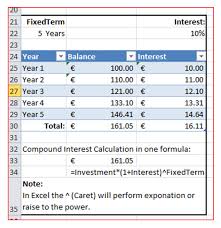
How to Raise a Number to a Power in Excel: A Step-by-step Guide
Are you tired of manually calculating powers in Excel? Do you want to take your spreadsheet skills to the next level? Look no further! In this article, we will show you how to raise a number to a power in Excel using various methods.
The Problem With Manual Calculations
Let’s face it: Manual calculations can be tedious and time-consuming. If you need to calculate powers frequently, doing it manually can become frustrating. That’s where Excel comes in – a powerful tool that can help you perform calculations quickly and efficiently.
Method 1: Using The Power Function
The first method we’ll cover is using the POWER function in Excel. This function allows you to raise a number to a power easily. Here’s how:
- Step 1: Open your spreadsheet and select the cell where you want to display the result.
- Step 2: Type “=POWER(” and then select the cell containing the base number (the number you want to raise to a power).
- Step 3: Next, type “; ” and then enter the exponent (the power to which you want to raise the base number).
- Step 4: Close the parentheses and press Enter. The result will be displayed in the selected cell.
Example:
Suppose you want to calculate 2 raised to the power of 3. You would type “=POWER(2;3)” in the formula bar, and Excel would display the result as 8.
Method 2: Using Exponentiation
The second method is using exponentiation (i.E., The caret symbol). This method allows you to raise a number to a power without using the POWER function. Here’s how:
- Step 1: Select the cell where you want to display the result.
- Step 2: Type “= ” and then select the cell containing the base number (the number you want to raise to a power).
- Step 3: Next, type “\^” and then enter the exponent (the power to which you want to raise the base number).
- Step 4: Close the parentheses and press Enter. The result will be displayed in the selected cell.
Example:
Suppose you want to calculate 2 raised to the power of 3. You would type “=2^3” in the formula bar, and Excel would display the result as 8.
Method 3: Using The Power Function With Cell References
The third method is using the POWER function with cell references. This method allows you to raise a number to a power based on values in other cells. Here’s how:
- Step 1: Select the cell where you want to display the result.
- Step 2: Type “=POWER(” and then select the cell containing the base number (the number you want to raise to a power).
- Step 3: Next, type “; ” and then enter the exponent (the power to which you want to raise the base number). You can use either a numeric value or a cell reference.
- Step 4: Close the parentheses and press Enter. The result will be displayed in the selected cell.
Example:
Suppose you have two cells, A1 containing the base number (2) and B1 containing the exponent (3). You would type “=POWER(A1;B1)” in the formula bar, and Excel would display the result as 8.
Using Excel Online
If you don’t have Excel installed on your computer, you can still use Excel online. This version of Excel allows you to perform calculations using a web browser, without needing to download any software.
To use Excel online:
- Step 1: Open a web browser and navigate to the Excel online website.
- Step 2: Sign in with your Microsoft account or create a new one if you don’t have an existing account.
- Step 3: Click on the “Create” button and select “Blank Workbook.”
- Step 4: Follow the steps above to raise a number to a power using Excel’s formulas.
Using Excel on Mobile Devices
If you’re always on-the-go, you can still use Excel to perform calculations on your mobile device. To do this:
- Step 1: Download and install the Excel app from the App Store (for iOS devices) or Google Play Store (for Android devices).
- Step 2: Open the app and sign in with your Microsoft account.
- Step 3: Click on the “+” icon to create a new workbook, and select “Blank Workbook.”
- Step 4: Follow the steps above to raise a number to a power using Excel’s formulas.
In conclusion, raising a number to a power in Excel is easy. With these simple methods, you can perform calculations quickly and efficiently. Whether you’re using Excel on your computer or mobile device, these techniques will help you become more proficient in using this powerful tool.
Frequently Asked Questions (FAQs)
- Q: What Are The Benefits of Using Excel to Raise a Number to a Power?
A: Using Excel to raise a number to a power allows for quick and efficient calculations, eliminating manual errors and saving time. - Q: How do I Access Excel Online if I Don’t Have it Installed on my Computer?
A: You can sign in with your Microsoft account and use Excel online through the web browser. - Q: Can I Use Excel to Raise a Number to a Power on Mobile Devices?
A: Yes, you can download and install the Excel app from the App Store or Google Play Store and follow the steps above to perform calculations. - Q: What Are Some Common Mistakes to Avoid When Using Excel to Raise a Number to a Power?
A: Some common mistakes include incorrectly inputting numbers or exponents, forgetting to close parentheses, or not selecting the correct cell reference.
Additional Tips And Resources
To further improve your skills in using Excel for calculations:
- Tip 1: Make sure to format your cells correctly before performing calculations.
- Tip 2: Use the formula bar instead of typing formulas directly into cells.
- Tip 3: Take advantage of Excel’s built-in functions and features, such as AutoFill and Flash Fill.
You can also visit Microsoft’s official website or consult online resources for more information on using Excel.


