
How to Reconnect to a Wireless Network
Are you struggling to connect your device to your home wireless network? Do you find yourself unable to access the internet on your smartphone or tablet? Don’t worry, it’s likely a simple problem that can be solved with just a few steps.
In this article, we’ll guide you through the process of reconnecting to your wireless network using various devices and operating systems. We’ll also provide tips and troubleshooting advice for common problems.
Windows: Reconnecting to a Wireless Network
If you’re using Windows 11, you can easily reconnect to your wireless network by following these steps:
- Click on the Start button and select “Settings”.
- Click on “Network & Internet” and then click on “Wi-Fi”.
- Select the Wi-Fi network you want to connect to from the list of available networks.
- If prompted, enter the password for your wireless network.
- Check the box next to “Connect automatically when in range”.
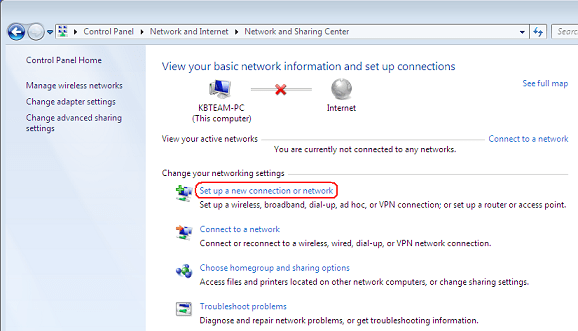
If you’re using an older version of Windows, such as Windows 10 or Windows 7, the process is similar:
- Click on the Start button and select “Control Panel”.
- Click on “Network and Internet” and then click on “Wireless Network Connection”.
- Select the Wi-Fi network you want to connect to from the list of available networks.
- If prompted, enter the password for your wireless network.
- Check the box next to “Connect automatically when in range”.
Macos: Reconnecting to a Wireless Network
If you’re using a Mac, you can easily reconnect to your wireless network by following these steps:
- Click on the Apple menu and select “System Preferences”.
- Click on “Network” and then click on “Wi-Fi”.
- Select the Wi-Fi network you want to connect to from the list of available networks.
- If prompted, enter the password for your wireless network.
- Check the box next to “Join this network automatically”.
Android, Iphone, And Ipad: Reconnecting to a Wireless Network
If you’re using an Android device, iPhone, or iPad, the process is similar:
- Go to Settings and select “Wi-Fi”.
- Select the Wi-Fi network you want to connect to from the list of available networks.
- If prompted, enter the password for your wireless network.
- Check the box next to “Connect automatically when in range”.
Troubleshooting: Why Can’t I Connect to My Wireless Network?
If you’re having trouble connecting to your wireless network, there are several possible reasons:
- Router Problems: Make sure your router is turned on and functioning properly.
- Device Issues: Check that your device’s Wi-Fi is enabled and not disabled by accident.
- Password Problems: Double-check that you’re entering the correct password for your wireless network.
- Network Congestion: Try restarting your router to see if it resolves the issue.
Reactivating a Disabled Wireless Network
If you’ve disabled your wireless network and want to reactivate it, follow these steps:
- Check if there’s a physical toggle switch on your router that controls the Wi-Fi signal.
- If not, try restarting your router to see if it resolves the issue.
- Log in to your router using a computer connected via Ethernet or another working network.
- Go to the wireless settings and enable the Wi-Fi feature.
- Save changes and restart the router.
Reactivating a Disabled Network Card
If your network card is disabled, you can try the following:
- Check if there’s a physical toggle switch on your device that controls the Wi-Fi signal.
- If not, try restarting your device to see if it resolves the issue.
- Go to Device Manager (Windows) or System Information (macOS) and check if the network card is listed as enabled.
Still Having Trouble?
If you’re still having trouble connecting to your wireless network, there are several possible solutions:
- Contact Your Internet Service Provider: Reach out to your ISP for assistance.
- Consult a Professional: If you’re not comfortable troubleshooting or configuring your network, consider hiring a professional to help.
- Check Online Forums And Tutorials: Look up online resources specific to your device or operating system for guidance.
Conclusion
Reconnecting to a wireless network is often a simple process that can be resolved with just a few steps. By following the instructions outlined in this article, you should be able to successfully reconnect to your wireless network using various devices and operating systems. Remember to troubleshoot common issues, check for physical toggle switches, and consult online resources if needed.
Faqs
- Q: Why Can’t I Connect to my Wireless Network?
A: Possible reasons include router problems, device issues, password problems, or network congestion. - Q: How do I Reactivate a Disabled Wireless Network?
A: Check for physical toggle switches on your router or restart it to see if it resolves the issue. - Q: Why is my Wi-fi Not Working?
A: Possible reasons include incorrect settings, device issues, or router problems. - Q: How do I Reactivate a Disabled Network Card?
A: Check for physical toggle switches on your device or restart it to see if it resolves the issue. - Q: Can’t I Just Call my Internet Service Provider For Help?
A: Yes, definitely! Your ISP is there to assist you with connectivity issues. - Q: Are There Any Online Resources That Can Help me Troubleshoot my Network Issues?
A: Yes, there are many online forums and tutorials specific to your device or operating system that can provide guidance. - Q: Can I Try Restarting my Router Multiple Times Before Calling For Help?
A: Yes, definitely! Restarting your router is often the simplest solution to connectivity issues. - Q: What if I’m Still Having Trouble Connecting to my Wireless Network After Trying All These Steps?
A: Don’t worry! You can always consult a professional or seek further assistance from online resources.


