
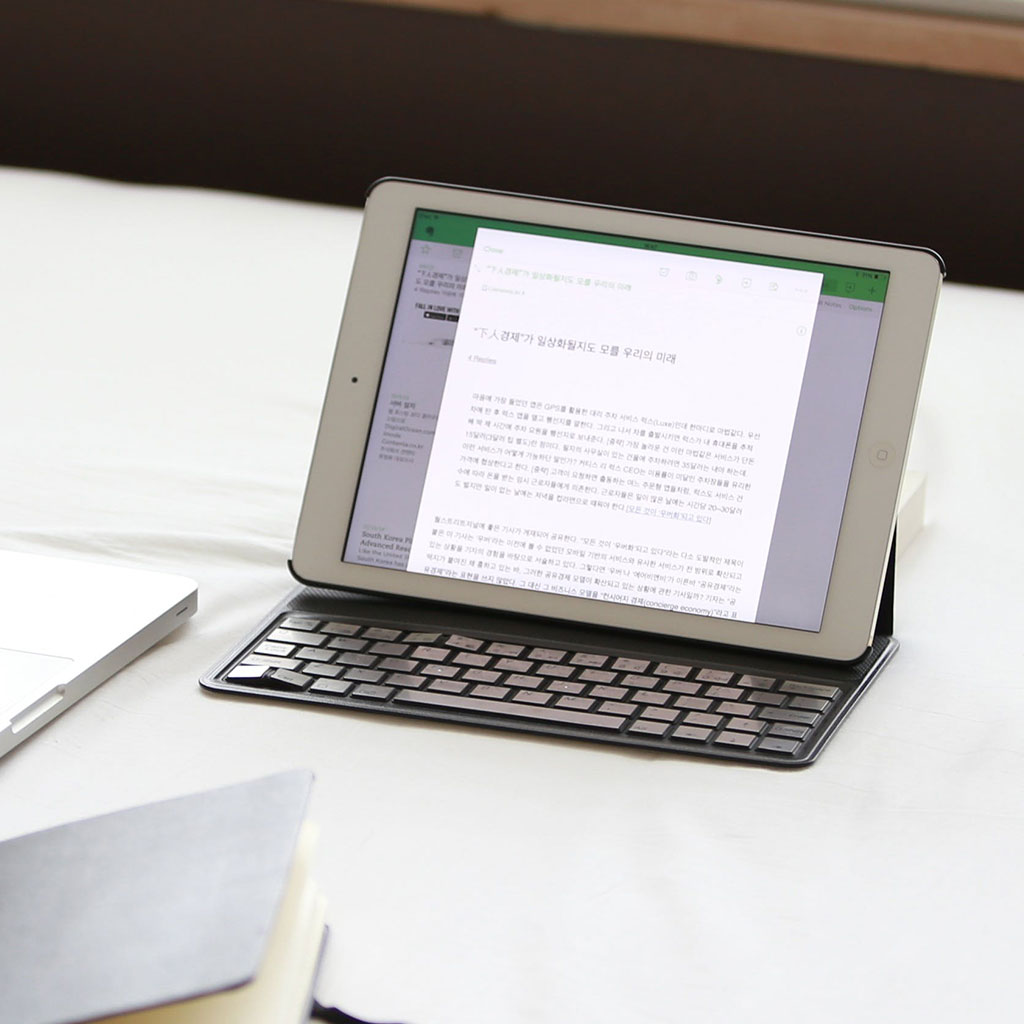
How to Read Ebooks on Ipad: A Step-by-step Guide
Are you an avid reader looking to explore the world of digital books? Look no further! Reading eBooks on your iPad is a fantastic way to enjoy your favorite stories, discover new authors, and access a vast library of titles at your fingertips. In this article, we’ll walk you through the process of reading eBooks on your iPad, covering popular formats like PDF, Kindle, Kobo, Feltrinelli, and IBS.
Getting Started With Ibooks
The first step to reading eBooks on your iPad is to download the iBooks app from the App Store. This app comes pre-installed on most iPads, but if you’ve deleted it or need a fresh copy, simply tap the App Store icon and search for “iBooks.” Once installed, tap the iBooks icon to open the app.
Step 1: Accessing Your Ebook Library
To access your eBook library, tap the “Bookshop” button at the bottom of the screen. You’ll see all the eBooks you’ve downloaded or purchased from within the iBooks app. If you’re new to eBooks, don’t worry – we’ll cover how to download and purchase titles later.
Step 2: Downloading Ebooks
To download a new eBook, tap the “Book Store” button at the bottom of the screen. Browse through the various sections and categories or search for a specific title using the search bar at the top-right corner of the screen. Once you’ve found an eBook you’d like to read, tap its cover to access more information about the book.
Step 3: Purchasing Ebooks
If you want to purchase an eBook, tap the “Buy” button (if it’s not already purchased). You’ll be asked to log in with your Apple ID and password. If you don’t have a credit card on file, you can add one by tapping the “+” icon at the bottom-right corner of the screen.
Step 4: Reading Your Ebook
Once an eBook is downloaded or purchased, tap its cover to open it within iBooks. Swipe left or right on the page to navigate through the content. You can also adjust font size, brightness, and other settings by tapping the “Aa” icon at the top-right corner of the screen.
Reading Ebooks in Pdf Format
IBooks also supports reading eBooks in PDF format. To access your PDF library, tap the “Bookshop” button at the bottom of the screen and select the “Collected” section. You’ll see all your downloaded PDFs listed here. Tap on a PDF to open it within iBooks.
Reading Kindle Ebooks
To read Kindle eBooks on your iPad, download the Amazon Kindle app from the App Store. This app allows you to access your Kindle library, purchase new eBooks, and sync them across all your devices. Once installed, tap the Kindle icon to open the app.
Step 1: Logging in With Your Amazon Account
Tap the “Start” button at the bottom of the screen and log in with your Amazon account credentials. If you don’t have an Amazon account, create one by tapping the “Sign-up” button.
Step 2: Accessing Your Kindle Library
Once logged in, tap the “Bookshop” button at the bottom of the screen to access your Kindle library. Browse through the various sections and categories or search for a specific title using the search bar at the top-right corner of the screen.
Step 3: Reading Your Kindle Ebook
Tap on an eBook cover to open it within the Kindle app. Swipe left or right on the page to navigate through the content. You can also adjust font size, brightness, and other settings by tapping the “Aa” icon at the top-right corner of the screen.
Reading Ebooks From Other Platforms
If you’ve purchased eBooks from platforms like Kobo, Feltrinelli, or IBS, don’t worry – we’ve got you covered. Simply download the respective app (Kobo, Feltrinelli, or IBS), log in with your account credentials, and access your eBook library.
Tips And Tricks
- To add a bookmark to an eBook, tap on the bookmark icon at the top-right corner of the screen.
- To search for specific words or phrases within an eBook, tap on the magnifying glass icon at the top-right corner of the screen.
- To adjust font size, brightness, and other settings, tap on the “Aa” icon at the top-right corner of the screen.
Conclusion
Reading eBooks on your iPad is a fantastic way to enjoy digital books, discover new authors, and access a vast library of titles. With iBooks, Kindle, Kobo, Feltrinelli, and IBS apps available for download, you can explore different formats and platforms with ease. Happy reading!
Faqs
-
What is The Best Ebook Format For Ipad?
IBooks supports various eBook formats, including EPUB, PDF, and others. However, if you’re looking to read Kindle eBooks on your iPad, we recommend using the Amazon Kindle app. -
Can I Read Ebooks in Multiple Formats at Once?
Yes! iBooks allows you to access and read eBooks in multiple formats simultaneously. Simply download or purchase an eBook in a supported format (like EPUB) and enjoy reading it within the iBooks app. -
How do I Sync my Ebook Library Across All Devices?
Syncing your eBook library is easy! Make sure you’re logged in with the same Apple ID on all devices, and your eBooks will automatically sync across your iPad, iPhone, and other compatible devices. -
Can I Purchase Ebooks From Multiple Platforms at Once?
Yes! With iBooks, Kindle, Kobo, Feltrinelli, and IBS apps available for download, you can access and purchase eBooks from various platforms simultaneously. Just log in with the respective account credentials to sync your eBook library across devices. -
How do I Adjust Font Size, Brightness, And Other Settings Within an Ebook?
To adjust font size, brightness, and other settings, tap on the “Aa” icon at the top-right corner of the screen. You can also customize these settings within each individual app (e.G., Kindle or Kobo). -
Can I Share Ebooks With Friends And Family Using Ibooks?
Yes! iBooks allows you to share eBooks with friends and family by tapping on the “Share” button at the top-right corner of the screen. -
How do I Find New Ebook Titles to Read?
To discover new eBook titles, tap on the “Book Store” button within each individual app (e.G., Kindle or Kobo) to browse through various sections and categories. You can also search for specific titles using the search bar at the top-right corner of the screen. -
Can I Access my Ebook Library Offline?
Yes! Most eBook platforms, including iBooks, Kindle, Kobo, Feltrinelli, and IBS, allow you to access your eBook library offline. Simply download or purchase an eBook when connected to Wi-Fi, and you can enjoy reading it offline on your iPad.


