
How to Read a Microsd Card on Pc: A Step-by-step Guide
Are you tired of juggling between your smartphone, camera, and computer? Do you want to free up space on your devices by transferring files from one to another? Look no further! In this article, we’ll show you how to read a microSD card on your PC.
What is a Microsd Card?
A microSD card, also known as a microSDHC or microSDXC card, is a type of memory card used in smartphones, cameras, and other portable devices. It’s a tiny card that stores data such as photos, videos, music, and more.
Why Read a Microsd Card on Pc?
There are several reasons why you might want to read a microSD card on your PC:
- To transfer files from your smartphone or camera to your computer
- To free up space on your device by deleting unnecessary files
- To edit photos or videos directly on your PC
Identifying The Format of Your Microsd Card
Before we dive into the step-by-step guide, it’s essential to identify the format of your microSD card. There are several types of microSD cards available, including:
- MicroSD: The most common type of microSD card
- SDHC (Secure Digital High Capacity): A faster and more spacious version of the microSD card
- SDXC (Secure Digital eXtended Capacity): An even faster and more spacious version of the microSD card
Reading a Microsd Card on PC With an Integrated Reader
If your PC has an integrated reader, you can follow these steps:
- Insert the microSD card into the reader.
- Identify the slot dedicated to the microSD card (usually marked as “microSD” or “TransFlash”).
- Delicately insert the microSD card into the correct slot.
Reading a Microsd Card on PC Without an Integrated Reader
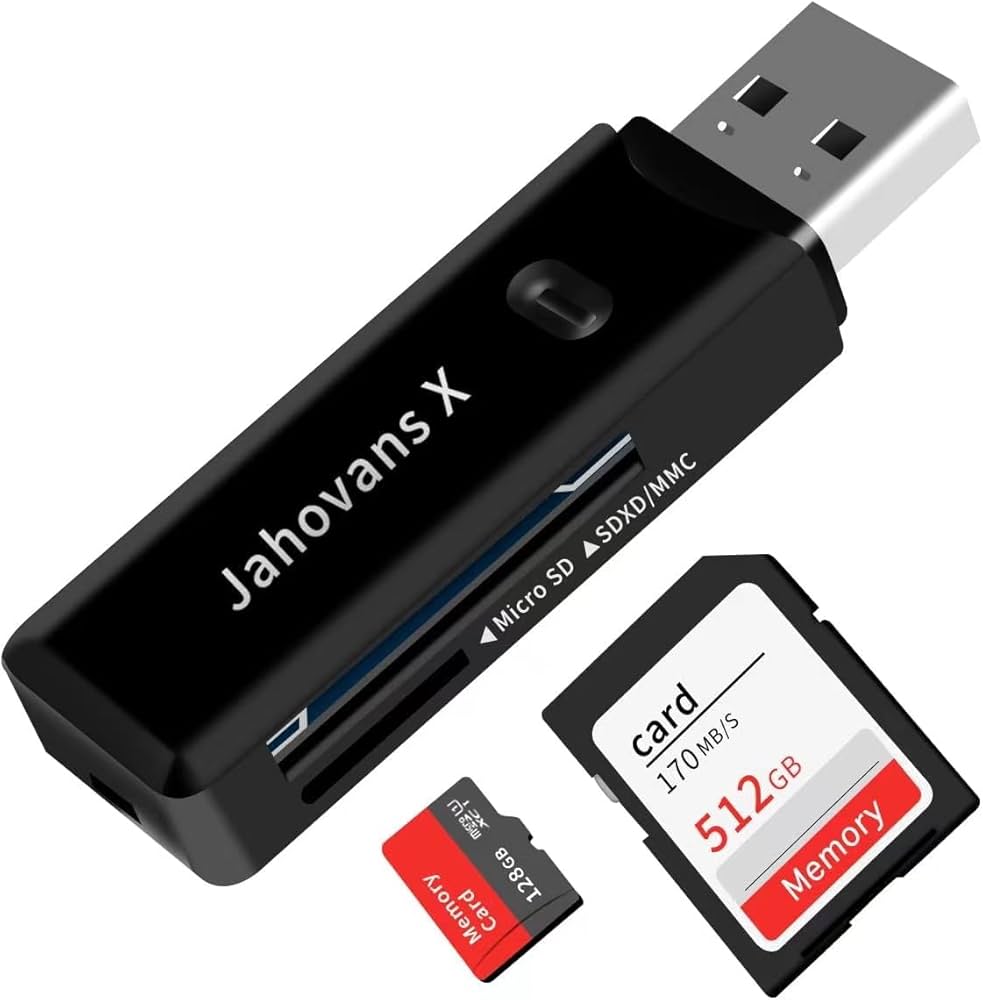
If your PC doesn’t have an integrated reader, don’t worry! You can purchase an external reader that connects to your USB port.
- Purchase an external SD card reader.
- Connect the reader to your PC via USB.
- Insert the microSD card into the reader.
- Access the files on the microSD card using Windows Explorer or Finder.
Accessing Files on a Microsd Card in Windows
To access files on a microSD card in Windows, follow these steps:
- Insert the microSD card into your PC via an external reader or integrated reader.
- Click on the Start button and type “This PC” in the search bar.
- Double-click on the icon of the microSD card to access its contents.
Accessing Files on a Microsd Card in Macos
To access files on a microSD card in macOS, follow these steps:
- Insert the microSD card into your Mac via an external reader or integrated reader.
- Click on the Finder icon in the Dock.
- Double-click on the icon of the microSD card to access its contents.
Formatting a Microsd Card
If you want to format a microSD card, follow these steps:
- In Windows:
- Right-click on the icon of the microSD card in This PC and select “Format.”
- Follow the prompts to complete the formatting process.
- In macOS:
- Launch the Disk Utility app from the Applications/Utilities folder.
- Select the microSD card and click on the “Erase” button.
- Choose a name for the microSD card and select a file system.
Conclusion
In conclusion, reading a microSD card on your PC is easier than you think! Whether you have an integrated reader or need to purchase an external one, we’ve provided step-by-step guides to help you access files from your microSD card. Remember to always handle the microSD card with care and follow proper formatting procedures to ensure data integrity.
Frequently Asked Questions (FAQs)
- What is a Microsd Card?
A microSD card is a type of memory card used in smartphones, cameras, and other portable devices.
2. Why Read a Microsd Card on Pc?
You can read a microSD card on your PC to transfer files from your device, free up space, or edit photos/video directly on your computer.
3. What Are The Different Types of Microsd Cards?
There are several types of microSD cards, including MicroSD, SDHC, and SDXC.
4. How do I Identify The Format of my Microsd Card?
Check the label on your microSD card or refer to our article for more information.
5. Can I Use a Regular SD Card Reader With a Microsd Card?
No, you’ll need a special adapter or external reader that’s specifically designed for microSD cards.
6. How do I Access Files on a Microsd Card in Windows?
Insert the microSD card into your PC and double-click on its icon in This PC to access its contents.
7. How do I Access Files on a Microsd Card in Macos?
Insert the microSD card into your Mac and double-click on its icon in Finder to access its contents.
8. Can I Format a Microsd Card on my PC or Mac?
Yes, you can format a microSD card using Windows Disk Manager or macOS Disk Utility.
Hope this article helps!


