
Reading a Usb Drive on Huawei: A Step-by-step Guide
As we navigate the world of digital storage, it’s not uncommon to encounter situations where we need to access files stored on a USB drive. However, with the rise of smartphones and tablets, the process can become more complex, especially when dealing with devices from manufacturers like Huawei.
In this article, we’ll explore how to read a USB drive on a Huawei smartphone or tablet, highlighting the necessary requirements, compatible peripherals, and software tools to achieve this goal.
Requirements For Reading a Usb Drive on Huawei
Before attempting to access your USB drive on a Huawei device, ensure you meet the following hardware and software requirements:
- Usb Compatibility: Verify that your USB drive is compatible with your Huawei smartphone or tablet. Most modern devices have a microUSB or Type-C port.
- Otg Support: Ensure that your device supports OTG (On-The-Go), which allows you to connect peripherals like USB drives directly to the device.
- Correct File System: Format your USB drive using a compatible file system, such as FAT32, exFAT, or NTFS.
Choosing The Right Peripheral
If your Huawei device has a microUSB or Type-C port, you may need an adapter to connect your USB drive. Consider the following options:
- Microusb Adapters: Use adapters like UGREEN Cable OTG Micro USB to connect your USB drive directly to your device.
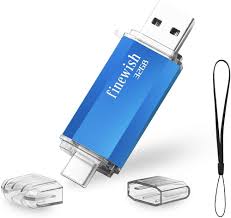
- Type-c Adapters: For devices with a Type-C port, consider adapters like SanDisk Ultra 64 GB Dual Type-C Flash Drive for seamless connectivity.
Utilizing a File Manager App
To access the files on your USB drive, you’ll need a file manager app. Consider using either the pre-installed Management Rows app or Google’s Files app:
- Management Rows: This app allows you to explore folders and files, rename, create, erase, copy, move, or delete items.
- Google Files: A free app that enables you to manage your device’s storage, including USB drives. It offers features like folder organization, file renaming, and deletion.
Accessing The Data on Your Usb Drive
Once you’ve chosen a file manager app and connected your USB drive:
- Connect The Usb Drive: Attach your USB drive to your Huawei device using an adapter or directly if it’s compatible.
- Open The File Manager App: Launch the selected file manager app, either Management Rows or Google Files.
- Access The Usb Drive: Within the app, locate and select the USB drive from the list of connected devices.
Troubleshooting Tips
In case you encounter issues:
- Check Otg Support: Verify that your device supports OTG for seamless connectivity.
- Format Your Usb Drive Correctly: Ensure your USB drive is formatted using a compatible file system (FAT32, exFAT, or NTFS).
- Update Device Software: Regularly update your device’s software to ensure compatibility with the latest features.
Conclusion
Reading a USB drive on a Huawei smartphone or tablet requires careful consideration of hardware and software requirements. By understanding these prerequisites and utilizing compatible peripherals and file manager apps, you can successfully access your files stored on a USB drive. Always format your USB drive correctly and keep your device’s software up-to-date for seamless connectivity.
Frequently Asked Questions (FAQs)
- Q: What Are The Requirements For Reading a Usb Drive on a Huawei Device?
A: Ensure OTG support, correct file system formatting (FAT32, exFAT, or NTFS), and compatible peripherals. - Q: Which File Manager App is Recommended For Accessing Usb Drives?
A: Consider using either the pre-installed Management Rows app or Google’s Files app. - Q: How do I Troubleshoot Issues While Accessing a Usb Drive on my Huawei Device?
A: Check OTG support, format your USB drive correctly, and update your device’s software for seamless connectivity.
Recommended Resources


