
How to Read CD Radiographies on Pc: A Step-by-step Guide
Are you wondering how to read CD radiographies on your PC? Look no further! In this article, we will guide you through the process of reading CD radiographies on both Windows and Mac operating systems.
What Are CD Radiographies?
CD radiographies are medical images stored in a digital format on a CD. These images can include X-rays, MRI scans, CT scans, and other types of diagnostic tests. To read these images, you will need a computer with a compatible reader software.
Requirements to Read CD Radiographies on PC
To read CD radiographies on your PC, you will need:
- A computer with Windows operating system (Windows 32 or 64 bit)
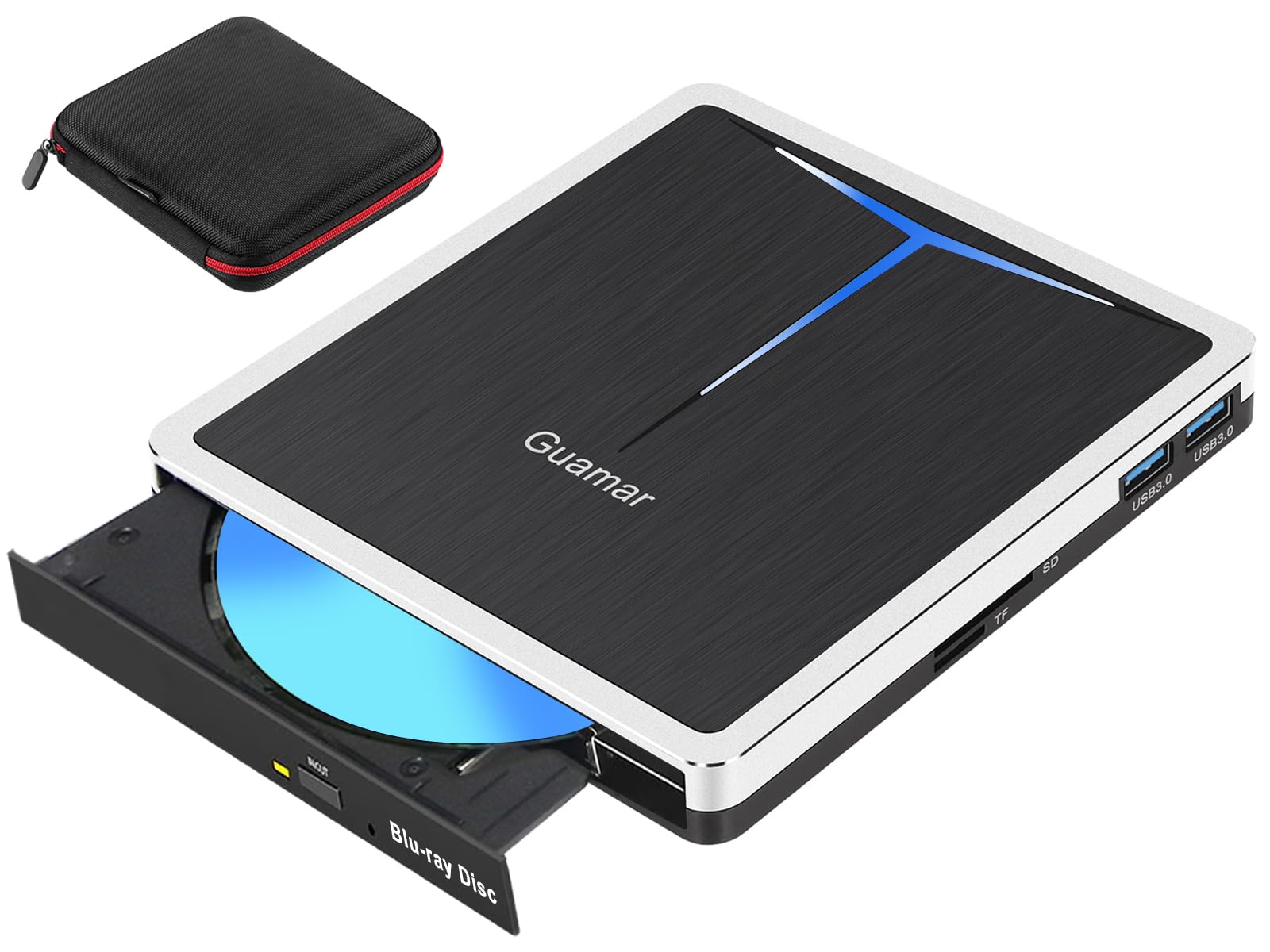
- A CD drive
- A compatible reader software (such as MicroDicom DICOM Viewer)
How to Read CD Radiographies on Windows PC
If you are using a Windows PC, follow these steps:
- Insert The CD: Insert the CD containing the radiography images into your computer’s CD drive.
- Open File Explorer: Open File Explorer and navigate to the CD drive.
- Find The Viewer Software: Look for the MicroDicom DICOM Viewer software on the CD. If you don’t find it, download it from the official website.
- Install The Viewer Software: Install the MicroDicom DICOM Viewer software on your computer.
- Open The Viewer Software: Open the MicroDicom DICOM Viewer software and select the option to read a single file or open the CD/DVD drive.
- Select The File: Select the radiography image file you want to view.
- View The Image: The image will be displayed on your screen.
Alternative Reader Software For Windows PC
If you don’t have MicroDicom DICOM Viewer, you can use other reader software such as Steal DICOM Viewer. Follow these steps:
- Download The Software: Download and install Steal DICOM Viewer from the official website.
- Open The Software: Open Steal DICOM Viewer and select the option to read a single file or open the CD/DVD drive.
- Select The File: Select the radiography image file you want to view.
- View The Image: The image will be displayed on your screen.
How to Read CD Radiographies on Mac
If you are using a Mac, follow these steps:
- Download Horos Mobile App: Download and install the Horos Mobile app from the Mac App Store.
- Open The App: Open the Horos Mobile app and select the option to read a single file or open the CD/DVD drive.
- Select The File: Select the radiography image file you want to view.
- View The Image: The image will be displayed on your screen.
Tips And Tricks
- Make sure you have a compatible reader software installed on your computer.
- Ensure that the CD is properly inserted into the CD drive.
- If you are having trouble viewing the image, try restarting the viewer software or checking the file extension.
- You can also use other reader software such as MicroDicom DICOM Viewer or Steal DICOM Viewer.
Conclusion
Reading CD radiographies on PC is a straightforward process that requires a compatible reader software and a computer with Windows or Mac operating system. By following these steps, you should be able to view your radiography images with ease.
Faqs
- What Are The Requirements to Read CD Radiographies on Pc?
Answer: A computer with Windows operating system (Windows 32 or 64 bit), a CD drive, and a compatible reader software. - How do I Install Microdicom Dicom Viewer?
Answer: Download and install MicroDicom DICOM Viewer from the official website. - Can I Use Other Reader Software to View CD Radiographies on Pc?
Answer: Yes, you can use other reader software such as Steal DICOM Viewer or Horos Mobile app. - How do I View a Single File in Microdicom Dicom Viewer?
Answer: Select the option to read a single file and choose the radiography image file you want to view. - Can I Convert CD Radiographies Into Other Formats?
Answer: Yes, some reader software such as Steal DICOM Viewer allows you to export images in different formats. - How do I Troubleshoot Issues With Viewing CD Radiographies on Pc?
Answer: Check the file extension, restart the viewer software, or try using a different viewer software.
References
- MicroDicom DICOM Viewer official website
- Steal DICOM Viewer official website
- Horos Mobile app official website


