
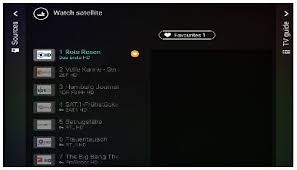
How to Order TV Channels on Philips TV Using Lcn Function
Are you tired of navigating through a disorganized list of TV channels on your Philips TV? Do you wish there was an easier way to put the channels in order, using a logical numbering system? Well, wish no more! In this article, we will guide you through the process of ordering TV channels on your Philips TV using the LCN (Logical Channel Numbering) function.
What is Lcn And How Does it Work?
LCN is a feature provided by Philips TVs that assigns a precise number to each TV channel, making it easy to navigate and find your favorite channels. The activation of the LCN function orders the channels on your TV according to their numbering, which is pre-defined by the Ministry of the Economic Development in Italy.
Step-by-step Guide to Order TV Channels Using Lcn
To order your TV channels using the LCN function, follow these simple steps:
- Turn on Your Philips TV: First, turn on your TV and make sure it’s connected to a power source.
- Access The Settings Menu: Use your remote control to access the settings menu by pressing the “Settings” button or the icon of the regolazioni.
- Select Installation Channel: From the settings menu, select the “Installation channel” option and press OK on your remote control.
- Enter Pin (if Required): If you have set a PIN for your TV’s settings, enter it to proceed.
- Choose Update Automatic Channels: Select the “Update automatic channels” option from the list of available choices.
- Press OK to Confirm: Press the OK button on your remote control to confirm the action.
Alternative Method: Ordering Channels Using Preferred List
If you prefer not to use the LCN function, you can create a list of preferred channels to order them according to your liking. Here’s how:
- Access The Channel Menu: Use your remote control to access the channel menu by pressing the “Channel” button or the icon of the TV guide.
- Select List Channels: From the channel menu, select the “List channels” option and press OK on your remote control.
- Add Channels to The Preferred List: Select each channel you want to add to your preferred list and press the yellow star icon on your remote control to add it.
Tips And Tricks
- To reorder your preferred list at any time, access the channel menu and select the “List channels” option. Highlight the channel you want to move and press the green button on your remote control.
- If you need to modify a specific channel’s position, use the directional arrows or the numerical keypad on your remote control.
Troubleshooting Common Issues
If you encounter any problems while trying to order your TV channels using LCN or creating a preferred list, try these troubleshooting steps:
- Check Your Tv’s Manual: Consult your TV’s manual for specific instructions on how to use the LCN function and create a preferred list.
- Visit The Philips Official Website: Visit the Philips official website for FAQs and guides on how to troubleshoot common issues related to channel ordering.
- Contact Philips Support: Contact Philips support directly by calling their customer service number or sending an email through their website.
Conclusion
Ordering TV channels on your Philips TV using LCN or creating a preferred list is a straightforward process that requires minimal technical expertise. By following the steps outlined in this article, you can enjoy a more organized and user-friendly experience while watching your favorite TV shows and channels.


