
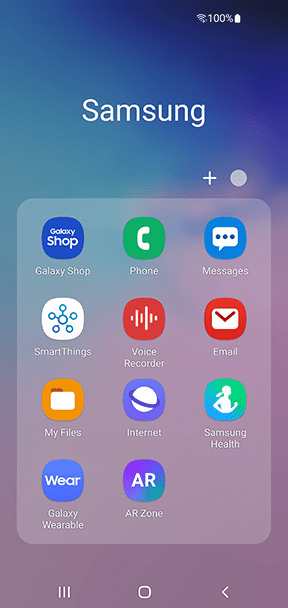
How to Get Email on Your Mobile Samsung: A Step-by-step Guide
Are you tired of missing out on important emails because you don’t know how to set up your mobile Samsung? Look no further! In this article, we will guide you through the process of getting email on your mobile Samsung with Gmail, Outlook, and Yahoo Mail.
Setting Up Email on Your Mobile Samsung: A Beginner’s Guide
Getting email on your mobile Samsung is a straightforward process. All you need to do is download the email app of your choice (Gmail, Outlook, or Yahoo Mail), enter your email address and password, and you’re good to go!
Step 1: Download The Email App
The first step in getting email on your mobile Samsung is to download the email app of your choice. If you already have a Gmail account, you can use the Gmail app. If not, don’t worry! We’ll guide you through the process of setting up a new email account.
Step 2: Enter Your Email Address And Password
Once you’ve downloaded the email app, enter your email address and password to set up your account. Make sure to enter the correct information, or you won’t be able to access your emails.
Step 3: Configure Your Account Settings
After entering your email address and password, you’ll need to configure your account settings. This may include setting up your mail synchronization, alias, and other preferences.
Getting Email on Your Mobile Samsung With Gmail
If you want to get email on your mobile Samsung using Gmail, follow these steps:
- Download The Gmail App: Download the Gmail app from the Google Play Store.
- Enter Your Email Address And Password: Enter your Gmail address and password to set up your account.
- Configure Your Account Settings: Configure your account settings, including mail synchronization, alias, and other preferences.
Getting Email on Your Mobile Samsung With Outlook
If you want to get email on your mobile Samsung using Outlook, follow these steps:
- Download The Outlook App: Download the Outlook app from the Google Play Store.
- Enter Your Email Address And Password: Enter your Outlook address and password to set up your account.
- Configure Your Account Settings: Configure your account settings, including mail synchronization, alias, and other preferences.
Getting Email on Your Mobile Samsung With Yahoo Mail
If you want to get email on your mobile Samsung using Yahoo Mail, follow these steps:
- Download The Yahoo Mail App: Download the Yahoo Mail app from the Google Play Store.
- Enter Your Email Address And Password: Enter your Yahoo Mail address and password to set up your account.
- Configure Your Account Settings: Configure your account settings, including mail synchronization, alias, and other preferences.
Other Apps to Get Email on Your Mobile Samsung
In addition to the email apps mentioned above, there are several other options available for getting email on your mobile Samsung. Some of these include:
- Blue Mail: A free client for electronic mail that supports all types of accounts.
- Aqua Mail: A free app for managing electronic mail on Android that allows you to configure practically any account.
- Inscribe Mail: An application that promises to take control of full email boxes, offering functions studied specifically for this purpose.
How to Manage Your Email Account From The Settings App
In addition to using the email app to manage your email account, you can also do so from the settings app on your mobile Samsung. To do this:
- Tap on The Icon: Tap on the icon of the settings app.
- Select The Voice “Account And Backup”: Select the voice “Account and backup.”
- Manage Your Email Account: Manage your email account, including synchronizing mail and configuring other preferences.
Conclusion
Getting email on your mobile Samsung is a straightforward process that can be completed in just a few steps. Whether you choose to use Gmail, Outlook, or Yahoo Mail, our guide has provided you with the information necessary to set up your email account and start receiving emails on your device.
Faqs
Here are some frequently asked questions about getting email on your mobile Samsung:
- Q: What is The Best Email App For my Mobile Samsung?
A: The best email app for your mobile Samsung will depend on your personal preferences. Some popular options include Gmail, Outlook, and Yahoo Mail. - Q: How do I Set up a New Email Account on my Mobile Samsung?
A: To set up a new email account on your mobile Samsung, download the email app of your choice (Gmail, Outlook, or Yahoo Mail), enter your email address and password, and configure your account settings. - Q: How do I Manage my Email Account From The Settings App?
A: To manage your email account from the settings app, tap on the icon of the settings app, select the voice “Account and backup,” and then manage your email account. - Q: What Are Some Other Apps That Can Help me Get Email on my Mobile Samsung?
A: Some other apps that can help you get email on your mobile Samsung include Blue Mail, Aqua Mail, and Inscribe Mail.
Index
Below is an index of the various topics covered in this article:
- Getting Email on Your Mobile Samsung: This section provides a step-by-step guide to getting email on your mobile Samsung.
- Setting Up Email on Your Mobile Samsung: A Beginner’s Guide: This section provides information on setting up email on your mobile Samsung, including downloading the email app and entering your email address and password.
- Getting Email on Your Mobile Samsung With Gmail: This section provides information on getting email on your mobile Samsung using Gmail.
- Getting Email on Your Mobile Samsung With Outlook: This section provides information on getting email on your mobile Samsung using Outlook.
- Getting Email on Your Mobile Samsung With Yahoo Mail: This section provides information on getting email on your mobile Samsung using Yahoo Mail.
- Other Apps to Get Email on Your Mobile Samsung: This section provides information on other apps that can help you get email on your mobile Samsung, including Blue Mail, Aqua Mail, and Inscribe Mail.
- How to Manage Your Email Account From The Settings App: This section provides information on managing your email account from the settings app.


