
Getting Your Mail on The Mobile: A Comprehensive Guide
Are you tired of dealing with email on your computer? Do you travel frequently and don’t have time to sit in front of a laptop to check your mail? You’re not alone! Many people struggle with managing their email on-the-go. But fear not, dear reader, for we have just the solution for you!
In this article, we’ll show you how to get your mail on your mobile device, making it easier than ever to stay connected and manage your email from anywhere. We’ll cover the best apps to use, how to configure them, and some tips and tricks along the way.
What’s Imap And Pop?
Before we dive in, let’s talk about two important protocols that help you access your email on multiple devices: IMAP (Internet Message Access Protocol) and POP (Post Office Protocol).
IMAP is a more modern protocol that allows you to access your email across multiple devices, synchronizing messages in real-time. It’s perfect for those who use multiple devices or want to access their email from anywhere.
POP, on the other hand, downloads emails from the server to your device and deletes them from the server once read. This means you’ll only have access to your emails on that specific device.
Gmail: The Best App For Android And Ios
When it comes to managing your email, Gmail is one of the best apps available for both Android and iOS devices. It’s free, easy to use, and offers a range of features to help you stay organized.
To get started with Gmail on your mobile device:
- Go to the Google Play Store (for Android) or App Store (for iOS).
- Search for “Gmail” and select the app.
- Tap “Install” to download and install the app.
- Open the app and tap “Add account” to set up a new email account.
Outlook: A Powerful Email Client For Android And Ios
Microsoft’s Outlook is another popular email client that offers a range of features, including calendar integration and task management. To get started with Outlook on your mobile device:
- Go to the Google Play Store (for Android) or App Store (for iOS).
- Search for “Outlook” and select the app.
- Tap “Install” to download and install the app.
- Open the app and tap “Add account” to set up a new email account.
Spark Mail: A Great Alternative For Android And Ios
For those looking for an alternative to Gmail or Outlook, Spark Mail is another great option. This app offers a clean interface, advanced features like AI-powered filtering, and integration with third-party services.
To get started with Spark Mail on your mobile device:
- Go to the Google Play Store (for Android) or App Store (for iOS).
- Search for “Spark Mail” and select the app.
- Tap “Install” to download and install the app.
- Open the app and tap “Add account” to set up a new email account.
Mail: The Default Email Client on Ios
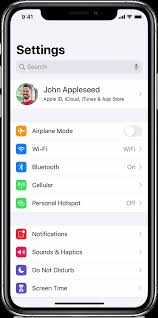
If you’re using an iPhone or iPad, don’t worry! You already have a built-in email client called Mail that allows you to access your email from anywhere.
To get started with Mail:
- Open the Settings app and go to “Mail.”
- Tap “Accounts” and select the account you want to use.
- Enter your email address and password to set up the account.
- Tap “Save” to save your changes.
Other Great Apps For Email Management
In addition to Gmail, Outlook, Spark Mail, and Mail, there are several other apps that can help you manage your email more effectively. Some of these include:
- Blue Mail: A free app that offers a range of features, including calendar integration and task management.
- Yahoo Mail: A popular email client for Android and iOS devices.
- Free Mail: A simple email client that allows you to access your email from anywhere.
Tips And Tricks
Here are some additional tips and tricks to help you get the most out of your email app:
- Use IMAP instead of POP to access your email across multiple devices.
- Set up filters to automatically sort and prioritize your emails.
- Use calendar integration to schedule meetings and appointments.
- Take advantage of task management features to stay organized.
Conclusion
Managing your email on-the-go has never been easier! With the best apps for Android and iOS, you can access your email from anywhere and stay connected with loved ones, colleagues, and clients. Remember to use IMAP instead of POP, set up filters to prioritize your emails, and take advantage of calendar integration and task management features.
Frequently Asked Questions
Here are some additional questions and answers to help you get started:
Q: What’s the best app for email management?
A: The best app for email management depends on your individual needs. Consider using Gmail, Outlook, Spark Mail, or Mail for Android and iOS devices.
Q: How do I set up a new email account?
A: To set up a new email account, go to the settings section of your email app and select “Add account.” Follow the instructions to enter your email address and password.
Q: What’s IMAP and POP?
A: IMAP (Internet Message Access Protocol) is a more modern protocol that allows you to access your email across multiple devices. POP (Post Office Protocol) downloads emails from the server to your device and deletes them once read.
Q: Can I use my email app on multiple devices?
A: Yes! With IMAP, you can access your email across multiple devices, including smartphones, tablets, and laptops.
Q: How do I set up filters for my emails?
A: To set up filters for your emails, go to the settings section of your email app and select “Filters.” Follow the instructions to create new filters based on criteria such as sender, subject, or keywords.


