
Getting Sms on Ipad: A Comprehensive Guide
Are you tired of missing out on important messages sent via SMS? Do you want to know how to receive SMS on your iPad without a cellular plan? Look no further! In this article, we’ll explore the various methods to get SMS on your iPad, including the most convenient and easy-to-use solutions.
Why Can’t I Get Sms on My Ipad?
If you’ve got an iPad with cellular capabilities (also known as a Cellular or Wi-Fi + Cellular model), you might be wondering why you can’t receive SMS like you would on your iPhone. The reason lies in the way iPads handle SMS. Unlike iPhones, iPads don’t have a built-in SIM card slot to connect to a cellular network, making it impossible to receive traditional SMS messages.
Solution 1: Using Icloud And Imessage
If you have an iPad with iOS 8.0 Or later, you can take advantage of the seamless integration between your iPhone and iPad using iCloud and iMessage. Here’s how:
- Make Sure Both Devices Are Connected to The Same Apple ID: Go to Settings > [Your Name] on both devices to ensure they’re linked.
- Enable Imessage on Both Devices: Go to Settings > Messages > iMessage on both devices to activate this feature.
- Set up Icloud Message Forwarding: On your iPhone, go to Settings > Messages and enable “iCloud Message Forwarding” by toggling the switch next to it.
- Configure Messages Settings on Ipad: Open the Messages app on your iPad and toggle the switch next to “iMessage” to turn it on.
From now on, all SMS messages you receive on your iPhone will be automatically forwarded to your iPad, making it easier than ever to stay connected!
How to Disable Sms Forwarding
If you want to disable SMS forwarding from your iPhone to iPad at any point, follow the same steps above, but toggle the switch next to “iMessage” off.
Getting Sms on Android Device
What if you don’t have an iPhone or use an Android device instead? Don’t worry! We’ve got a trick up our sleeve:
- Install an Sms Backup App: On your Android device, install an app like SMS Backup+, which allows you to backup and forward SMS messages.
- Configure The App on Android: Set up the app to send your SMS messages to your Gmail account.
Alternative Solutions
If you’re looking for alternative ways to receive SMS on your iPad without using iCloud Message Forwarding or an SMS Backup app, consider these options:
- Ask a friend with an iPhone to forward you messages via iMessage.
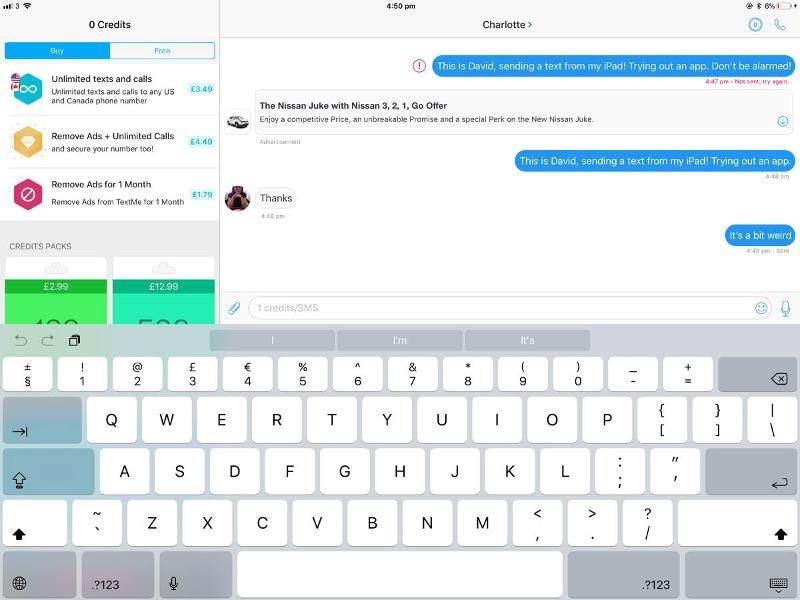
- Use messaging apps like WhatsApp, Telegram, or Messenger that offer cross-platform compatibility.
Conclusion
Receiving SMS on your iPad can be achieved through various methods, including iCloud Message Forwarding and alternative solutions. By understanding how these options work, you’ll never miss out on important messages again!
Frequently Asked Questions
Q: What Happens if I Receive an Sms on my Iphone But Don’t Have Cellular Coverage?
A: If you’re in an area with no cellular signal, the message will be stored on your iPhone and sent when coverage is restored.
Q: Can I Use Whatsapp or Telegram to Send/receive Messages From Non-apple Devices?
A: Yes! Both apps are available for Android devices as well.


