
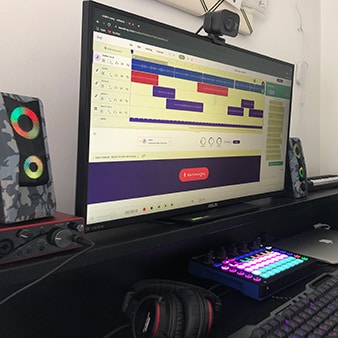
How to Record a Song on Your Pc: A Step-by-step Guide
Are you an aspiring musician looking to record your first song? Look no further! In this article, we’ll take you through the process of recording a song on your PC, from selecting the right equipment to using software to edit and mix your audio.
Choosing The Right Equipment
Before you start recording, you’ll need to choose the right equipment. This includes a microphone, headphones, and an audio interface. Don’t worry if you’re not sure what these are – we’ll explain them in more detail below!
- Microphone: A good quality microphone is essential for capturing high-quality audio. You can opt for a USB microphone or a condenser microphone.
- Headphones: Good quality headphones will help you to monitor your audio and make adjustments as needed.
- Audio Interface: An audio interface connects your microphone and headphones to your computer, allowing you to record and edit your audio.
Selecting The Right Software
Once you have your equipment in place, it’s time to choose a software program to use for recording and editing your song. There are many options available, including:
- Audacity: A free, open-source program that’s great for beginners.
- Lmms: A music-making software that allows you to create and edit songs on your PC.
- Garageband: A popular program for Mac users.
Recording Your Song
Now that you have your equipment and software in place, it’s time to start recording! Here’s a step-by-step guide:
- Connect your microphone and headphones to your computer using an audio interface.
- Open your chosen software program and select the input source as your microphone.
- Adjust the levels and settings to ensure that your audio is being captured correctly.
- Start recording by clicking the “Record” button or pressing a hotkey on your keyboard.
- Record your song, making adjustments as needed.
Editing Your Song
Once you’ve recorded your song, it’s time to edit it! Here are some basic editing techniques:
- Cutting And Pasting: Use these functions to trim unwanted sections of audio.
- Leveling: Adjust the volume levels to ensure that all parts of your song are balanced.
- Effects: Apply effects such as reverb or delay to enhance the sound of your song.
Mixing Your Song
Finally, it’s time to mix your song! This is where you balance the levels and add effects to create a cohesive and professional-sounding track. Here are some tips for mixing:
- Balance: Make sure that all parts of your song are balanced in terms of level.
- Panning: Use panning to create a sense of space and width in your mix.
- Effects: Apply effects such as reverb or delay to enhance the sound of your song.
Conclusion
Recording a song on your PC is easier than you think! With the right equipment and software, you can start creating high-quality audio today. Remember to choose a good quality microphone, headphones, and audio interface, and select a software program that suits your needs. Don’t be afraid to experiment and try new things – and most importantly, have fun!
Frequently Asked Questions
- What is The Best Software For Recording a Song?
The best software for recording a song depends on your specific needs and preferences. Audacity, LMMS, and GarageBand are all popular options. - How do I Choose The Right Microphone?
When choosing a microphone, consider factors such as quality, price, and compatibility with your computer. - What is an Audio Interface?
An audio interface connects your microphone and headphones to your computer, allowing you to record and edit your audio. - Can I Use my Smartphone to Record a Song?
Yes, you can use your smartphone to record a song using apps such as FL Mobile Studio or GarageBand for iOS. - How do I Export my Recorded Song?
To export your recorded song, select the “Export” option in your chosen software program and choose the desired format (e.G., MP3 or WAV).
Bonus Tips
- Practice Makes Perfect: The more you practice recording and editing audio, the better you’ll become.
- Experiment With Different Effects: Try out different effects such as reverb or delay to enhance the sound of your song.
- Get Feedback From Others: Share your recorded song with friends or fellow musicians for feedback and suggestions.
Recommended Equipment
- Audio-technica At2020usb+ Microphone
A high-quality USB microphone that’s perfect for recording vocals and instruments. - Sony Mdr-7506 Headphones
Good quality headphones that are great for monitoring audio and making adjustments as needed. - Focusrite Scarlett 2i2 Audio Interface
A popular audio interface that connects your microphone and headphones to your computer.
Recommended Software
- Audacity: A free, open-source program that’s great for beginners.
- Lmms: A music-making software that allows you to create and edit songs on your PC.
- Garageband: A popular program for Mac users.


