
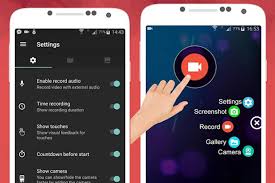
How to Record Your Android Screen: A Step-by-step Guide
Are you tired of not being able to capture your Android screen activity? Look no further! In this article, we will guide you through the process of recording your Android screen using various methods.
Why Record Your Android Screen?
Recording your Android screen can be useful for a variety of reasons. You may want to create tutorials or guides on how to use certain apps or features. Or perhaps you need to capture evidence of an issue with your device. Whatever the reason, we’ve got you covered.
Method 1: Using Built-in Functionality
Before attempting to record your Android screen using a third-party app, it’s worth checking if your device has a built-in function for doing so. This method is straightforward and easy to use.
- Check your device settings to see if there is an option for recording the screen.
- If available, follow the prompts to initiate the recording process.
- The video will be saved in the gallery or a designated folder.
Method 2: Using Adv Recorder
If you don’t have access to the built-in functionality or prefer a more advanced feature set, consider using the ADV Recorder app. This app offers a range of features, including:
- The ability to add annotations and cartoons to your recordings
- Support for recording with audio
- Adjustable frame rate and resolution options
To use this app, simply download and install it from the Play Store, launch it, and follow the prompts.
Method 3: Using Screencam
If you’re looking for an alternative solution, consider using the ScreenCam app. This app allows you to record your Android screen with audio, making it perfect for creating tutorials or guides.
To use this app, download and install it from the Play Store, launch it, agree to the terms of use, and follow the prompts.
Method 4: Using Teamviewer
If you need to record your Android screen remotely, consider using TeamViewer. This software allows you to access and control another device, making it perfect for creating tutorials or guides.
To use this app, download and install it on your computer, launch it, agree to the terms of use, initiate the connection process, and follow the prompts.
Other Solutions
If you’re looking for alternative solutions, consider using the following apps:
- AZ Screen Recorder: A simple and easy-to-use app that allows you to record your Android screen without any watermarks or time limits.
- Rec Screen Recorder: An app that offers a range of features, including support for recording with audio and adjustable frame rate options.
- Mobizen Screen Record: An app that’s designed specifically for recording gameplay, but can also be used to record other activities on your Android device.
Conclusion
Recording your Android screen is easier than you think. With these methods and apps, you can capture your screen activity with ease. Whether you need to create tutorials or guides, or simply want to capture evidence of an issue with your device, we’ve got you covered.


