
Recording Audio With Iphone: A Comprehensive Guide
Are you looking for a way to record high-quality audio with your iPhone? Look no further! In this article, we will explore the various methods of recording audio with your iPhone, including using the built-in Memo vocal app and third-party apps like Voice Recorder Pro. We will also cover how to transfer recordings from your iPhone to your computer.
Why Record Audio With Your Iphone?
Recording audio with your iPhone is a convenient way to capture important information, conversations, or even lectures. Whether you’re a student, teacher, or professional looking for a simple and effective way to record meetings or interviews, your iPhone can be an invaluable tool.
Method 1: Recording With Memo Vocal App
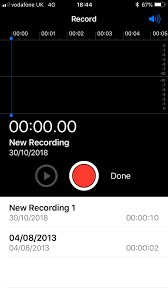
The Memo vocal app is the built-in audio recording app on iOS devices. To use it:
- Open the Memo vocal app on your iPhone.
- Tap on the circular red button in the bottom left corner to initiate a new recording.
- Tap on the play button to start recording.
- Tap on the pause button (represented by a square red button) to pause or resume the recording.
- When finished, tap on the play button again to listen to your recording.
Method 2: Recording Without Being Seen
If you want to record audio without being visible on screen, you can use the Memo vocal app’s hidden mode:
- Open the Memo vocal app and initiate a new recording as described above.
- Swipe down from the top of the screen (on Face ID devices) or press the Home button (on Touch ID devices) to exit the app.
- The Memo vocal app will continue running in the background, allowing you to record audio without being visible on screen.
Method 3: Transferring Recordings to Your Computer
To transfer recordings from your iPhone to your computer:
- Connect your iPhone to your computer using a Lightning cable.
- Open the Finder (on macOS) or iTunes (on Windows).
- Select your iPhone in the top left corner of the screen.
- Click on “Music” and select the “Sync Music” option.
- Select the “Memo vocal” option to transfer recordings from your iPhone to your computer.
Method 4: Using Icloud
If you have an Apple ID, you can use iCloud to sync your audio recordings across all your devices:
- Open the Settings app on your iPhone.
- Tap on your name at the top of the screen.
- Tap on “iCloud” and select the “Display & Download” option.
- Select the “Memo vocal” option to enable syncing.
Method 5: Recording in Mp3 Format
To record audio in MP3 format using third-party apps, you can use Voice Recorder Pro:
- Open the Voice Recorder Pro app on your iPhone.
- Tap on the OK button to access the microphone.
- Select the “Advanced” option and choose the MP3 format.
- Tap on the Start button to begin recording.
Method 6: Recording Monitor With Audio
To record audio from the monitor of your iPhone, you can use a third-party app or take advantage of built-in functionality:
- Open the Settings app and select the “Control Center” option.
- Swipe down from the top right corner of the screen (on Face ID devices) or press the Home button (on Touch ID devices).
- Tap on the microphone icon to initiate recording.
Conclusion
Recording audio with your iPhone is a simple and effective way to capture important information, conversations, or even lectures. With various methods available, including using the built-in Memo vocal app and third-party apps like Voice Recorder Pro, you can choose the method that best suits your needs. Additionally, transferring recordings from your iPhone to your computer using iCloud or Finder/iTunes makes it easy to access and share your audio files.
Faqs
Q: Can I record audio with my iPhone without being seen on screen?
A: Yes, you can use the Memo vocal app’s hidden mode to record audio without being visible on screen.
Q: How do I transfer recordings from my iPhone to my computer?
A: You can use Finder (on macOS) or iTunes (on Windows) to transfer recordings from your iPhone to your computer.
Q: Can I sync my audio recordings across all my devices using iCloud?
A: Yes, you can enable syncing using the “Display & Download” option in the Settings app.
Q: How do I record audio in MP3 format using third-party apps?
A: You can use Voice Recorder Pro to record audio in MP3 format.
Q: Can I record audio from the monitor of my iPhone?
A: Yes, you can use a third-party app or take advantage of built-in functionality.
Q: What are some other uses for recording audio with my iPhone?
A: Recording audio is useful for capturing important information, conversations, lectures, and more.
Q: How do I delete recordings from the Memo vocal app?
A: You can delete recordings by tapping on the red indicator beside the name and then selecting the “Delete” option.


