
How to Record Audio on Your Pc, Smartphone, or Tablet: A Step-by-step Guide
Are you tired of struggling to record audio on your device? Do you want to create high-quality recordings with ease? Look no further! In this article, we’ll show you how to record audio on your PC, smartphone, and tablet using various methods.
Why Record Audio?
Recording audio can be a powerful tool for communication, creativity, and education. Whether you’re a student, teacher, or professional, recording audio can help you:
- Create educational content
- Share your ideas and perspectives
- Enhance your presentations and lectures
- Improve your public speaking skills
Method 1: Recording Audio on Your PC
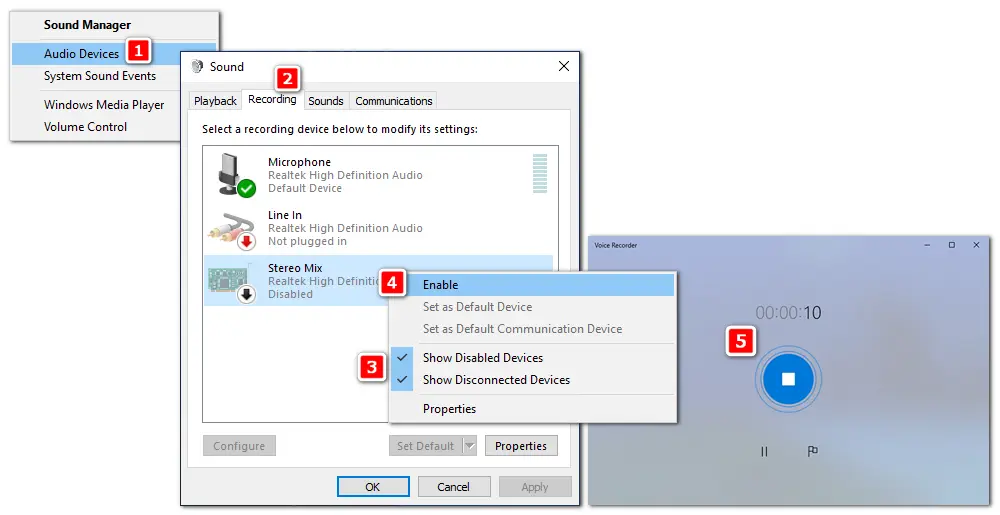
If you have a PC, you can use the built-in sound recorder to record high-quality audio. Here’s how:
Step-by-step Guide to Recording Audio on Windows
- Open the Sound Recorder app by searching for it in the Start menu.
- Click on the “Record” button to start recording.
- Speak or play music into the microphone, and the sound recorder will capture the audio.
- To stop recording, click on the “Stop” button.
- You can edit your recording by clicking on the “Cut” button to trim unwanted parts.
Step-by-step Guide to Recording Audio With Audacity
- Download and install Audacity from their official website.
- Launch Audacity and select the microphone as the input device.
- Click on the “Record” button to start recording.
- Speak or play music into the microphone, and Audacity will capture the audio.
- To stop recording, click on the “Stop” button.
- You can edit your recording by clicking on the “Cut” button to trim unwanted parts.
Method 2: Recording Audio on Your Smartphone
If you have a smartphone, you can use the built-in voice recorder or download an app to record high-quality audio. Here’s how:
Step-by-step Guide to Recording Audio on Android
- Open the Voice Recorder app by searching for it in your device’s app drawer.
- Click on the “Record” button to start recording.
- Speak or play music into the microphone, and the voice recorder will capture the audio.
- To stop recording, click on the “Stop” button.
- You can edit your recording by clicking on the “Cut” button to trim unwanted parts.
Step-by-step Guide to Recording Audio With Iphone
- Open the Voice Memos app by searching for it in your device’s home screen.
- Click on the “Record” button to start recording.
- Speak or play music into the microphone, and the voice memos will capture the audio.
- To stop recording, click on the “Stop” button.
- You can edit your recording by clicking on the “Cut” button to trim unwanted parts.
Method 3: Recording Audio on Google Classroom
If you want to record audio for educational purposes, you can use Google Classroom to upload and share your recordings. Here’s how:
Step-by-step Guide to Recording Audio on Pc
- Record your audio using the Sound Recorder app or Audacity.
- Save your recording as an MP3 file.
- Upload your recording to Google Drive.
- Share your recording with your classmates or teacher by following these steps:
- Open Google Classroom and select the course you want to share your recording with.
- Click on the “Share” button.
- Select the audio file from Google Drive.
Step-by-step Guide to Recording Audio on Smartphone
- Record your audio using the Voice Recorder app or a third-party app like Memo Vocal.
- Save your recording as an MP3 file.
- Upload your recording to Google Drive.
- Share your recording with your classmates or teacher by following these steps:
- Open Google Classroom and select the course you want to share your recording with.
- Click on the “Share” button.
- Select the audio file from Google Drive.
Method 4: Recording Audio on Powerpoint
If you want to add a narration audio to your presentation, you can use Microsoft PowerPoint to record and edit your audio. Here’s how:
Step-by-step Guide to Recording Audio on Pc
- Open Microsoft PowerPoint.
- Select the slide where you want to insert the audio.
- Click on the “Insert” tab.
- Select “Audio” from the menu.
- Choose “Record Audio” and select your microphone as the input device.
- Speak or play music into the microphone, and PowerPoint will capture the audio.
- To stop recording, click on the “Stop” button.
Step-by-step Guide to Recording Audio on Smartphone
- Open Microsoft PowerPoint.
- Select the slide where you want to insert the audio.
- Tap on the “+” icon.
- Select “Audio” from the menu.
- Choose “Record Audio” and select your microphone as the input device.
- Speak or play music into the microphone, and PowerPoint will capture the audio.
- To stop recording, tap on the “Stop” button.
Conclusion
Recording audio is a simple yet powerful tool for communication and education. Whether you’re using a PC, smartphone, or tablet, there are various methods to record high-quality audio. By following these step-by-step guides, you can create professional-sounding recordings that will enhance your presentations and lectures.
Frequently Asked Questions (FAQs)
- What is The Best Way to Record Audio on a Smartphone?
The best way to record audio on a smartphone depends on the device you’re using. For Android devices, use the Voice Recorder app or a third-party app like Memo Vocal. For iPhone devices, use the Voice Memos app. - Can I Edit my Recorded Audio on Pc?
Yes, you can edit your recorded audio on PC using Audacity or the Sound Recorder app. - How do I Share my Recorded Audio With Others?
You can share your recorded audio by uploading it to Google Drive and sharing the link with others. - Can I Add a Narration Audio to my Powerpoint Presentation?
Yes, you can add a narration audio to your PowerPoint presentation using Microsoft PowerPoint. - What is The Best Format For Recording Audio on Pc?
The best format for recording audio on PC is MP3. - Can I Record Audio on Google Classroom?
Yes, you can record audio and share it with others on Google Classroom. - How do I Edit my Recorded Audio on Smartphone?
You can edit your recorded audio on smartphone using the Voice Recorder app or a third-party app like Memo Vocal. - What is The Best Way to Add a Narration Audio to my Powerpoint Presentation on Smartphone?
The best way to add a narration audio to your PowerPoint presentation on smartphone depends on the device you’re using. For Android devices, use the Microsoft PowerPoint app and follow the steps outlined above.


