
How to Record a Phone Call on Iphone: A Step-by-step Guide
Are you tired of struggling to record phone calls on your iPhone? Look no further! In this article, we’ll explore the best ways to capture important conversations without breaking the bank or compromising on quality.
Recording Phone Calls on Iphone: Is It Legal?
Before we dive into the nitty-gritty of recording phone calls, it’s essential to understand the legal implications. Recording a conversation without the other party’s knowledge is not illegal, but it’s not recommended either. If you’re planning to record a call for personal or professional reasons, make sure to inform the other party involved.
Method 1: Tapeacall – A Reliable Solution
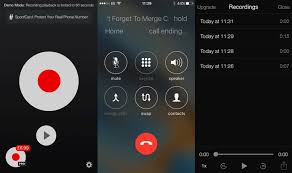
One of the most popular and user-friendly solutions for recording phone calls on iPhone is TapeACall. This app allows you to record both incoming and outgoing calls, making it an ideal choice for professionals and individuals alike. Here’s how to use TapeACall:
- Download And Install TapeACall from the App Store.
- Tap Agree to accept the terms of service.
- Enter Your Phone Number in the app-specific text field.
- Wait For The Sms Code to arrive, then enter it in the app.
- Tap Continue to complete the setup process.
- Initiate a Call, either by dialing a number or selecting one from your contacts list.
- Tap Start Recording to begin capturing the conversation.
Once you’ve finished recording, tap on the “Records” tab in the app to access and play back your recordings.
Method 2: Rekk – Another Valid Option
If TapeACall doesn’t meet your requirements, consider using REKK (Registratore Called) instead. This app boasts a user-friendly interface and functions admirably, making it an excellent alternative. Here’s how to use REKK:
- Download And Install REKK from the App Store.
- Tap Start Using Rekk, then enter your phone number in the app-specific text field.
- Choose Your Preferred Method for receiving the code: SMS or WhatsApp.
- Enter The Code when prompted, then tap Continue.
- Authorize the app to access your contacts and send notifications.
- Initiate a Call, either by dialing a number or selecting one from your contacts list.
- Tap Join to begin capturing the conversation.
Once you’ve finished recording, tap on the “Records” tab in the app to access and play back your recordings.
Method 3: External Devices – A More Complicated Solution
If you don’t mind investing time and effort into setting up an external device, consider using a smartphone or computer to record calls. Here’s how:
- Use a Smartphone: Place the device in front of you and approach it with your iPhone. Split the application or program of present recording on the other device.
- Utilize a Computer: Initiate QuickTime Player, then click on the voice menu option “New” > “Rows recording audio.” Circulate the player to initiate the recording.
External Devices Vs. Apps – Which One Should You Choose?
While external devices can be an effective solution, they require more effort and may not always provide high-quality recordings. On the other hand, apps like TapeACall and REKK are designed specifically for this purpose and offer a seamless experience.
Conclusion
Recording phone calls on iPhone doesn’t have to be complicated or expensive. With the right app or external device, you can capture important conversations with ease. Remember to inform the other party involved, and always check local laws regarding recording phone calls.
Frequently Asked Questions
- Q: Is it Legal to Record a Phone Call Without The Other Party’s Knowledge?
A: No, it is not recommended to record a call without informing the other party involved. - Q: What Are Some Popular Apps For Recording Phone Calls on Iphone?
A: TapeACall and REKK are two of the most user-friendly solutions available in the App Store. - Q: Can I Use External Devices to Record Phone Calls?
A: Yes, you can utilize a smartphone or computer with an app or program specifically designed for recording audio.


