
How to Record The Monitor on Mac With Inner Audio: A Step-by-step Guide
Are you tired of not being able to record your Mac’s monitor with inner audio? Look no further! In this article, we will guide you through the process of recording your Mac’s monitor with inner audio using some clever “tricks” that can be implemented in a practical and cost-free way.
Informazioni Preliminari
Before we dive into the guide, let’s cover some preliminary information. The problem lies in the fact that macOS does not natively allow you to record the system sounds (audio of system, sounds reproduced by programs in execution) along with the monitor recording. This is different from Windows, where this feature is implemented in a straightforward way.
Qualify The Acquisition of The Audio
The first step to recording your Mac’s monitor with inner audio is to create a virtual audio driver. This driver will “transform” the system sounds into an input peripheral, which can then be combined with the internal speaker and fed into the recording program.
There are several programs that can help you achieve this. Here are some of the best ones:
- Blackhole: A free and open-source software that creates a virtual audio driver in just two clicks.
- Audiohijack + Loopback: Another valid option that uses the Loopback program to create a new audio driver, while AudioHijack allows you to use system audio as an input source.
Setting Up Blackhole
To set up BlackHole, follow these steps:
- Open the Terminal on your Mac and install Homebrew by running the command
/usr/bin/ruby -e "$(curl -fsSL https://Raw.Githubusercontent.Com/Homebrew/install/master/install)". - Install BlackHole using the command
brew install --cask blackhole-16ch. - Once installed, open the Audio MIDI Utility and click on the “+” button at the bottom left corner.
- Select “Create device with multiple outputs” from the menu.
- Deselect all boxes in the next window to ensure that the devices are not duplicated.
- Tick the box beside “Speakers (Mac)” or another speaker you’re using, and then tick the box beside BlackHole 16ch.
- Finally, click on the right-click menu of the device with multiple outputs and select “Use this device for system audio input” twice.
Setting Up Audiohijack + Loopback
To set up AudioHijack + Loopback, follow these steps:
- Download Loopback from its website and install it.
- Open the Audio MIDI Utility and create a new device with multiple outputs as before.
- Select “Loopback” as the source audio input.
- Open AudioHijack and select “Blank Session” to set up your recording parameters.
- Drag the System Audio icon from the Sources tab into the output box on the right-hand side.
- Repeat this process for the Output Devices, selecting the Loopback device as the source.
- Once you’ve configured both programs, open Instantaneous Monitor and select the system audio input (BlackHole or Loopback).
Recording With Instantaneous Monitor
Instantaneous Monitor is a free program that allows you to record your Mac’s monitor with inner audio. To use it:
- Open Instantaneous Monitor by pressing
Cmd + Shift + 5on your keyboard. - Click on the “Record entire screen” button in the menu bar.
- Select BlackHole (16ch) or Loopback as the system audio input.
- Click on the red circle to start recording.
Recording With Obs
OBS is another popular program for recording your Mac’s monitor with inner audio. To use it:
- Download and install OBS from its website.
- Open OBS and click on the “+” button at the bottom left corner.
- Select “Capture screen” as the video source, and select BlackHole (16ch) or Loopback as the system audio input.
- Click on the red circle to start recording.
Other Solutions
If you’re not satisfied with these solutions, there are other options available:
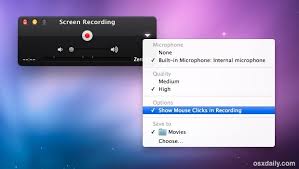
- Quicktime Player: A built-in Mac app that allows you to record your monitor, but it doesn’t have the inner audio feature.
- Screenflow: A dedicated screencast program that allows you to modify and export recordings easily. It’s a paid app, but there’s a free trial available.
- Camtasia Studio: Another popular screen recording program that allows you to edit and export recordings easily. It’s also a paid app, but there’s a 30-day free trial available.
Conclusion
Recording your Mac’s monitor with inner audio is possible using these clever tricks. We’ve covered the setup process for BlackHole, AudioHijack + Loopback, Instantaneous Monitor, and OBS. If you’re not satisfied with these solutions, we’ve also listed other options available.


