
How to Record on Ps4: A Step-by-step Guide
Are you a gamer who wants to share your gaming experiences with friends or become a YouTube personality? Do you want to record your gameplay on PlayStation 4 (PS4) without breaking the bank? Look no further! In this article, we will guide you through the process of recording on PS4, from simple to advanced techniques.
Why Record Gameplay on Ps4?
Recording gameplay on PS4 allows you to:
- Share your gaming experiences with friends and family
- Create content for YouTube or other social media platforms
- Analyze your gameplay and improve your skills
- Relive memorable moments in gaming history
Step 1: Recording Video on Ps4
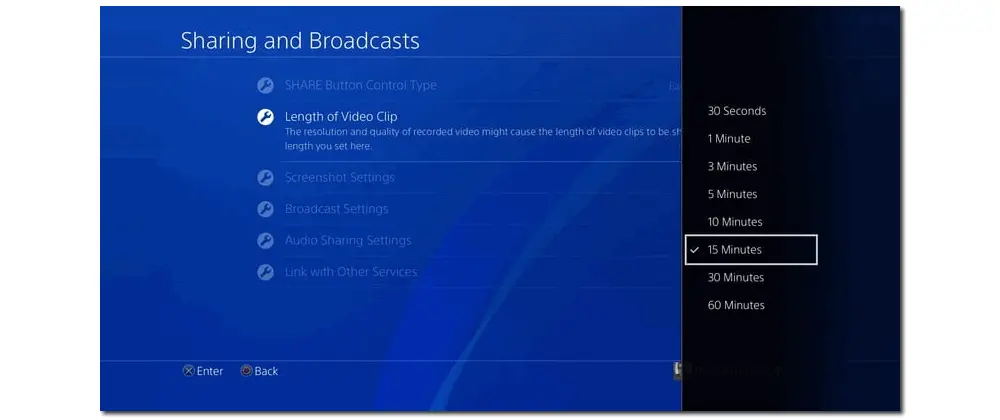
To record video on PS4, follow these simple steps:
- Play The Game as Usual: Play the game you want to record as you normally would.
- Press The Share Button: Press the Share button on your controller (located on the right side, next to Options).
- Select Clip Video: Select “Clip Video” from the menu that appears on the screen.
- Choose a Save Location: Choose where you want to save the video file (e.G., USB drive or internal storage).
Step 2: Recording Audio on Ps4
To record audio on PS4, follow these steps:
- Go to Settings: Go to Settings > Share and Transmission.
- Select Sharing Settings: Select “Sharing Settings” from the menu.
- Enable Microphone Audio: Enable the microphone audio by selecting “Include audio of the microphone in the clip video.”
- Set Audio Volume: Set the audio volume as desired using the directional arrows on your controller.
Alternative Solutions
If you’re a professional gamer or want to take your gameplay to the next level, consider investing in a capture card (e.G., Elgato, AverMedia, Roxio). These devices allow for high-quality recording and live streaming. Follow these steps:
- Connect The Capture Card: Connect the capture card to your PS4 using an HDMI cable.
- Set up The Software: Set up the software provided with the capture card (e.G., Elgato Game Capture HD).
- Record Gameplay: Record gameplay as you normally would.
Troubleshooting And Support
If you encounter any issues or have questions, don’t hesitate to contact Sony’s customer support team. Follow these steps:
- Visit The Official Support Site: Visit the official Sony support website.
- Describe Your Issue: Describe your issue in the search bar.
- Get Help From an Operator: Get help from a trained operator or submit an email request.
Conclusion
Recording on PS4 is a straightforward process that allows you to share your gaming experiences with friends, create content for YouTube, and improve your skills. With these step-by-step guides, you’ll be able to record video and audio on PS4 without breaking the bank. Remember, if you have any questions or issues, don’t hesitate to contact Sony’s customer support team.
Frequently Asked Questions (FAQs)
- Q: How do I Save Recorded Gameplay Videos?
A: Save recorded gameplay videos to a USB drive or internal storage. - Q: Can I Record Audio on Ps4 Without a Capture Card?
A: Yes, you can record audio on PS4 using the built-in microphone and following the steps outlined above. - Q: How do I Connect a Capture Card to my Ps4?
A: Connect a capture card to your PS4 using an HDMI cable. - Q: Can I Live Stream Gameplay on Ps4?
A: Yes, you can live stream gameplay on PS4 using a capture card or built-in features (e.G., PlayStation Now). - Q: How do I Adjust Audio Volume During Recording?
A: Adjust audio volume during recording by using the directional arrows on your controller. - Q: Can I Record Gameplay Without a Ps4?
A: No, you cannot record gameplay without a PS4 console (although some capture cards may have alternative uses). - Q: How do I Troubleshoot Issues With Recording on Ps4?
A: Visit the official Sony support website and follow the troubleshooting steps outlined above. - Q: Can I Share Recorded Gameplay Videos on Other Platforms Besides Youtube?
A: Yes, you can share recorded gameplay videos on various social media platforms (e.G., Facebook, Twitter).


