
Recording on Microsoft Teams: A Step-by-step Guide
As a team leader or member, you might have encountered situations where recording meetings becomes necessary. Microsoft Teams offers a feature to record meetings, which can be useful for various purposes such as training, documentation, and sharing with absent colleagues. In this article, we will guide you through the process of recording on Microsoft Teams, covering both computer and smartphone/tablet procedures.
Understanding The Requirements
Before diving into the steps, it’s essential to understand that recording meetings on Microsoft Teams is only available for certain plans, including:
- Microsoft 365 Enterprise (E1, E3, E5, F3)
- Microsoft 365 Business (Basic, Standard, Premium, Essential)
- Office 365 Education (for students and school staff)
If you’re using the free version of Microsoft Teams or don’t have one of these plans, you won’t be able to record meetings.
Recording a Meeting on Microsoft Teams From a Computer
To record a meeting on Microsoft Teams from your computer:
- Access Microsoft Teams: Log in to your Microsoft account and access Microsoft Teams.
- Create a New Meeting or Join an Existing One: Click on the calendar icon, then click on “New meeting” if you want to create a new meeting or “Join” if you’re already participating in a meeting.
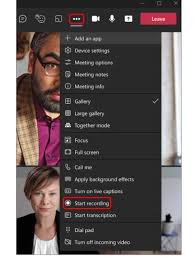
- Initiate The Recording: In the meeting window, click on the three dots at the top right corner and select “Start recording.” You’ll see a message indicating that the recording has started.
Recording a Meeting on Microsoft Teams From a Smartphone or Tablet
To record a meeting on Microsoft Teams from your smartphone or tablet:
- Open The Microsoft Teams App: Launch the Microsoft Teams app on your device.
- Create a New Meeting or Join an Existing One: Tap on the calendar icon, then tap on “New meeting” if you want to create a new meeting or “Join” if you’re already participating in a meeting.
- Initiate The Recording: In the meeting window, tap on the video camera icon and select “Start recording.” You’ll see a message indicating that the recording has started.
How to Save And Download Recordings
When you’ve finished recording a meeting:
- Stop The Recording: Click or tap on the three dots at the top right corner and select “Stop recording.”
- Save The Recording: The recording will be saved automatically to your OneDrive account.
- Access The Recording: Go to the calendar section in Microsoft Teams, click or tap on the three dots, and select “Rows.” You’ll see a list of recorded meetings. Click or tap on a meeting to access it.
Alternative Solutions For Recording Meetings
If you’re unable to use Microsoft Teams’ built-in recording feature, you can consider using third-party screen recording tools. However, keep in mind that these solutions might not provide the same level of integration and features as Microsoft Teams.
Conclusion
Recording meetings on Microsoft Teams is a straightforward process that requires minimal setup. By following these steps, you’ll be able to capture your team’s discussions, share them with colleagues, and improve collaboration. Remember to always communicate the recording of the meeting to all participants, especially when using third-party screen recording tools.
Frequently Asked Questions
- Q: What Plans Support Meeting Recording on Microsoft Teams?
A: Meeting recording is available for Microsoft 365 Enterprise (E1, E3, E5, F3), Microsoft 365 Business (Basic, Standard, Premium, Essential), and Office 365 Education. - Q: How do I Access my Recorded Meetings?
A: Go to the calendar section in Microsoft Teams, click or tap on the three dots, and select “Rows” to view your recorded meetings. - Q: Can I Record Audio Only on Microsoft Teams?
A: No, Microsoft Teams records meetings in video format (MP4). You can convert it to audio format later if needed. - Q: How do I Share my Recorded Meeting With Others?
A: You can share your recorded meeting by clicking or tapping on the “Share” button and selecting a sharing option, such as email or link. - Q: Can I Record Meetings Without Others Seeing It?
A: No, Microsoft Teams requires all participants to be aware of the recording and consent to it. - Q: What Are Some Alternative Solutions For Recording Meetings?
A: You can use third-party screen recording tools, but keep in mind that they might not provide the same level of integration and features as Microsoft Teams.
Additional Resources
For more information on using Microsoft Teams or related topics, visit:
- Microsoft Teams official documentation
- Office 365 Education resources
- Microsoft 365 Business support


