
How to Record Video Monitor: A Step-by-step Guide
Are you looking for ways to record video monitor on your PC, Mac, Android, or iPhone? Look no further! In this article, we will guide you through the process of recording video monitor on various devices.
Recording Video Monitor on PC
If you’re using a Windows computer, there are several software options available that can help you record video monitor. Here’s a step-by-step guide:
- Instrument of Capture: This is a built-in app in Windows 11 that allows you to capture video from your desktop or specific parts of the monitor. To initiate the app, search for “Instrument of Capture” in the Start menu and click on it.
- Xbox Game Bar: If you’re using Windows 10, you can use the Xbox Game Bar to record video monitor. This utility is included in the most recent versions of Windows and allows you to capture video from your desktop or other activities performed on the monitor.
Recording Video Monitor on Mac
If you’re using a Mac computer, there are several options available to record video monitor. Here’s a step-by-step guide:
- Screenshot: On macOS 10.14 (Mojave) and successive versions, you can use the Screenshot utility to capture video from your desktop or specific parts of the monitor.
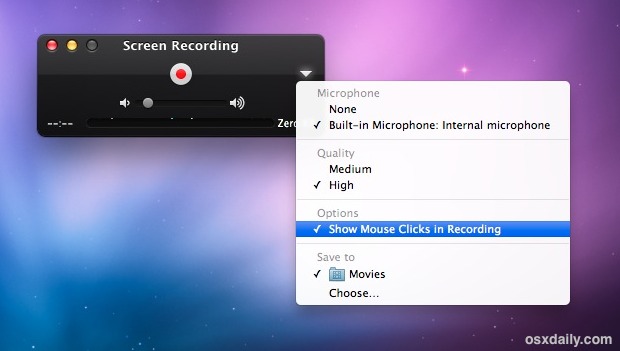
- Quicktime Player: This is a built-in media player on Mac that allows you to record video from your desktop or other sources.
Recording Video Monitor on Android
If you’re using an Android device, there are several apps available that can help you record video monitor. Here’s a step-by-step guide:
- Screen Recorder: This is a built-in app on many Android devices that allows you to capture video from your screen or specific parts of it.
- AZ Screen Recorder: This is another popular app that allows you to record video from your Android device without any watermarks or limitations.
Recording Video Monitor on Iphone
If you’re using an iPhone, there are several options available to record video monitor. Here’s a step-by-step guide:
- Recording Monitor: On iOS 11 and successive versions, you can use the built-in Recording Monitor feature to capture video from your screen or specific parts of it.
- Go Record: This is another popular app that allows you to record video from your iPhone without any watermarks or limitations.
Conclusion
In conclusion, recording video monitor on various devices is a straightforward process. By following the step-by-step guides provided above, you can capture high-quality video from your desktop or mobile device.
Faqs
Here are some frequently asked questions and answers:
-
What software options are available for recording video monitor on PC?
- Instrument of Capture and Xbox Game Bar.
-
How do I record video monitor on Mac?
-
Use the Screenshot utility or QuickTime Player.
-
Are there any apps available for recording video monitor on Android?
-
Yes, AZ Screen Recorder and Screen Recorder are popular options.
-
Can I record video monitor on iPhone?
-
Yes, use the Recording Monitor feature or Go Record app.
References


