
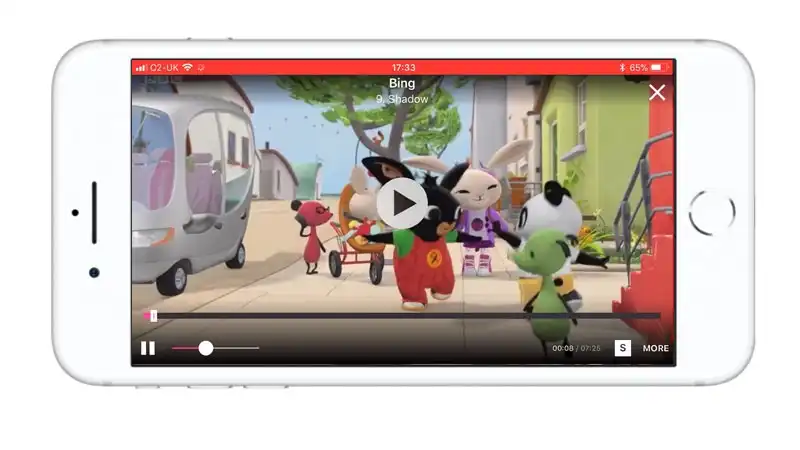
Recording Video on Iphone: A Comprehensive Guide
Are you curious about how to record video on your iPhone? Look no further! In this article, we will guide you through the process of recording video using the native Camera app on your iPhone, as well as other apps and methods.
Getting Started With The Camera App
The first step in recording video on your iPhone is to open the Camera app. You can find it on your home screen, represented by a grey icon with a camera inside. Make sure you have updated your iOS to the latest version, as this will ensure that you have all the necessary features.
Recording Video With The Camera App
To start recording video using the Camera app, tap on the “Video” option at the bottom of the screen. This will switch the mode from photo to video recording. You can also swipe left to right on your display to achieve this. The timer and other settings are accessible by tapping on the buttons at the top and bottom of the screen.
Customizing Your Video Recording Experience
You can customize your video recording experience by adjusting various settings within the Camera app. These include:
- Slow Motion: This feature allows you to record a video at a slower speed than normal, giving you more control over the footage.
- Time-lapse: This feature enables you to capture a series of photos at regular intervals, which can then be edited into a video.
- Resolution And Format: You can adjust the resolution and format of your video by going to Settings > Camera. This will affect the quality and compatibility of your video.
Alternative Apps For Recording Video
While the native Camera app is sufficient for most users, there are other apps available that offer additional features and capabilities. Some examples include:
- Adobe Premiere Clip: A video editing app that allows you to create professional-looking videos on your iPhone.
- Inshot: A powerful video editing app with advanced features like color grading and audio ducking.
- Snapchat: A popular social media app that allows you to record and share short videos with your friends.
Recording The Monitor on Your Iphone
If you want to record the monitor on your iPhone, you can do so by using the built-in Recording Monitor feature in iOS 11 or later. This feature is accessible through the Control Center, which you can reach by swiping down from the top right corner of your screen (on iPhone X and later) or swiping up from the bottom (on earlier models). The icon for recording monitor is represented by a red circle.
Recording The Monitor on Your Computer
You can also record the monitor on your iPhone using your computer. On Mac, you can use QuickTime Player to record the screen of your iPhone, provided it’s connected via USB. On Windows, you can use Reflector or AirServer to achieve this.
Conclusion
Recording video on your iPhone is a straightforward process that can be accomplished using the native Camera app or other apps and methods. Whether you’re looking to capture a memorable moment, create a short video for social media, or record your iPhone’s monitor, there are plenty of options available to suit your needs.
Frequently Asked Questions
Q: How do I record video on my iPhone?
A: To record video on your iPhone, open the Camera app and tap on the “Video” option at the bottom of the screen.
Q: What is the best app for recording video on my iPhone?
A: The native Camera app is sufficient for most users, but you may want to consider other apps like Adobe Premiere Clip or InShot for more advanced features.
Q: How do I record the monitor on my iPhone?
A: You can record the monitor on your iPhone using the built-in Recording Monitor feature in iOS 11 or later. This feature is accessible through the Control Center.
Q: Can I record the monitor on my iPhone using my computer?
A: Yes, you can use QuickTime Player on Mac to record the screen of your iPhone, provided it’s connected via USB. On Windows, you can use Reflector or AirServer to achieve this.
Q: What are some alternative apps for recording video on my iPhone?
A: Some examples include Adobe Premiere Clip, InShot, Snapchat, and more.
Q: How do I customize my video recording experience?
A: You can adjust various settings within the Camera app, such as resolution, format, slow motion, and time-lapse.


