
Recovering a Deleted History on Instagram: A Step-by-step Guide
Are you concerned about accidentally deleting a memorable photo or video from your Instagram profile? Don’t worry, this article will guide you through the process of recovering deleted history on Instagram.
Understanding Instagram’s Delete And Recover Feature
Instagram has a built-in feature that allows users to recover deleted content within a certain timeframe. This feature is available on both mobile devices and computers, but with some limitations.
Recovering Deleted History on Mobile Devices
To recover deleted history on your smartphone or tablet:
- Open The Instagram App: Launch the Instagram app on your device.
- Tap on Your Profile Picture: Tap on your profile picture in the top-right corner of the screen.
- Select Settings: Select the three horizontal lines (≡) icon at the bottom-right corner of the screen, then tap on “Settings.”
- Choose Account: In the settings menu, select “Account” from the list of options.
- Tap on Deleted Posts: Scroll down and select “Deleted Posts.”
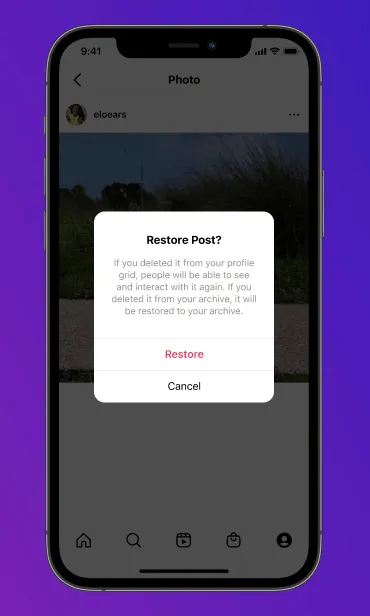
- Select The Deleted Post: Find the post you want to recover and tap on it.
- Restore The Post: Tap on the three vertical dots (≡) icon in the top-right corner of the screen, then select “Restore” from the menu.
Recovering Deleted History on Computers
Unfortunately, Instagram’s website and desktop app do not currently allow users to recover deleted content directly. However, you can try using the mobile app method described above on a computer by accessing Instagram through a mobile browser.
How to Save Instagram History For Future Reference
To save your Instagram history for future reference:
- Go to Your Profile: Open the Instagram website or app and navigate to your profile.
- Tap on The Three Horizontal Lines (≡): Tap on the three horizontal lines icon at the bottom-right corner of the screen, then select “Settings.”
- Choose Account: Select “Account” from the list of options.
- Select History of Accounts: Scroll down and select “History of Accounts.”
- Tap on Save History in File: Tap on the toggle switch to turn it ON.
- Save History in Gallery: Alternatively, you can save your Instagram history in the Photos app (on iOS devices) or Gallery app (on Android devices).
Tips For Preventing Data Loss
To avoid losing important data in the future:
- Regularly Back up Your Device: Regularly back up your device to prevent loss of data.
- Use a Cloud Storage Service: Consider using a cloud storage service like Google Drive, iCloud, or Dropbox to store your Instagram history.
- Save Frequently: Save your Instagram history frequently by tapping on the “Save” button.
Conclusion
Recovering deleted history on Instagram is possible within a certain timeframe. By following these steps, you can recover deleted content on both mobile devices and computers. Remember to save your Instagram history regularly to prevent loss of important data.
Frequently Asked Questions (FAQs)
- What Happens if I Delete a Post Within The Recovery Timeframe?
If you delete a post within the recovery timeframe, it will be removed from your profile permanently. - Can I Recover Deleted Posts on Instagram’s Website or Desktop App?
Unfortunately, no. You can only recover deleted posts through the mobile app method described above. - How do I Save my Instagram History For Future Reference?
To save your Instagram history, follow the steps described in this article to save it in a file or gallery. - What Are Some Tips For Preventing Data Loss on Instagram?
Regularly back up your device, use cloud storage services, and save frequently to prevent loss of important data.


