
How to Recover Your Apple ID Password: A Step-by-step Guide
Are you having trouble accessing your Apple ID due to a forgotten password? Don’t worry, we’ve got you covered! In this article, we’ll walk you through the steps to recover your Apple ID password using various methods.
Why Can’t I Access My Apple Id?
Before we dive into the solutions, let’s quickly address why you might be having trouble accessing your Apple ID. There are several reasons for this:
- You’ve forgotten your Apple ID password
- You’re unable to access your email account associated with your Apple ID
- You don’t have a device associated with your Apple ID
Method 1: Recovering Your Password Using Two-factor Authentication
If you have two-factor authentication (2FA) enabled on your device, recovering your Apple ID password is relatively easy. Here’s what you need to do:
- Go to the Settings app on your iPhone or iPad.
- Tap on your name at the top of the screen.
- Select “Password & Security.”
- Tap on “Change Password.”
- Enter your current password, then enter a new password and confirm it.
Method 2: Recovering Your Password Using Another Device
If you don’t have access to the device associated with your Apple ID, but you have another iOS device or a Mac, follow these steps:
- Go to Settings > [Your Name] > Password & Security on your other device.
- Tap on “Change Password.”
- Enter your current password, then enter a new password and confirm it.
Method 3: Recovering Your Password Using Email
If you don’t have access to another device or can’t use two-factor authentication, you can try recovering your Apple ID password using email:
- Go to the Apple ID website.
- Click on “Forgot Apple ID or [Password]?”
- Enter your Apple ID and tap Next.
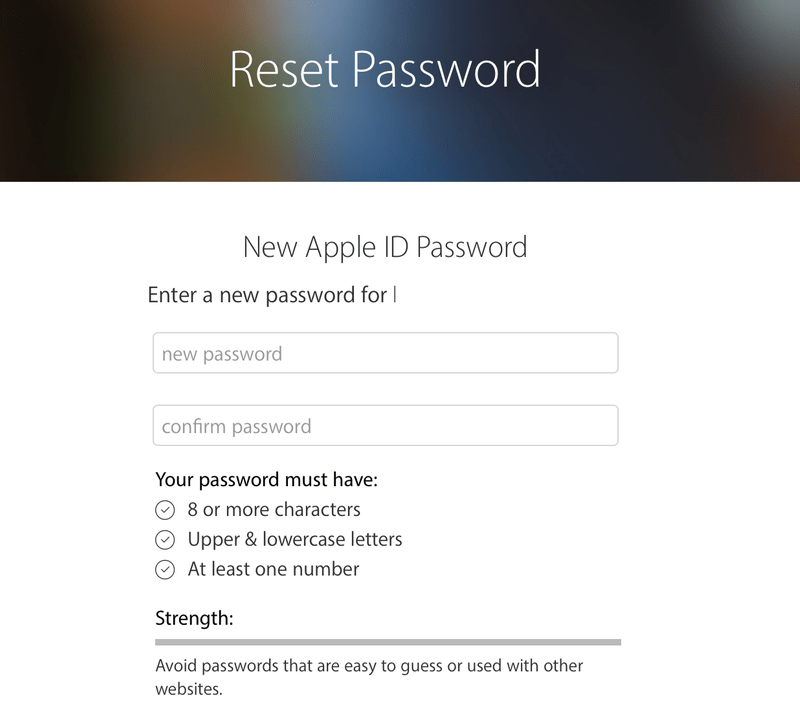
- Follow the instructions to reset your password.
Method 4: Recovering Your Password Using an Iphone App
If you don’t have access to another device or can’t use email, you can try using the Support app on a friend’s iPhone:
- Download and install the Support app from the App Store.
- Launch the app and tap on “Forgot Apple ID or [Password]?”
- Enter your Apple ID and follow the instructions to reset your password.
Method 5: Recovering Your Password Using an Ipad App
If you don’t have access to another device, but you have a friend’s iPad with iOS 12 or later installed, follow these steps:
- Ask your friend to download and install the Support app.
- Launch the app and tap on “Forgot Apple ID or [Password]?”
- Enter your Apple ID and follow the instructions to reset your password.
Method 6: Recovering Your Password Using a Mac App
If you don’t have access to another device, but you have a friend’s Mac with macOS High Sierra or later installed, follow these steps:
- Ask your friend to download and install the Support app.
- Launch the app and tap on “Forgot Apple ID or [Password]?”
- Enter your Apple ID and follow the instructions to reset your password.
Method 7: Recovering Your Password Using an Online Form
If you’re unable to use any of the above methods, you can try recovering your Apple ID password using an online form:
- Go to the Apple ID website.
- Click on “Forgot Apple ID or [Password]?”
- Enter your Apple ID and tap Next.
- Follow the instructions to reset your password.
Method 8: Recovering Your Password Using a Device in an Apple Store
If you don’t have access to another device, but you visit an Apple Store, follow these steps:
- Ask a Genius to help you recover your Apple ID password.
- Provide them with your Apple ID and proof of identity.
- Follow their instructions to reset your password.
Troubleshooting Tips
If none of the above methods work for you, don’t worry! Here are some troubleshooting tips to try:
- Make sure you have two-factor authentication enabled on your device.
- Try using a different browser or device.
- Contact Apple Support for further assistance.
Conclusion
Recovering your Apple ID password can be a bit tricky, but with these step-by-step guides, you should be able to access your account again. Remember to always keep your password secure and use two-factor authentication whenever possible.
Frequently Asked Questions (FAQs)
Q: How do I recover my Apple ID password?
A: You can try recovering your Apple ID password using various methods, such as two-factor authentication, another device, email, or the Support app.
Q: What if I don’t have access to a device associated with my Apple ID?
A: If you don’t have access to a device associated with your Apple ID, but you have another iOS device or a Mac, you can try recovering your password using those devices.
Q: Can I recover my Apple ID password without changing it?
A: Unfortunately, no. To recover your Apple ID password, you’ll need to change the existing password.
Q: How do I enable two-factor authentication on my device?
A: Go to Settings > [Your Name] > Password & Security and tap on “Turn On Two-Factor Authentication.”
Q: Can I use the Support app on an iPad or Mac to recover my Apple ID password?
A: Yes, you can try using the Support app on a friend’s iPad or Mac with iOS 12 or later (for iPad) or macOS High Sierra or later (for Mac).
Q: What if I’m unable to access my email account associated with my Apple ID?
A: If you’re unable to access your email account, but you have another device associated with your Apple ID, you can try recovering your password using that device.
Q: Can I recover my Apple ID password without going to an Apple Store?
A: Yes, you can try recovering your Apple ID password using online methods or the Support app on a friend’s device.


