
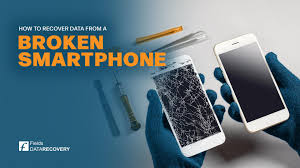
Recovering Your Iphone: A Step-by-step Guide
Are you worried about losing your precious iPhone data due to a broken screen, water damage, or other accidents? Don’t worry; help is at hand! In this comprehensive guide, we’ll walk you through the steps to recover your iPhone data using various methods.
Understanding Iphone Data Recovery
Before we dive into the recovery process, it’s essential to understand how data is stored on an iPhone. Your device stores data in two main ways: Locally on the phone and remotely on iCloud. If your iPhone is damaged, you can still recover data from both sources.
Method 1: Recovering From Icloud
If you’ve enabled iCloud backup on your iPhone, you can recover data using this method.
Benefits of Using Icloud For Data Recovery
- Easy to set up and use
- No need to connect your device to a computer
- Fast and reliable
Steps to Recover Data From Icloud
- Sign in to your Apple ID account.
- Go to the iCloud website (www.Icloud.Com).
- Click on “Account Settings.”
- Select the type of data you want to recover (e.G., Photos, contacts, etc.).
Method 2: Recovering From Itunes or Finder
If you’ve synced your iPhone with iTunes or Finder on a computer, you can use this method to recover data.
Benefits of Using Itunes or Finder For Data Recovery
- Allows recovery of data even if iCloud is not enabled
- Can be used in conjunction with iCloud backup
Steps to Recover Data From Itunes or Finder
- Connect your iPhone to the computer using a USB cable.
- Open iTunes (on Windows) or Finder (on macOS).
- Select your iPhone in the top-left corner of the screen.
- Click on “Summary” and then select “Restore Backup.”
- Choose the backup you want to restore.
Method 3: Using Third-party Software
If you’ve tried the above methods and still need help, consider using third-party software like Dr.Fone or EaseUS MobiSaver.
Benefits of Using Third-party Software For Data Recovery
- Can recover data even if iCloud and iTunes/Finder backups are not available
- Often provides more detailed information about the recovery process
Steps to Use Third-party Software For Data Recovery
- Download and install the software on your computer.
- Connect your iPhone to the computer using a USB cable.
- Launch the software and select the type of data you want to recover.
Method 4: Recovering From Physical Water Damage
If your iPhone has been physically damaged due to water exposure, follow these steps:
Precautions For Water-damaged Iphones
- Avoid turning on your iPhone if it’s wet
- Don’t try to charge the device if it’s damp
Steps to Recover Data From a Water-damaged Iphone
- Follow the manufacturer’s guidelines for drying the device.
- If possible, try to recover data using iCloud or iTunes/Finder methods.
- Consider contacting Apple support for further assistance.
Conclusion
Recovering your iPhone data doesn’t have to be a daunting task. By following these step-by-step guides, you can minimize the risk of losing precious memories and information. Remember to take necessary precautions when dealing with water-damaged devices, and consider using third-party software if needed.
Frequently Asked Questions (FAQs)
- Q: How do I Enable Icloud Backup on my Iphone?
A: Go to Settings > [your name] > iCloud > iCloud Backup. - Q: Can I Recover Data From an Iphone With a Broken Screen?
A: Yes, but the chances of successful recovery depend on the extent of damage and whether your device is connected to a power source. - Q: What if my Iphone Has Been Water Damaged? Can I Still Recover Data?
A: Yes, but follow the manufacturer’s guidelines for drying the device first. - Q: How do I Use Third-party Software Like Dr.Fone or Easeus Mobisaver?
A: Download and install the software on your computer, connect your iPhone using a USB cable, and follow the instructions provided. - Q: Can I Recover Data From an Icloud Backup Without Having my Iphone Handy?
A: Yes, by signing in to your Apple ID account and accessing the iCloud website (www.Icloud.Com). - Q: How do I Prevent Data Loss Due to Accidental Damage or Water Exposure?
A: Regularly back up your iPhone using iCloud, iTunes/Finder, or third-party software. - Q: What if my Iphone is no Longer Responding After a Fall or Water Damage? Can I Still Recover Data?
A: Try restarting the device first; if it doesn’t work, consider contacting Apple support for assistance. - Q: Are There Any Risks Associated With Using Third-party Software For Data Recovery?
A: Yes, be cautious when selecting software and read user reviews to ensure you’re getting a reliable tool.
I hope this comprehensive guide has helped alleviate your concerns about recovering your iPhone data in case of an accident or damage.


