
Recovering Erased Email From Free: A Step-by-step Guide
Are you frantically searching for a solution to recover erased email from your Free account? You’re not alone! Many of us have experienced the frustration of accidentally deleting important emails, only to find them gone forever. Fear not, dear reader, as we embark on this journey to help you retrieve those precious messages.
Understanding How Email Works in Free
Before we dive into the recovery process, it’s essential to understand how email works in your Free account. All incoming and outgoing emails are stored in your inbox or sent folder, but sometimes these can get deleted or moved to the trash by mistake. This is where our guide comes in – to help you recover those mistakenly erased emails.
Recovering Email From Your Computer
To start, let’s focus on recovering email from your computer. Here’s a step-by-step guide:
Step 1: Accessing Your Free Account on Your Computer Browser
First, ensure you’re using the browser of your choice (e.G., Chrome) and navigate to the Free mail login page. Log in to your account if necessary.
Step 2: Locating The Erased Email in The Trash
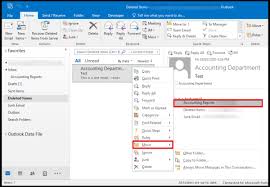
Click on the “Mail” icon situated at the top left corner of your browser, then select “Basket” from the menu. This will take you to the trash folder, where deleted emails are stored.
Step 3: Retrieving The Email
Look for the email you wish to recover among the list of deleted messages in the trash folder. If found, click on it and proceed to the next step. If not visible, use the search bar provided at the top right corner of your browser to search for keywords related to the erased message.
Step 4: Moving The Email Back to Your Inbox
Once you’ve located the email, click on it and select “Displace” from the menu. Choose the location where you want to move the email (e.G., “Mail arrived”). Confirm your action by clicking “Displace.”
Recovering Email From Smartphones And Tablets
If you’re using a smartphone or tablet, you can still recover deleted email from Free using their official app:
Step 1: Accessing Your Free Account on Your Smartphone/tablet App
Open the Free mail app on your mobile device. If prompted, log in to your account.
Step 2: Locating The Erased Email in The Trash
Tap on the “Basket” icon within the app and navigate through your trash folder to find the deleted email.
Step 3: Retrieving The Email
If you locate the email, tap on it, then press the icon with a folder and an arrow. Choose where you want to move the email (e.G., “Mail arrived”).
Alternative Solutions For Recovering Erased Email From Free
If the above steps don’t yield results or if your account has been emptied, consider using alternative solutions:
- Easeus Data Recovery Wizard: A reliable program that helps recover deleted files, including emails. It’s available for both Windows and macOS.
- Disk Drill: A compatible solution for recovering lost data on various devices, including smartphones and tablets.
- Recuva: A free software specifically designed to retrieve lost data from computers.
- Lazesoft Mac Data Recovery: A user-friendly program tailored for recovering data from Apple devices.
Conclusion
Recovering erased email from Free is possible with the right steps. If you’re experiencing trouble, try following our guide or consider using alternative solutions. Remember, when it comes to digital data, prevention and preparation are key to avoiding such situations in the future.
Frequently Asked Questions (FAQs)
-
What Happens if I Accidentally Delete Important Emails From my Free Account?
Your deleted emails will be moved to the trash folder, where they remain until emptied.
2. Can I Recover Permanently Deleted Email?If you’ve emptied your trash or used a program like EaseUS Data Recovery Wizard, there might still be a chance to recover erased emails.
3. Is it Possible to Recover Emails From my Smartphone or Tablet?Yes, the official Free mail app on your mobile device allows you to access and potentially recover deleted email.
4. Are These Recovery Methods Only Applicable to Free Email Accounts?Some of these solutions can be applied to other email services as well.
5. What is Easeus Data Recovery Wizard?A reliable program for recovering deleted files, including emails, available on both Windows and macOS.
6. Can I Use Easeus Data Recovery Wizard on my Mac?Yes, it’s compatible with both Windows and macOS operating systems.
If you have any further questions or need additional guidance, feel free to ask.


