
How to Recover Erased Emails: A Step-by-step Guide
Are you worried about losing important emails that were accidentally deleted? Don’t worry, we’ve got you covered! In this article, we’ll guide you through the process of recovering erased emails from various email services.
Understanding Email Recovery
Email recovery is a process that involves retrieving emails that have been deleted or erased from your email account. This can be done using various methods, including checking the trash or spam folders, restoring deleted emails from backup files, or even using specialized software to recover lost emails.
Recovering Erased Emails: A Step-by-step Guide
Gmail Email Recovery
If you’re a Gmail user and want to recover erased emails, follow these steps:
- Log in to your Google account.
- Click on the “More” icon (represented by three vertical dots) next to the gear icon.
- Select “See all mail.”
- Navigate to the trash or spam folder where the deleted email is stored.
- Check if the email is still available in the trash or spam folder.
If the email is still present, follow these steps:
- Click on the three vertical dots next to the email.
- Select “Move to” and choose the desired label (e.G., Inbox).
- Confirm that you want to move the email to the selected label.
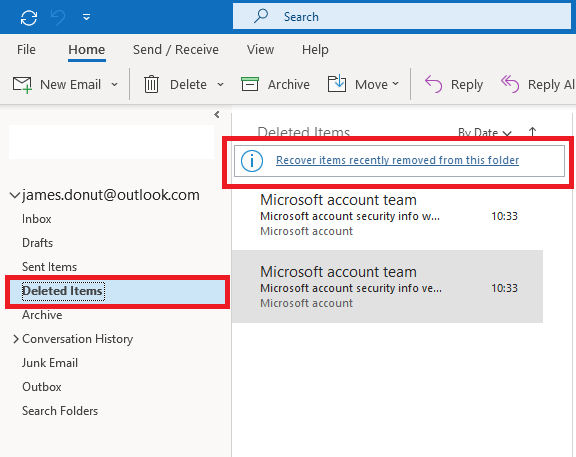
Outlook Email Recovery
If you’re an Outlook user, follow these steps:
- Log in to your Microsoft account.
- Navigate to the “Deleted Items” folder.
- Check if the deleted email is still available in this folder.
- If it’s present, click on the three vertical dots next to the email.
- Select “Restore to Folder” and choose the desired label (e.G., Inbox).
Icloud Mail Recovery
If you’re an iCloud user, follow these steps:
- Log in to your Apple account.
- Navigate to the iCloud website.
- Click on the “Mail” icon.
- Check if the deleted email is still available in the trash or spam folder.
If it’s present, follow these steps:
- Select the email you want to recover.
- Click on the “More” icon (represented by three vertical dots).
- Select “Move to” and choose the desired label (e.G., Inbox).
Libero Email Recovery
If you’re a Libero user, follow these steps:
- Log in to your Libero account.
- Navigate to the inbox or mail section.
- Check if the deleted email is still available in the trash or spam folder.
If it’s present, follow these steps:
- Select the email you want to recover.
- Click on the “More” icon (represented by three vertical dots).
- Select “Move to” and choose the desired label (e.G., Inbox).
Virgilio Email Recovery
If you’re a Virgilio user, follow these steps:
- Log in to your Virgilio account.
- Navigate to the inbox or mail section.
- Check if the deleted email is still available in the trash or spam folder.
If it’s present, follow these steps:
- Select the email you want to recover.
- Click on the “More” icon (represented by three vertical dots).
- Select “Move to” and choose the desired label (e.G., Inbox).
Aruba Email Recovery
If you’re an Aruba user, follow these steps:
- Log in to your Aruba account.
- Navigate to the inbox or mail section.
- Check if the deleted email is still available in the trash or spam folder.
If it’s present, follow these steps:
- Select the email you want to recover.
- Click on the “More” icon (represented by three vertical dots).
- Select “Move to” and choose the desired label (e.G., Inbox).
Other Solutions
If the above methods don’t work for you, consider using specialized software like EaseUS Recovery Wizard or Recuva to recover lost emails.
Conclusion
Recovering erased emails is a straightforward process that can be done using various email services. By following these steps, you should be able to retrieve your deleted emails and avoid losing important information.


