
Recovering Erased Files Without Programs: A Step-by-step Guide
Have you ever accidentally deleted a file, only to realize later that it was important? Don’t worry, we’ve all been there! In this article, we’ll explore the possibility of recovering erased files without using programs. Yes, you read that right – no programs needed!
Why Do Files Get Erased?
Before we dive into the solution, let’s understand why files get erased in the first place. There are several reasons for this:
- Accidental Deletion: You might delete a file by mistake while trying to free up space on your computer.
- System Updates: When you update your operating system or software, sometimes files can be deleted during the process.
- Virus or Malware Attacks: Malicious software can delete important files as part of its malicious activity.
Can I Recover Erased Files Without Programs?
The short answer is yes! If you’ve erased a file but haven’t emptied the recycle bin or trash, there’s a good chance you can recover it without using any programs. This method works on both Windows and macOS operating systems.
How to Recover Erased Files on Windows
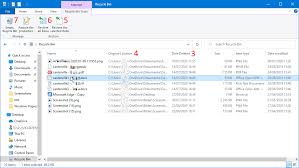
- Check The Recycle Bin: First, check if the file is still in the recycle bin. If it is, you can simply restore it.
- Use Windows Explorer: Open Windows Explorer (also known as File Explorer) and navigate to the folder where the deleted file was stored.
- Look For The File: Search for the deleted file using the search bar at the top of the window.
- Restore The File: If you find the file, right-click on it and select “Restore” or “Move to” to restore it to its original location.
How to Recover Erased Files on Macos
- Check The Trash: First, check if the file is still in the trash. If it is, you can simply restore it.
- Use Finder: Open Finder and navigate to the folder where the deleted file was stored.
- Look For The File: Search for the deleted file using the search bar at the top of the window.
- Restore The File: If you find the file, right-click on it and select “Put Back” or “Move to” to restore it to its original location.
What If I’ve Emptied The Recycle Bin?
If you’ve emptied the recycle bin or trash, don’t worry! There are still ways to recover erased files without using programs. We’ll explore these methods in the next section.
Alternative Methods For Recovering Erased Files
- Shadow Copy: On Windows systems, you can use the Shadow Copy feature to recover deleted files.
- Time Machine: On macOS systems, you can use Time Machine to recover deleted files from previous backups.
- Software Recovery Tools: If all else fails, you can try using software recovery tools specifically designed for recovering erased files.
Software Options For Recovering Erased Files
If you’re not comfortable with manual methods or if the above alternatives don’t work, there are several software options available that can help recover erased files. Some popular ones include:
- Disk Drill: A free data recovery software that can recover deleted files from Windows and macOS systems.
- Minitool Power Data Recovery: A powerful data recovery software that can recover up to 1 GB of data for free.
- Recuva: A free file recovery software specifically designed for recovering erased files on Windows systems.
Conclusion
Recovering erased files without programs is possible, and we’ve explored several methods in this article. Remember to always check the recycle bin or trash first before resorting to more complex methods. If you’re not comfortable with manual methods, there are software options available that can help recover deleted files.


