
How to Recover a Folder Erased From Your Computer
Are you wondering if there’s a way to recover a folder that you’ve accidentally deleted from your computer? The answer is yes! In this article, we’ll guide you through the process of recovering a deleted folder using various software and tools.
Why Can’t I Just Get It Back?
When you delete a file or folder, it’s not always gone for good. Depending on the operating system and the type of storage device used, there are several ways to recover deleted files.
Factors Affecting Recovery
Before we dive into the recovery process, it’s essential to understand that the success of recovering a deleted folder depends on various factors:
- Backup: If you have a backup of your data, you can restore the deleted folder from the backup.
- Operating System: The type of operating system used (Windows or macOS) affects the recovery process.
- Storage Device: The storage device used (hard drive, SSD, USB, etc.) Also impacts the recovery process.
Recovering a Folder Erased From Windows
If you’re using a Windows computer and have deleted a folder, there are several ways to recover it:
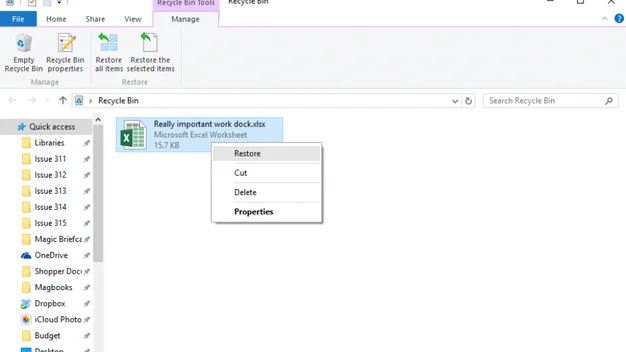
1. Recovering From The Recycle Bin
If you’ve recently deleted a folder, check if it’s still in the Recycle Bin. If it is, simply right-click on the folder and select “Restore” to retrieve it.
2. Using Photorec
PhotoRec is a free software that can recover various types of files from your Windows computer. Download and install PhotoRec, then follow these steps:
A. Launch PhotoRec.
B. Select the drive where the deleted folder was stored.
C. Choose the file type (e.G., FAT, NTFS, HFS+, etc.).
D. Select the recovery location.
3. Using Recuva
Recuva is another software that can recover deleted files from your Windows computer. Download and install Recuva, then follow these steps:
A. Launch Recuva.
B. Select the drive where the deleted folder was stored.
C. Choose the file type (e.G., FAT, NTFS, HFS+, etc.).
D. Select the recovery location.
Recovering a Folder Erased From Macos
If you’re using a Mac and have deleted a folder, there are several ways to recover it:
1. Recovering From The Trash
If you’ve recently deleted a folder, check if it’s still in the Trash. If it is, simply right-click on the folder and select “Put Back” to retrieve it.
2. Using Time Machine
Time Machine is an excellent tool for recovering deleted files from your Mac. Make sure you have Time Machine configured, then follow these steps:
A. Launch Time Machine.
B. Select the drive where the deleted folder was stored.
C. Choose the date and time when the folder was last accessed.
D. Select the recovered file to restore it.
3. Using Disk Drill
Disk Drill is a powerful software that can recover deleted files from your Mac or external storage devices. Download and install Disk Drill, then follow these steps:
A. Launch Disk Drill.
B. Select the drive where the deleted folder was stored.
C. Choose the file type (e.G., FAT, NTFS, HFS+, etc.).
D. Select the recovery location.
Recovering a Folder Erased From Android
If you’ve deleted a folder on your Android device, there are several ways to recover it:
1. Using Diskdigger
DiskDigger is an excellent software for recovering deleted files from your Android device. Download and install DiskDigger, then follow these steps:
A. Launch DiskDigger.
B. Select the drive where the deleted folder was stored.
C. Choose the file type (e.G., FAT, NTFS, HFS+, etc.).
D. Select the recovery location.
2. Using a Computer
If you’ve deleted a folder on your Android device and want to recover it using a computer, follow these steps:
A. Connect your Android device to your computer.
B. Use software like Recuva or Disk Drill to scan for deleted files.
C. Select the recovered file to restore it.
Recovering a Folder Erased From Iphone
If you’ve deleted a folder on your iPhone, there are several ways to recover it:
1. Using Icloud
If you have iCloud enabled on your iPhone, you can recover deleted files by following these steps:
A. Sign in to your iCloud account on your computer.
B. Select the drive where the deleted folder was stored.
C. Choose the file type (e.G., FAT, NTFS, HFS+, etc.).
D. Select the recovery location.
2. Using a Computer
If you’ve deleted a folder on your iPhone and want to recover it using a computer, follow these steps:
A. Connect your iPhone to your computer.
B. Use software like Recuva or Disk Drill to scan for deleted files.
C. Select the recovered file to restore it.
Recovering a Folder Erased From External Storage Devices
If you’ve deleted a folder on an external storage device (e.G., USB drive, hard disk), follow these steps:
A. Connect the external storage device to your computer.
B. Use software like Recuva or Disk Drill to scan for deleted files.
C. Select the recovered file to restore it.
Conclusion
Recovering a deleted folder can be a daunting task, but with the right tools and knowledge, it’s possible. Make sure you have backups of your data, and use the appropriate software and techniques depending on the operating system and storage device used.
Faqs
- Q: Can I Recover a Folder That Was Deleted Months Ago?
A: It depends on the factors mentioned above (backup, operating system, storage device). However, it’s generally more challenging to recover older files. - Q: Will Recovering a Folder Overwrite New Data?
A: No, recovering a folder will not overwrite new data. The recovered file will be stored separately from your existing data. - Q: Can I Recover Multiple Folders at Once?
A: Yes, most recovery software can recover multiple files and folders simultaneously. - Q: Is it Possible to Recover Deleted Files From a Formatted Hard Drive?
A: In some cases, yes. However, the chances of successful recovery decrease significantly after formatting. - Q: Can I Use These Methods on Other Operating Systems (e.G., Linux)?
A: Some software and techniques can be used on other operating systems, but it’s essential to verify compatibility before attempting recovery. - Q: Are There Any Free Alternatives to The Software Mentioned?
A: Yes, some free alternatives are available for recovering deleted files, such as PhotoRec (for Windows and macOS) and DiskDigger (for Android). - Q: Can I Recover Deleted Files From a Cloud Storage Service?
A: It depends on the specific service provider and their data retention policies. - Q: Is it Recommended to Use These Methods For Recovering Sensitive Information?
A: No, it’s not recommended to use these methods for recovering sensitive or confidential information without proper expertise and precautions.
I hope this article has provided you with a comprehensive guide to recovering deleted folders on various devices and operating systems. Remember to always follow the instructions carefully and take necessary precautions when attempting data recovery.


