
Recovering Deleted TV Channels: A Step-by-step Guide
Are you frustrated because your favorite TV channels have disappeared from the air? Don’t worry, this guide is here to help you recover deleted TV channels on your digital TV or decoder.
Why Do TV Channels Get Deleted?
Before we dive into the solution, it’s essential to understand why TV channels get deleted in the first place. There are several reasons for this:
- Channel Updates: Sometimes, TV channels may be updated, and their frequencies might change.
- Technical Issues: Technical problems with your digital TV or decoder can cause TV channels to disappear.
- Incorrect Settings: Incorrect settings on your device might lead to the disappearance of TV channels.
Step 1: Check Compatibility
Before attempting to recover deleted TV channels, it’s crucial to check if your digital TV or decoder is compatible with the latest DVB-T2 HEVC standard. This will ensure that you can receive high-quality audio and video without any electromagnetic pollution.
Step 2: Identify The Problem
If you’ve checked compatibility and still can’t find your favorite TV channels, it’s time to identify the problem. Check if:
- The channel is no longer broadcasting
- The channel has changed its frequency or band
- There are technical issues with your digital TV or decoder
Step 3: Recover Deleted TV Channels
If you’ve identified the problem and checked compatibility, it’s time to recover deleted TV channels. Here are some steps to follow:
Manual Synchronization
- Access the settings menu on your digital TV or decoder.
- Select the channel settings option.
- Choose manual synchronization.
- Enter the frequency, band, and mux details for the channel you want to recover.
Automatic Synchronization
- Access the settings menu on your digital TV or decoder.
- Select the channel settings option.
- Choose automatic synchronization.
- Wait for the device to automatically detect and add the channel to your list.
Additional Tips
If you’re using a TV from LG, Samsung, or Panasonic, follow these specific steps:
- LG TV: Access the settings menu, select Channels > Synchronization and settings channels, and choose manual synchronization.
- Samsung TV: Access the settings menu, select Transmission, and choose manual synchronization.
- Panasonic TV: Access the settings menu, select Menu sintonia, and choose manual synchronization.
Re-ordering Channels
If you’ve recovered deleted TV channels but they’re not appearing in the correct order, follow these steps:
- Access the settings menu on your digital TV or decoder.
- Select the channel settings option.
- Choose LCN (Logical Channel Number) ordering.
- Wait for the device to reorder the channels according to the standard numbering.
Additional Tips
If you’re experiencing further issues after following these steps, it’s likely due to:
- Technical Issues: Technical problems with your digital TV or decoder can cause TV channels to disappear.
- Incorrect Settings: Incorrect settings on your device might lead to the disappearance of TV channels.
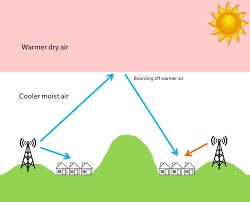
- Extreme Weather Conditions: Extreme weather conditions can disrupt TV signals and cause channels to disappear.
Conclusion
Recovering deleted TV channels is a relatively simple process that can be achieved by following these steps. By checking compatibility, identifying the problem, and attempting manual or automatic synchronization, you should be able to recover your favorite TV channels. Remember to also check for technical issues, incorrect settings, and extreme weather conditions that might be causing the issue.
Frequently Asked Questions
- Q: Why do TV Channels Get Deleted?
- A: TV channels can get deleted due to channel updates, technical issues, or incorrect settings.
- Q: How Can I Check Compatibility With Dvb-t2 Hevc Standard?
- A: Check your digital TV or decoder’s specifications for DVB-T2 HEVC support.
- Q: What Are The Steps to Recover Deleted TV Channels?
- A: Follow manual synchronization, automatic synchronization, and channel reordering steps.
- Q: Why do TV Channels Not Appear in The Correct Order?
- A: Channels might be out of order due to incorrect settings or technical issues.


