
How to Recover Deleted Rows From Google Drive
Are you in a panic because you’ve accidentally deleted some essential files from your Google Drive account? Don’t worry, we’ve got you covered! In this article, we’ll guide you through the process of recovering deleted rows from Google Drive using various methods.
Google Drive For Pc: A Comprehensive Guide
To start, let’s dive into the world of Google Drive on your computer. If you’re looking to recover rows from Google Drive using your PC, there are two primary methods:
- Google Drive Official Program: You can download and install the official Google Drive program on your PC, which allows you to access and manage your files directly.
- Google Drive Web Interface: Alternatively, you can use the web interface of Google Drive by accessing it through a browser.
Recovering Rows From Google Drive For PC
If you’re using the official program, follow these steps:
- Launch the Google Drive program on your PC.
- Click on the “Download” button to download the entire content of your Google Drive account or select specific files and folders.
- Once the download is complete, you can access your recovered files by opening the downloaded folder.
Recovering Rows From Google Drive Web Interface
If you’re using the web interface, follow these steps:
- Log in to your Google Drive account through a browser.
- Click on the “My Drive” tab and locate the file or folder you want to recover.
- Right-click on the file/folder and select “Download.”
- If you’re downloading a large number of files, Google Drive will compress them into a ZIP file for easy access.
Recovering Rows From Google Drive For Smartphone And Tablet
If you need to recover rows from Google Drive using your smartphone or tablet, follow these steps:
- Install the Google Drive app on your device.
- Launch the app and navigate to the “Rows” tab.
- Locate the file or folder you want to recover and tap on it.
- Tap on the three dots (⋮) next to the file/folder name and select “Download.”
Recovering Rows Deleted From Google Drive
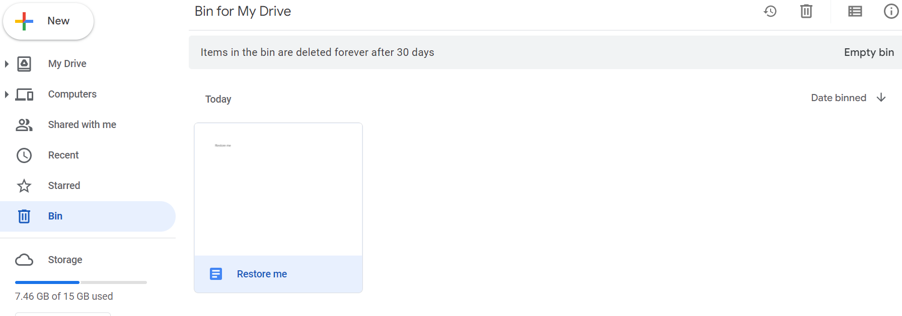
If you’ve accidentally deleted a file from Google Drive, don’t panic! The file is still available in your trash can for 30 days. To recover it:
- Go to the Google Drive web interface or access the app on your device.
- Navigate to the “Trash” tab and locate the deleted file.
- Right-click (or tap) on the file and select “Restore.”
Recovering Rows Deleted Definitively From Google Drive
If you’ve emptied your trash can and permanently deleted a file, Google’s support team may be able to recover it for you. Fill out this form to request assistance.
Recovering Whatsapp Backups From Google Drive
If you’ve taken the backup of your WhatsApp chat on Google Drive, you can access it through the app. To do so:
- Launch the Google Drive app on your device.
- Tap on the menu icon (three horizontal lines) and select “Backup.”
- Locate the WhatsApp backup file and tap on it.
Conclusion
Recovering deleted rows from Google Drive is a relatively straightforward process, especially with these step-by-step guides. Whether you’re using a PC or a smartphone/tablet, you can access your files through various methods. Remember to take regular backups of your essential data to avoid losing important information.
Frequently Asked Questions (FAQs)
- Q: Can I Recover Deleted Rows From Google Drive?
A: Yes, you can recover deleted rows from Google Drive by accessing the “Trash” tab within 30 days. - Q: How do I Download Files From Google Drive on my Pc?
A: You can download files using the official Google Drive program or through the web interface. - Q: Can I Access Whatsapp Backups on Google Drive?
A: Yes, you can access your WhatsApp backup file by launching the Google Drive app and navigating to the “Backup” section. - Q: How do I Recover Rows From Google Drive Using my Smartphone or Tablet?
A: You can recover rows by installing the Google Drive app, locating the file/folder, and tapping on it. - Q: Can I Restore Deleted Files Permanently Removed From Google Drive?
A: Yes, Google’s support team may be able to assist you in recovering deleted files that were permanently removed.


