
Recovering Contacts on Iphone: A Comprehensive Guide
Are you struggling to recover your contacts after acquiring a new iPhone or erasing some by mistake? You’re not alone! With this guide, we’ll walk you through the steps to retrieve your contacts using iCloud, Gmail, and other methods.
Understanding Your Options
Before diving into the recovery process, it’s essential to understand how your iPhone stores and synchronizes contacts. Apple offers two primary options for managing contacts: ICloud and Gmail.
Using Icloud
ICloud is a cloud-based platform that automatically syncs data across all your Apple devices, including iPhones. If you have an iCloud account associated with your iPhone, your contacts are stored in the cloud and can be easily recovered if you erase them by mistake.
Step 1: Check Your Iphone Settings
Go to Settings > [Your Name] > Icloud > Icloud Backup on your iPhone. Ensure that iCloud Backup is enabled. This setting allows Apple to create an automatic backup of your device’s data, including contacts, every time you charge it or set up a new device.
Step 2: Retrieve Your Contacts
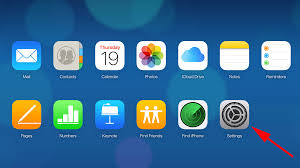
- Sign in to your iCloud account online at www.Icloud.Com.
- Click on Contacts.
- Select the backup date and time that contains the contacts you want to recover.
- Click on Restore Contacts.
- Confirm the restoration process.
Tips For Success
- Make sure iCloud Backup is enabled on your iPhone.
- Regularly check your iCloud account online to ensure timely backups.
- Use two-factor authentication (2FA) to secure your iCloud account.
Using Gmail
If you’ve set up your iPhone to sync contacts with Gmail, you can recover deleted contacts using Google’s contact management service.
Step 1: Access Your Gmail Account
Visit the Google Contacts page and sign in with your Gmail credentials.
Step 2: Restore Your Contacts
- Click on Settings (gear icon) > Undo Changes.
- Choose the date and time that corresponds to when you want to restore your contacts.
- Confirm the restoration process.
Tips For Success
- Ensure that your iPhone is set up to sync contacts with Gmail.
- Regularly check your Google account online to ensure timely backups.
Recovering Contacts Without Backup
In case you haven’t backed up your contacts or don’t have access to your iCloud account, there are still ways to recover deleted contacts. However, please note that this method is not guaranteed and might require the use of specialized software.
Using Recovery Software
You can try using third-party recovery software like EaseUS MobiSaver Free for Windows or macOS. This program scans your iPhone’s memory and backup files to attempt to recover deleted data, including contacts.
How to Use Easeus Mobisaver Free:
- Download and install the software on your computer.
- Connect your iPhone to the computer using a USB cable.
- Launch the software and select Contacts/messages as the file type you want to scan.
- Choose the deleted contacts you wish to recover and click Recover.
Please note that EaseUS MobiSaver Free has limitations, including only being able to recover up to 5 contacts in the free version.


