
Recovering Your Outlook Password: A Step-by-step Guide
Are you having trouble recovering your Outlook password? Don’t worry, we’ve got you covered! In this article, we’ll walk you through the steps to recover your Outlook password using various methods.
Why Recovering Your Outlook Password Can Be a Challenge
Outlook is a popular email service provided by Microsoft. While it’s convenient to use, recovering your password can be a bit of a challenge. This is because Outlook uses strong security measures to protect its users’ accounts. However, with the right guidance, you can easily recover your password and get back to checking your emails.
Method 1: Recovering Your Outlook Password From Computer
If you’re using a computer to access your Outlook account, follow these steps:
Step 1: Access The Outlook Website
Open a web browser and navigate to the Outlook website (www.Outlook.Com). Click on the “Access” button located in the top right corner.
Step 2: Enter Your Email Address And Password
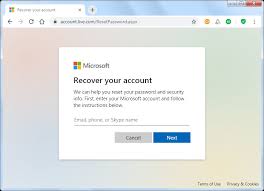
Enter your email address and password in the respective fields. If you’ve forgotten your password, click on the “Password forgotten?” link below the password field.
Step 3: Choose a Recovery Method
Select one of the recovery methods offered by Outlook, such as receiving a code via SMS or email. Follow the instructions to receive the code and enter it in the required field.
Step 4: Create a New Password
Once you’ve entered the code, create a new password for your Outlook account. Make sure it’s strong and unique to prevent unauthorized access.
Method 2: Recovering Your Outlook Password From Smartphone or Tablet
If you’re using a smartphone or tablet to access your Outlook account, follow these steps:
Step 1: Open The Outlook App
Open the Outlook app on your device and navigate to the login screen.
Step 2: Tap on “Password Forgotten?”
Tap on the “Password forgotten?” option below the password field.
Step 3: Choose a Recovery Method
Select one of the recovery methods offered by Outlook, such as receiving a code via SMS or email. Follow the instructions to receive the code and enter it in the required field.
Step 4: Create a New Password
Once you’ve entered the code, create a new password for your Outlook account. Make sure it’s strong and unique to prevent unauthorized access.
Method 3: Using Software to Recover Your Outlook Password
If you’re having trouble recovering your password using the above methods, you can use software like Mail PassView to recover your password.
Step 1: Download And Install Mail Passview
Download and install Mail PassView on your computer. This software is compatible with all versions of Windows and Microsoft email clients.
Step 2: Open Mail Passview
Open Mail PassView and navigate to the “Mail” tab.
Step 3: Select Your Email Account
Select your email account from the list of available accounts.
Step 4: View Your Password
Your password will be displayed in the “Password” field. You can copy and paste this password into the required field when prompted by Outlook.
Conclusion
Recovering your Outlook password is a straightforward process that requires patience and attention to detail. By following these steps, you should be able to recover your password and access your account without any issues.
Frequently Asked Questions (FAQs)
- How Long Does it Take to Recover my Outlook Password?
Recovery time may vary depending on the method used and the complexity of the process. In most cases, recovery takes a few minutes to an hour.
- Can I Use a Different Email Address to Recover my Password?
Yes, you can use a different email address to recover your password. This is especially useful if you’ve forgotten your primary email address associated with your Outlook account.
- What Happens if I Enter The Wrong Code During Recovery?
If you enter the wrong code, you’ll be prompted to try again. If you continue to enter incorrect codes, you may need to contact Microsoft support for further assistance.
- Can I Use Mail Passview on my Smartphone or Tablet?
No, Mail PassView is only compatible with Windows devices and requires a computer to operate.
- How Often Should I Update my Outlook Password?
It’s recommended to change your password every 60-90 days to maintain optimal security and prevent unauthorized access.
- Can I Recover my Outlook Password if I’ve Forgotten my Account Name?
Yes, you can try recovering your account name using various methods, such as searching for email addresses associated with your account or contacting Microsoft support for assistance.
- Is it Safe to Use Software Like Mail Passview to Recover my Outlook Password?
Mail PassView is a legitimate and widely used software that’s designed specifically for password recovery. However, be cautious when downloading and using any third-party software to ensure you’re not compromising your security.
Additional Resources
For more information on recovering your Outlook password or troubleshooting common issues, visit the Microsoft Support website (support.Microsoft.Com).


