
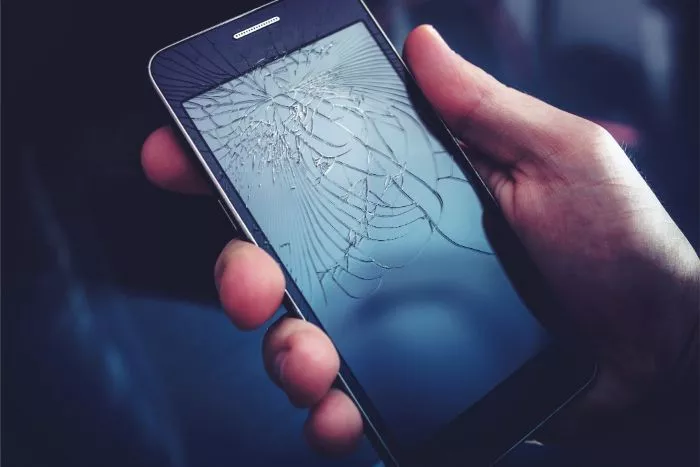
How to Recover Photos From a Broken Phone: A Step-by-step Guide
Are you worried about losing your precious photos after your phone has broken? Don’t worry, we’ve got you covered! In this article, we’ll guide you through the process of recovering photos from a broken phone.
Table 1: Methods For Recovering Photos From a Broken Phone
| Method | Description |
|---|---|
| Use Cloud Services | Check if your phone’s cloud services are enabled to recover photos. |
| Use MicroSD Card | If your phone has a microSD card, try recovering photos from it. |
| Substitute Hardware | Try replacing the broken hardware to recover photos. |
Table 2: Methods For Recovering Photos From an Iphone
| Method | Description |
|---|---|
| Use Icloud | Check if you have enabled iCloud Photo Library on your iPhone. |
| Substitute Hardware | Try replacing the battery or other hardware components to recover photos. |
The Ultimate Guide to Recovering Photos From a Broken Phone
1. Use Cloud Services
One of the easiest ways to recover photos from a broken phone is by using cloud services like Google Photos, iCloud Photo Library, or OneDrive. If you have enabled these services on your phone, you can access and download your photos from the cloud.
- For Android phones, go to Settings > Accounts > Google Account > Backup & reset.
- For iPhones, go to Settings > [Your Name] > iCloud > iCloud Photo Library.
2. Use Microsd Card
If your phone has a microSD card, try recovering photos from it. This method is ideal for phones with expandable storage.
- Remove the microSD card from the broken phone and insert it into a working device or a computer.
- Copy the photos from the microSD card to a safe location on the new device or computer.
3. Substitute Hardware
If your phone’s hardware has failed, try replacing the faulty component to recover photos. This method is ideal for phones with removable batteries or other components.
- For Android phones, go to Settings > Accounts > Google Account > Backup & reset.
- For iPhones, go to Settings > [Your Name] > iCloud > iCloud Photo Library.
4. Use Custom Recovery
If none of the above methods work, you can try using a custom recovery mode on your phone. This method is ideal for phones with advanced technical knowledge.
- Boot your phone into recovery mode and connect it to a computer.
- Use the recovery software to transfer photos from the phone’s memory to the computer.
5. Consult a Professional
If none of the above methods work, consult a professional for assistance. They can help you recover photos from your broken phone using specialized tools and expertise.
Frequently Asked Questions (FAQs)
Q: What if I don’t have a backup of my photos?
A: You can try recovering photos from cloud services or microSD cards.
Q: Can I replace the battery to recover photos?
A: Yes, replacing the battery may help recover photos. However, consult a professional for assistance.
Q: How do I use custom recovery mode?
A: Consult a professional for assistance in using custom recovery mode.
Q: What if my phone’s hardware has failed?
A: Try replacing the faulty component to recover photos.
Q: Can I recover photos from an iPhone?
A: Yes, try using iCloud Photo Library or substituting hardware components to recover photos.
Conclusion
Recovering photos from a broken phone can be a challenging task. However, by following the methods outlined in this article, you can increase your chances of recovering your precious memories. Remember to consult a professional for assistance if needed.


