
How to Recover Photos From The Trash on Your Mobile Device
Have you ever accidentally deleted a precious photo from your mobile device? Don’t worry, it’s happened to the best of us! Fortunately, there are ways to recover photos from the trash on both Android and iOS devices.
In this article, we’ll guide you through the step-by-step process of recovering deleted photos from the gallery on your smartphone. Whether you’re using an Android or iPhone device, we’ve got you covered.
Recovering Photos From The Trash on Android
If you have a Google account linked to your Android device, you can easily recover deleted photos from the trash. Here’s how:
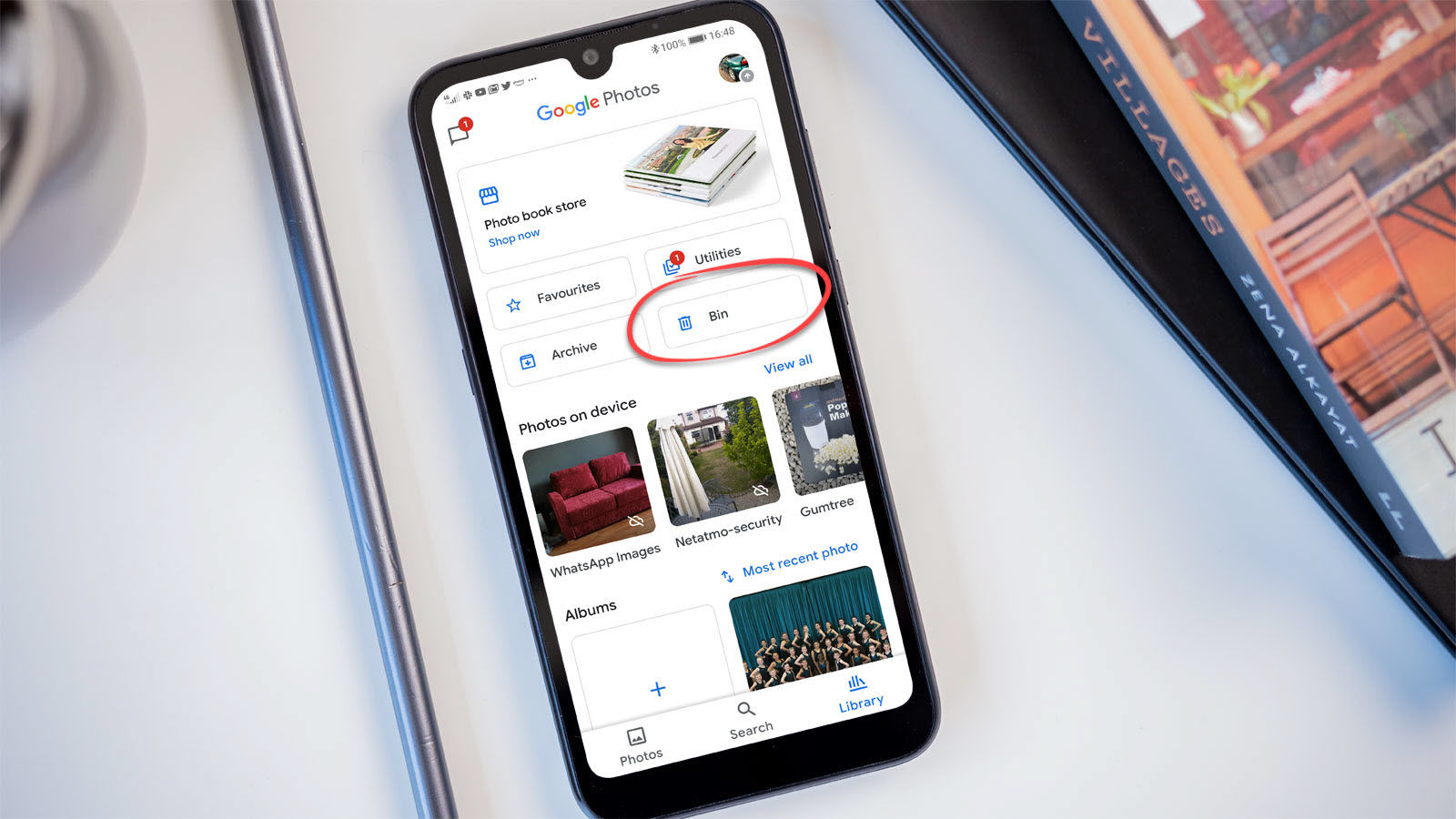
Step 1: Access The Google Photo App
First, open the Google Photo app on your Android device. You can find it in the drawer or on the home screen.
H2: Accessing The Gallery in Google Photos
Once you’ve opened the app, tap on the “Gallery” tab at the bottom of the screen.
Step 2: Check The Trash Section
Scroll down to the “Trash” section and see if your deleted photo is there. If it is, proceed to the next step.
H3: Restoring Deleted Photos From The Gallery
If you find your deleted photo in the trash, tap on it to select it. Then, tap on the “Restore” button at the top of the screen to recover your photo.
Alternative Solutions: Using Cloud Services And Backup Software
If you don’t have a Google account or if the above method doesn’t work for you, don’t worry! You can still recover deleted photos from other cloud services like Dropbox, OneDrive, Amazon Photos, and more. Additionally, backup software like Samsung Smart Switch (for Android devices) and iCloud (for iOS devices) can also help you recover deleted photos.
H4: Recovering Deleted Photos With Cloud Services
For example, if you have a Google account linked to your device, but not to the cloud service of your choice, you can try recovering your photo from that specific cloud service. This way, even if the method above doesn’t work for you, you might still be able to recover your photo.
H4: Using Backup Software
Similarly, backup software like Samsung Smart Switch (for Android devices) and iCloud (for iOS devices) can also help you recover deleted photos.
Step 1: Download And Install The Recovery App
To use these recovery apps, download and install them on your device. For example, if you want to try DiskDigger (a popular data recovery app), simply search for it in the Play Store, tap “Install,” and then open the app once installed.
Step 2: Follow The On-screen Instructions
Follow the on-screen instructions provided by the recovery app to recover your deleted photo. You might need to select the type of file you’re looking for (e.G., A photo), choose the location where it was stored, and then initiate the recovery process.
H4: Tips And Tricks For Recovery Apps
Some recovery apps might have additional features or requirements, such as root access or payment plans. Be sure to check the app’s documentation or contact support if you need help with the recovery process.
Step 3: Verify Your Recovered Photo
Once you’ve recovered your photo using the recovery app, verify that it’s been restored correctly by checking the gallery on your device.
Recovering Photos From The Trash on Iphone
If you have an iPhone, don’t worry – recovering deleted photos is just as easy! Here’s how:
Step 1: Access The Photos App
First, open the Photos app on your iPhone. You can find it on the home screen or in a folder.
H2: Accessing The Album Section
Once you’ve opened the app, tap on the “Albums” tab at the bottom of the screen.
Step 2: Check The Deleted Albums
Scroll down to the “Deleted” album and see if your deleted photo is there. If it is, proceed to the next step.
H3: Restoring Deleted Photos From The Album
If you find your deleted photo in the deleted albums, tap on it to select it. Then, tap on the “Recover” button at the top of the screen to recover your photo.
Alternative Solutions: Using Cloud Services And Backup Software
Just like with Android devices, if the above method doesn’t work for you, don’t worry! You can still recover deleted photos from other cloud services like Google Photos (for iOS devices) and backup software like iCloud (for iPhone devices).
H4: Recovering Deleted Photos With Cloud Services
For example, if you have a Google account linked to your device, but not to the cloud service of your choice, you can try recovering your photo from that specific cloud service.
H4: Using Backup Software
Similarly, backup software like iCloud (for iPhone devices) and other cloud services can also help you recover deleted photos.
Step 1: Download And Install The Recovery App
To use these recovery apps, download and install them on your device. For example, if you want to try EaseUS MobiSaver (a popular data recovery app), simply search for it in the App Store, tap “Get,” and then open the app once installed.
Step 2: Follow The On-screen Instructions
Follow the on-screen instructions provided by the recovery app to recover your deleted photo. You might need to select the type of file you’re looking for (e.G., A photo), choose the location where it was stored, and then initiate the recovery process.
H4: Tips And Tricks For Recovery Apps
Some recovery apps might have additional features or requirements, such as payment plans or specific settings. Be sure to check the app’s documentation or contact support if you need help with the recovery process.
Step 3: Verify Your Recovered Photo
Once you’ve recovered your photo using the recovery app, verify that it’s been restored correctly by checking the gallery on your device.
Conclusion
Recovering deleted photos from the trash is a straightforward process that can be done on both Android and iOS devices. Whether you use cloud services or backup software, there are many options available to help you recover lost memories. Just remember to always check the gallery section of the relevant app (e.G., Google Photos for Android or Photos for iPhone) first, as your deleted photo might still be in the trash.
Frequently Asked Questions
Q: Will I lose all my data if I try to recover a deleted photo?
A: No, trying to recover a deleted photo will not affect any other files on your device.
Q: Can I recover multiple photos at once?
A: Some recovery apps might allow you to recover multiple photos at once. However, be sure to check the app’s documentation or contact support for specific instructions.
Q: Will I need to pay for the recovery process?
A: Some recovery apps are free to use, while others require a payment plan. Be sure to check the app’s pricing and features before proceeding with the recovery process.
Additional Resources
For more information on recovering deleted photos from Android devices:
- Visit the Google Photos website (www.Google.Com/photos) for detailed instructions on how to recover deleted photos.
- Check out our article on “How to Recover Deleted Photos on Android” (link) for a step-by-step guide on using cloud services and backup software.
For more information on recovering deleted photos from iPhone devices:
- Visit the Apple website (www.Apple.Com) for detailed instructions on how to recover deleted photos.
- Check out our article on “How to Recover Deleted Photos on iPhone” (link) for a step-by-step guide on using cloud services and backup software.


