
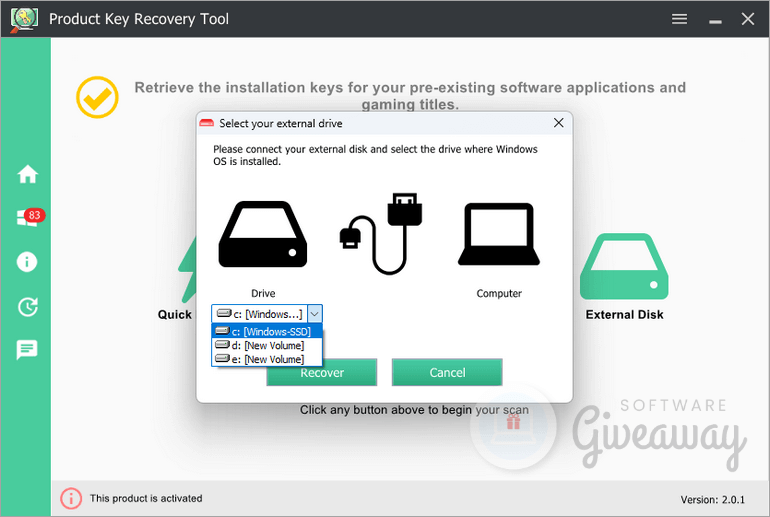
Recovering Your Windows Product Key: A Step-by-step Guide
Are you looking to reinstall Windows on your computer, but need to recover the product key? Look no further! In this article, we will guide you through the process of recovering your Windows product key, including Windows 11, Windows 10, Windows 8.1, And Windows 7.
What is a Product Key?
A product key, also known as a CD key or software license code, is a sequence of alphanumeric characters that is used to activate Microsoft products, such as Windows and Office. The product key is usually required during the installation process to verify its authenticity and ensure that it has not been tampered with.
Why Recover Your Product Key?
Recovering your product key can be useful in several situations:
- In Case of a System Crash: If your computer crashes or is formatted, you may lose access to your product key.
- When Reinstalling Windows: If you need to reinstall Windows on your computer, you will require the product key to activate it.
- For Upgrading to a New Version of Windows: Upgrading from an older version of Windows to a newer one might require you to recover or enter your product key.
Recovering Your Product Key in Windows 11
To recover your product key in Windows 11, follow these steps:
- Open the Command Prompt as administrator.
- Type
wmic path SoftwareLicensingService get OA3xOriginalProductKeyand press Enter. - The product key will be displayed on the screen.
Alternative Methods to Recover Your Product Key
If you are unable to recover your product key using the above method, there are alternative methods available:
- Powershell: You can also use PowerShell to recover your product key by typing
powershell "Get-WmiObject -query 'select * from SoftwareLicensingService').OA3xOriginalProductKey"and pressing Enter. - Registry Editor: You can also check the Registry Editor for your product key.
Recovering Your Product Key in Windows 10
To recover your product key in Windows 10, follow these steps:
- Open the Command Prompt as administrator.
- Type
wmic path SoftwareLicensingService get OA3xOriginalProductKeyand press Enter. - The product key will be displayed on the screen.
Recovering Your Product Key in Windows 8.1
To recover your product key in Windows 8.1, Follow these steps:
- Open the Command Prompt as administrator.
- Type
wmic path SoftwareLicensingService get OA3xOriginalProductKeyand press Enter. - The product key will be displayed on the screen.
Recovering Your Product Key in Windows 7
To recover your product key in Windows 7, follow these steps:
- Download and install Lazesoft Windows Key Finder.
- Run the program and click on “Find Windows Key”.
- The product key will be displayed on the screen.
Recovering Your Product Key For Office
Recovering your product key for Office involves different methods depending on which version of Office you are using:
- Office 2013 or Later: You can recover your product key by checking the email confirmation sent to you when you purchased Office.
- Office 2010 or Earlier: You can recover your product key by checking the CD case or the Microsoft account associated with your Office license.
Troubleshooting Issues
If you are experiencing issues recovering your product key, try the following:
- Check if your Windows version is activated and associated with a Microsoft account.
- Try using alternative methods to recover your product key.
- Contact Microsoft support for assistance.
Conclusion
Recovering your Windows product key can be a straightforward process, but it requires some knowledge of how to navigate the Command Prompt or Registry Editor. If you are unable to recover your product key, there are alternative methods available, such as using PowerShell or checking the CD case or email confirmation sent to you when you purchased Office.
Frequently Asked Questions
- Q: How do I Recover my Windows Product Key?
A: You can recover your Windows product key by opening the Command Prompt as administrator and typingwmic path SoftwareLicensingService get OA3xOriginalProductKeyand pressing Enter. - Q: Can I Use a Third-party Tool to Recover my Product Key?
A: Yes, you can use third-party tools such as Lazesoft Windows Key Finder or NirSoft ProduKey to recover your product key. - Q: How do I Recover my Office Product Key?
A: You can recover your Office product key by checking the email confirmation sent to you when you purchased Office or by using a third-party tool such as Lazesoft Windows Key Finder. - Q: What if I Lose Access to my Product Key?
A: If you lose access to your product key, you can try recovering it using alternative methods or contact Microsoft support for assistance. - Q: Can I Recover my Product Key After Reinstalling Windows?
A: Yes, you can recover your product key after reinstalling Windows by using the Command Prompt or Registry Editor. - Q: How do I Associate my Microsoft Account With my Windows License?
A: You can associate your Microsoft account with your Windows license by checking the Activation settings in the Settings app. - Q: What if I am Unable to Recover my Product Key?
A: If you are unable to recover your product key, contact Microsoft support for assistance.


