
How to Recover Whatsapp Conversations on Android: A Step-by-step Guide
Are you looking for a way to recover your WhatsApp conversations on Android after formatting your phone or switching to a new device? You’ve come to the right place! In this article, we’ll show you how to recover your WhatsApp chats using two different methods.
Method 1: Recovering Whatsapp Conversations From Google Drive Backup
If you have an Android smartphone, you can use the built-in backup feature in WhatsApp to save your conversations on Google Drive. This method is easy and straightforward.
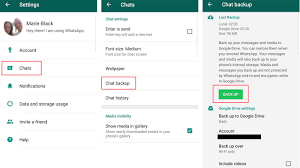
Step 1: Check if You Have a Google Drive Backup
To check if you have a backup on Google Drive, follow these steps:
- Open WhatsApp
- Tap on the three dots (⋯) on the top-right corner of the screen
- Select “Settings” from the menu
- Go to “Chat and calls”
- Tap on “Backup” under the “Chat backup” section
If you have a Google Drive backup, it will be displayed with the date and time it was last updated.
Step 2: Restore Your Whatsapp Conversations
To restore your conversations from Google Drive, follow these steps:
- Reinstall WhatsApp on your new device
- Open WhatsApp and follow the setup process until you reach the “Restore chat” screen
- Tap on “Restore” to recover your conversations
That’s it! If you had a backup on Google Drive, your conversations should be restored successfully.
Method 2: Recovering Whatsapp Conversations From Local Backup
If you don’t have a Google Drive backup or prefer not to use it, you can try recovering your conversations from a local backup. This method requires some technical expertise and may not work in all cases.
Step 1: Check if You Have a Local Backup
To check if you have a local backup on WhatsApp, follow these steps:
- Open WhatsApp
- Tap on the three dots (⋯) on the top-right corner of the screen
- Select “Settings” from the menu
- Go to “Chat and calls”
- Tap on “Backup” under the “Chat backup” section
If you have a local backup, it will be displayed with the date and time it was last updated.
Step 2: Restore Your Whatsapp Conversations
To restore your conversations from a local backup, follow these steps:
- Find the WhatsApp database file (msgstore.Db) on your device’s storage
- Rename the file to msgstore.Db.Crypt12
- Reinstall WhatsApp on your new device
- Open WhatsApp and follow the setup process until you reach the “Restore chat” screen
- Tap on “Restore” to recover your conversations
Note: This method may not work if your device has been formatted or if you’re switching from an Android to an iOS device.
Conclusion
Recovering WhatsApp conversations can be a straightforward process if you have a Google Drive backup. If you don’t have a backup, you can try recovering your conversations from a local backup, but this method requires some technical expertise and may not work in all cases.
We hope this guide has been helpful! If you have any further questions or concerns, feel free to ask.
Frequently Asked Questions (FAQs)
-
How do I Create a Google Drive Backup of my Whatsapp Conversations?
To create a Google Drive backup of your WhatsApp conversations, follow these steps:
- Open WhatsApp
- Tap on the three dots (⋯) on the top-right corner of the screen
- Select “Settings” from the menu
- Go to “Chat and calls”
- Tap on “Backup” under the “Chat backup” section
-
How do I Restore my Whatsapp Conversations From a Google Drive Backup?
To restore your WhatsApp conversations from a Google Drive backup, follow these steps:
- Reinstall WhatsApp on your new device
- Open WhatsApp and follow the setup process until you reach the “Restore chat” screen
- Tap on “Restore” to recover your conversations
-
How do I Create a Local Backup of my Whatsapp Conversations?
To create a local backup of your WhatsApp conversations, follow these steps:
- Open WhatsApp
- Tap on the three dots (⋯) on the top-right corner of the screen
- Select “Settings” from the menu
- Go to “Chat and calls”
- Tap on “Backup” under the “Chat backup” section
-
How do I Restore my Whatsapp Conversations From a Local Backup?
To restore your WhatsApp conversations from a local backup, follow these steps:
- Find the WhatsApp database file (msgstore.Db) on your device’s storage
- Rename the file to msgstore.Db.Crypt12
- Reinstall WhatsApp on your new device
- Open WhatsApp and follow the setup process until you reach the “Restore chat” screen
- Tap on “Restore” to recover your conversations
-
Can I Transfer my Whatsapp Conversations From an Android Device to an Ios Device?
Unfortunately, it’s not possible to directly transfer WhatsApp conversations from an Android device to an iOS device.
-
How do I See Filed Chats in Whatsapp?
To see filed chats in WhatsApp, follow these steps:
- Open WhatsApp
- Tap on the three dots (⋯) on the top-right corner of the screen
- Select “Settings” from the menu
- Go to “Chat and calls”
- Tap on “Filed” under the “Chat backup” section
-
How do I Unfile a Chat in Whatsapp?
To unfile a chat in WhatsApp, follow these steps:
- Open WhatsApp
- Tap on the three dots (⋯) on the top-right corner of the screen
- Select “Settings” from the menu
- Go to “Chat and calls”
- Tap on “Unfile” under the “Chat backup” section


