
Activating Sky Go: A Step-by-step Guide
Are you eager to explore the world of entertainment on Sky? Look no further! In this comprehensive guide, we will walk you through the process of activating your Sky subscription, including Sky Go, and accessing its vast array of content.
Introduction
In today’s digital age, streaming services have become an essential part of our entertainment experience. Sky Go is one such service that offers an impressive collection of TV shows, movies, and sports events on-demand. Activating your Sky subscription is a straightforward process, and we’re here to guide you through it.
Understanding Sky Go
Before we dive into the activation process, let’s quickly understand what Sky Go has to offer. Sky Go allows you to access Sky’s content library on multiple devices, including smartphones, tablets, and computers. This means you can watch your favorite shows or movies on-demand, at any time that suits you.
Activating Your Sky Subscription
To activate your Sky subscription, follow these simple steps:
Step 1: Access The Sky Website
The first step is to visit the official Sky website (www.Sky.Com) and click on the “Sign In” button at the top right corner of the page.
Step 2: Enter Your Sky iD Details
If you already have a Sky account, enter your Sky iD details (username and password) in the designated fields. If not, click on the “Create Sky iD” option to register for an account.
Step 3: Confirm Your Account Details
Once you’ve entered your details, confirm them by clicking on the “Next” button. This will take you to a new page where you’ll be asked to create a password and confirm it.
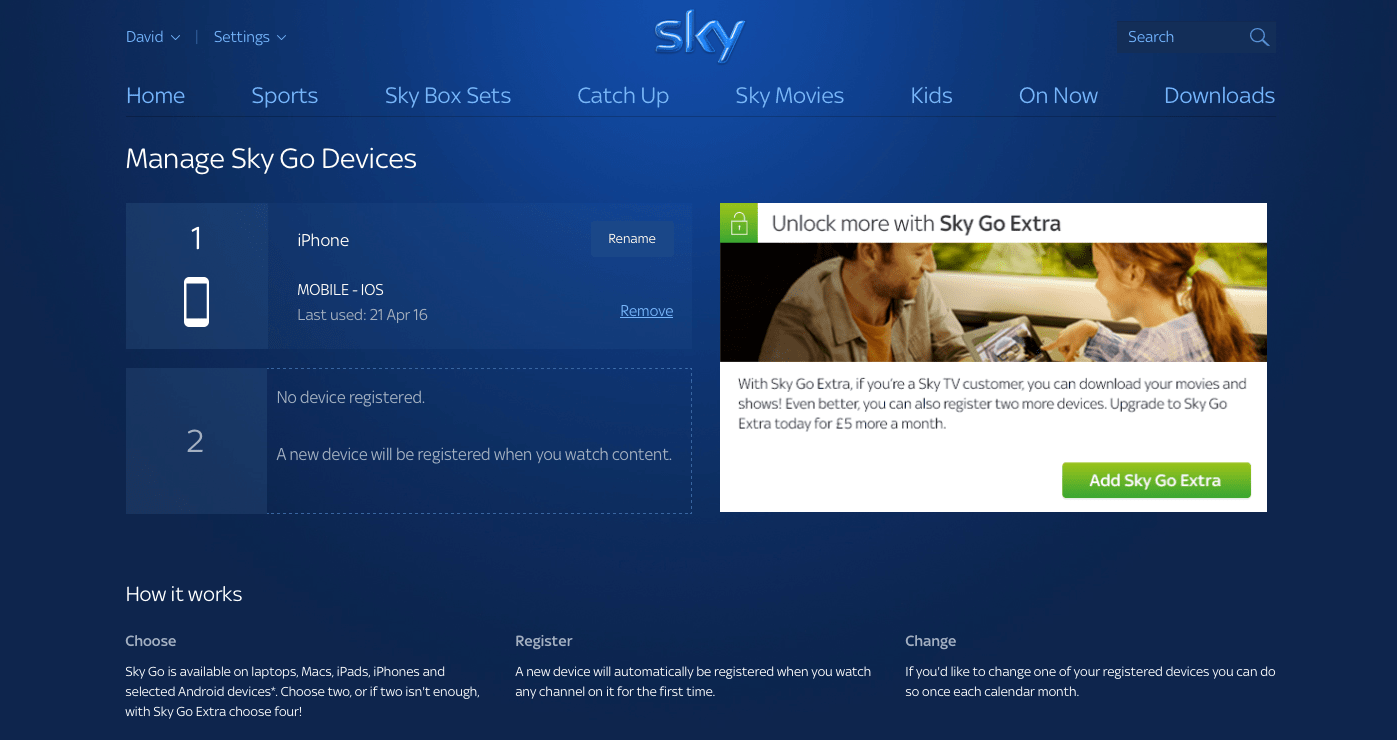
Step 4: Add Devices to Your Sky Id
After creating your account or signing in with your existing details, click on the “My Account” section and select “Add Device” to link your devices to your Sky iD. This will allow you to access Sky Go on multiple devices simultaneously.
Recording on Sky Go
Have you ever wondered if it’s possible to record programs on Sky Go? The answer is yes! Sky offers a feature that allows you to schedule recordings of your favorite shows or sports events directly from the app.
Step 1: Open The Sky App
Open the Sky app on your device and navigate to the “Channels TV” section.
Step 2: Choose Your Program
Select the program you want to record by clicking on its title. This will take you to a new page with more options.
Step 3: Schedule Your Recording
Click on the “Record” button, followed by selecting the option “Record on your TV.” You can also choose to record an entire series of shows using the “Record Series” option.
Adding Devices to Sky Go
Do you want to add devices to your Sky iD? This is a straightforward process that allows you to access Sky Go on multiple devices simultaneously. Here’s how:
Step 1: Access Your Account Settings
Navigate to the “My Account” section and select “Add Device.”
Step 2: Confirm Your Devices
Confirm the addition of your device(s) by clicking on the “Next” button.
Understanding Sky Go’s Capabilities
To ensure you get the most out of Sky Go, it’s essential to understand its capabilities. Here are some key features:
- Access Content On-demand: Watch TV shows and movies at any time that suits you.
- Record Programs: Schedule recordings of your favorite shows or sports events directly from the app.
- Add Devices: Link multiple devices to your Sky iD, allowing simultaneous access to Sky Go.
Conclusion
Activating your Sky subscription is a simple process that will grant you access to a vast array of content on Sky Go. By following these steps and understanding the capabilities of Sky Go, you’ll be well-equipped to enjoy your favorite shows, movies, and sports events at any time that suits you.
Frequently Asked Questions (FAQs)
Here are some frequently asked questions and their answers:
- Q: How do I Activate my Sky Subscription?
A: To activate your Sky subscription, visit the official Sky website, sign in with your Sky iD details, and confirm your account details. - Q: Can I Record Programs on Sky Go?
A: Yes! You can schedule recordings of your favorite shows or sports events directly from the app using the “Record” feature. - Q: How do I Add Devices to my Sky Id?
A: To add a device, navigate to the “My Account” section, select “Add Device,” and confirm the addition of your device(s). - Q: What Are The System Requirements For Sky Go?
A: Sky Go is compatible with most devices, including smartphones, tablets, and computers. - Q: Can I Access Sky Go on Multiple Devices Simultaneously?
A: Yes! You can link up to four devices to your Sky iD, allowing simultaneous access to Sky Go. - Q: How do I Cancel my Sky Subscription?
A: To cancel your Sky subscription, visit the official Sky website, sign in with your Sky iD details, and select the “Cancel Subscription” option.
We hope this guide has been helpful! If you have any further questions or need assistance, don’t hesitate to contact us.


