
How to Record on Chatgpt: A Step-by-step Guide
Are you interested in exploring the capabilities of ChatGPT, a revolutionary artificial intelligence chatbot? If so, you’re not alone! With its advanced language understanding and generation capabilities, ChatGPT has become a popular tool for individuals and businesses alike. In this article, we’ll guide you through the process of recording on ChatGPT, from creating an account to utilizing its features.
What is Chatgpt?
ChatGPT is a chatbot developed by OpenAI that uses advanced natural language processing (NLP) and machine learning algorithms to understand and generate human-like text. It can engage in conversations, answer questions, and even create content based on user input.
Why Record on Chatgpt?
Recording on ChatGPT allows you to:
- Explore its capabilities and limitations
- Understand how it works and what features it offers
- Utilize its services without incurring any costs
System Requirements
To record on ChatGPT, you’ll need:
- A computer or mobile device with an internet connection
- A web browser (Google Chrome, Mozilla Firefox, Safari, or Microsoft Edge)
- A valid email address and phone number
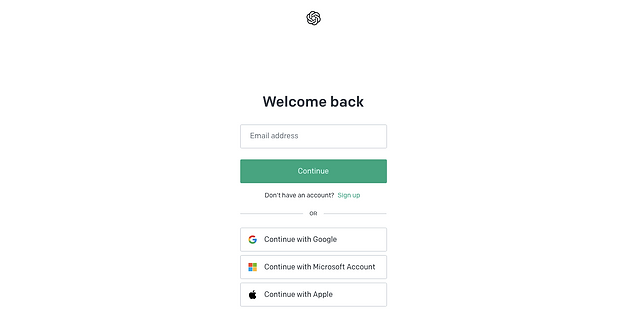
Step 1: Creating an Account
To start recording on ChatGPT, you’ll need to create an account. Follow these steps:
- Go to the ChatGPT website (www.Chatgpt.Com)
- Click on the “Try ChatGPT” button
- Choose whether to create a new account using your email address or by connecting with a Google or Microsoft profile
- Fill out the required information, including your name, surname, and date of birth
- Enter your phone number and verify it through a text message
- Check your email for a verification link from OpenAI and click on it to activate your account
Step 2: Logging In
Once you’ve created an account, follow these steps to log in:
- Go back to the ChatGPT website
- Click on the “Try ChatGPT” button again
- Select the “Log in” option
- Enter your email address and password
- Insert your name, surname, and date of birth as required
- Verify your phone number through a text message
Step 3: Upgrading to Plus
If you want to access more advanced features, including unlimited use of ChatGPT-4, follow these steps:
- Click on the “Upgrade to Plus” button in the left column of the Home screen
- Select the “Upgrade plan” option
- Follow the payment process and enter your credit card information
- Confirm your subscription
Recording on Chatgpt: PC Version
To record on ChatGPT using a PC, follow these steps:
- Go to the ChatGPT website
- Click on the “Try ChatGPT” button
- Choose whether to create a new account or log in to an existing one
- Follow the steps outlined above
Recording on Chatgpt: Smartphone And Tablet Version
To record on ChatGPT using a smartphone or tablet, follow these steps:
- Download the ChatGPT app from the App Store (for iOS devices) or Google Play Store (for Android devices)
- Create an account or log in to an existing one
- Follow the same steps as above
Troubleshooting
If you encounter any issues during the recording process, refer to the troubleshooting guide provided by ChatGPT.
Conclusion
Recording on ChatGPT is a straightforward process that allows you to explore its capabilities and features. By following these steps, you’ll be able to create an account, log in, and access more advanced features, including unlimited use of ChatGPT-4.


