
How to Remove Audio From Video: A Step-by-step Guide
Are you tired of dealing with unwanted audio in your videos? Look no further! In this article, we’ll show you how to remove audio from video using various software programs and online tools.
What You Need to Know Before We Begin
Before we dive into the nitty-gritty details, it’s essential to understand a few things. Removing audio from video can be done in two ways: Permanently or temporarily. Permanently modifying the original file requires a video editing software, while temporary modifications can be achieved using a player or online tool.
The Programs You’ll Need
Here are some of the best programs for removing audio from video:
- Avidemux: A free and open-source video editor that allows you to modify your videos in various formats.
- Vlc: A popular media player that can handle various file formats, including those with unwanted audio.
Using Avidemux
To use Avidemux, follow these steps:
- Download the software from the official website and install it on your computer.
- Launch Avidemux and select the video file you want to modify.
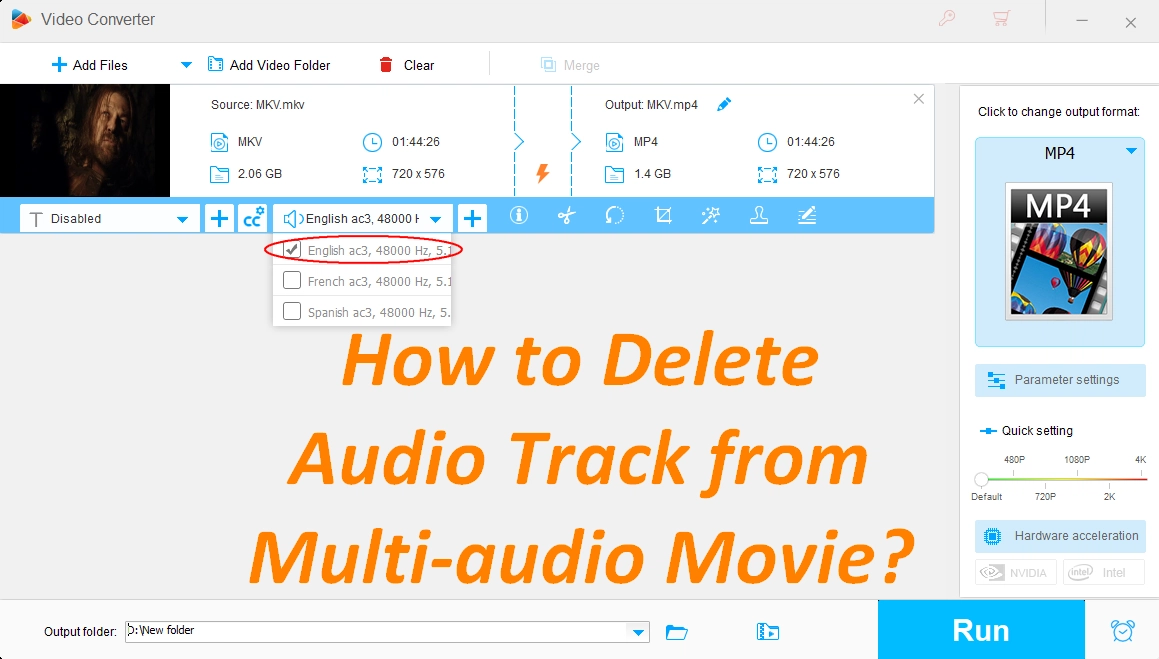
- Go to the “Audio” menu and choose “Select audio.”
- In the window that opens, uncheck the box next to the unwanted audio track.
- Click “OK” to save the changes.
Using Vlc
To use VLC, follow these steps:
- Download the software from the official website and install it on your computer.
- Launch VLC and select the video file you want to modify.
- Go to the “Media” menu and choose “Convert / Save.”
- In the window that opens, select the audio track you want to remove.
- Click “Save” to save the modified video.
Online Tools
If you don’t have a computer or prefer to use online tools, here are some options:
- Clideo: A free online tool that allows you to upload your video and remove unwanted audio.
- Audio Remover: A free online service that can help you remove audio from your videos.
- 123Apps: Another online platform that offers a range of editing features, including audio removal.
Using Actiondirector
To use ActionDirector on Android or iOS devices:
- Download the app from the Google Play Store (Android) or App Store (iOS).
- Launch ActionDirector and select the video file you want to modify.
- Go to the “Volume” menu and choose “Disable audio.”
- Tap “Produce” to save the modified video.
Using Imovie
To use iMovie on iOS devices:
- Download the app from the App Store.
- Launch iMovie and select the video file you want to modify.
- Go to the “Audio” menu and choose “Silence.”
- Tap “Save” to save the modified video.
Using Vlc on Mobile Devices
To use VLC on Android or iOS devices:
- Download the app from the Google Play Store (Android) or App Store (iOS).
- Launch VLC and select the video file you want to modify.
- Go to the volume control bar and drag it all the way down.
Conclusion
Removing audio from video can be a straightforward process if you have the right tools. Whether you’re using Avidemux, VLC, or online tools like Clideo, there’s an option available for you. Follow these steps, and you’ll be able to create audio-free videos in no time!
Frequently Asked Questions
- What is The Difference Between Permanent And Temporary Modifications?
Permanent modifications alter the original file, while temporary modifications only affect the video during playback. - Can I Use Other Software Programs to Remove Audio From Video?
Yes, there are many other software programs available that can help you remove unwanted audio from your videos. - Do Online Tools Like Clideo And Audio Remover Require me to Upload my Video?
Yes, these online tools typically require you to upload your video to their servers in order to process it. - Can I Use Actiondirector or Imovie on my Computer?
No, these apps are specifically designed for mobile devices (Android or iOS). - Is Vlc Available For Windows And Macos Computers?
Yes, VLC is available for both Windows and macOS operating systems.
Faqs
- Q: How do I remove audio from a video using Avidemux?
A: Select the video file, go to “Audio” > “Select audio,” and uncheck the box next to the unwanted track. - Q: Can I use VLC to convert my video format?
A: Yes, you can use VLC to convert your video format by going to “Media” > “Convert / Save.” - Q: How do I disable audio in ActionDirector on Android or iOS devices?
A: Go to the “Volume” menu and choose “Disable audio.”


