
Removing Automatic Capital Letters on Android Devices: A Comprehensive Guide
Are you tired of dealing with automatic capital letters on your Android device? Do you find yourself frequently correcting the capitalization of words after using the period (.) Symbol? If so, this guide is for you! We’ll show you how to remove the automatic capital letter feature on various Android devices, including Huawei, Samsung, and more.
Why Remove Automatic Capital Letters?
Removing automatic capital letters can be a game-changer for anyone who types frequently on their Android device. It’s especially useful for those who use their device for work or personal projects that require precise text formatting. With this feature disabled, you’ll no longer have to worry about the default capitalization of words after using the period (.) Symbol.
Removing Automatic Capital Letters: A General Procedure
While the procedure may vary slightly depending on your device manufacturer, we’ll provide a general guide to help you remove automatic capital letters on most Android devices. Follow these steps:
- Open Settings: Access the Settings menu on your Android device by tapping the gear icon in the top-right corner of the screen or searching for “Settings” in the app drawer.
- Navigate to Language And Input: Tap on “Language & input” or a similar option to access the keyboard settings.
- Select Keyboard Options: Choose the keyboard you’re currently using, which might be Gboard, SwiftKey, or another default keyboard.
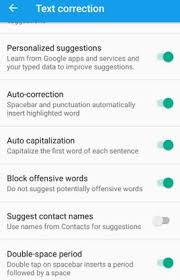
- Access Correction Text Settings: Look for an option labeled “Correction text” or something similar and tap on it.
- Disable Automatic Capital Letters: Switch off the toggle next to “Automatic capital letters” (or a similar option) to disable this feature.
Removing Automatic Capital Letters on Huawei Devices
If you’re using a recent Huawei device with Google services, follow these steps:
- Open Settings: Access the Settings menu on your Huawei device.
- Navigate to System: Tap on “System” and then select “Language & input”.
- Choose Keyboard Swiftkey: Select the SwiftKey keyboard as the default keyboard.
- Access Digitization Settings: Look for an option labeled “Digitization” and tap on it.
- Disable Automatic Capital Letters: Switch off the toggle next to “Automatic capital letters” to disable this feature.
Removing Automatic Capital Letters on Samsung Devices
If you’re using a Samsung device, follow these steps:
- Open Settings: Access the Settings menu on your Samsung device.
- Navigate to General Management: Tap on “General management” and then select “Language & input”.
- Choose Keyboard Options: Look for an option labeled “Keyboard” and tap on it.
- Access Intelligent Insertion Settings: Select the keyboard settings and look for an option labeled “Intelligent insertion”.
- Disable Automatic Capital Letters: Switch off the toggle next to “Automatic capital letters” to disable this feature.
Conclusion
Removing automatic capital letters on Android devices is a straightforward process that can be completed in just a few minutes. By following our guide, you’ll no longer have to worry about the default capitalization of words after using the period (.) Symbol. Whether you’re using a Huawei, Samsung, or other device, we hope this comprehensive guide has been helpful in resolving your issue.
Frequently Asked Questions (FAQs)
- Q: Why do I Need to Remove Automatic Capital Letters?
A: Removing automatic capital letters can help improve text formatting and reduce errors when typing on your Android device. - Q: Which Devices Support Removing Automatic Capital Letters?
A: Most Android devices, including Huawei, Samsung, and others, allow you to remove automatic capital letters. - Q: How do I Disable The Insertion of The Dot (.) Symbol After Double-tapping The Space Bar?
A: To disable this feature, look for an option labeled “Punctured fast” or something similar in your keyboard settings and switch it off. - Q: Can I Access The Settings Menu Quickly From Within a Text Editor?
A: Yes, on many devices, you can access the keyboard settings directly from within a text editor by tapping the three dots (…), then selecting “Settings”. - Q: Is Removing Automatic Capital Letters Safe For my Device?
A: Removing automatic capital letters is a harmless modification that won’t affect your device’s performance or security.
We hope this comprehensive guide has been helpful in answering your questions about removing automatic capital letters on Android devices!


