
The Ultimate Guide to Removing Automatic Capital Letters on Android
Are you tired of seeing automatic capital letters popping up on your smartphone’s keyboard? Do you want to know how to remove this feature and make typing easier on your device? Look no further! In this comprehensive guide, we will walk you through the steps to disable automatic capital letters on Android, using popular keyboards like Gboard and Microsoft SwiftKey.
What Are Automatic Capital Letters?
Automatic capital letters are a feature that some virtual keyboards offer, where the first letter of each sentence is automatically capitalized. While it may seem convenient, many users find it tiresome and frustrating, especially when typing messages or emails on WhatsApp or other messaging apps.
Why Do I Need to Remove Automatic Capital Letters?
Removing automatic capital letters can be beneficial in several ways:
- It saves you time and effort when typing, as you don’t have to worry about capitalizing the first letter of each sentence.
- It helps prevent mistakes, as you won’t accidentally capitalize words or sentences that shouldn’t be capitalized.
- It makes typing more intuitive and natural, as you can focus on the content rather than worrying about formatting.
How to Remove Automatic Capital Letters on Gboard
Gboard is one of the most popular virtual keyboards for Android devices. Here’s how to disable automatic capital letters:
- Open The Settings App: Go to your device’s settings menu and select “Settings” from the list.
- Select System Settings: Tap on the “System” option, followed by “Language & input”.
- Choose Keyboard & Input Methods: Select the keyboard you’re currently using (Gboard).
- Scroll Down to Gboard Section: Look for the “Gboard” section and tap on it.
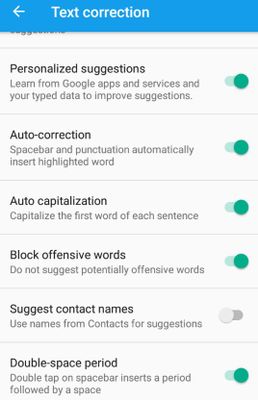
- Disable Automatic Capital Letters: Turn off the toggle switch next to “Automatic capital letters”.
How to Remove Automatic Capital Letters on Microsoft Swiftkey
SwiftKey is another popular virtual keyboard for Android devices. Here’s how to disable automatic capital letters:
- Open The Settings App: Go to your device’s settings menu and select “Settings” from the list.
- Select Keyboard & Input Methods: Choose the keyboard you’re currently using (Microsoft SwiftKey).
- Scroll Down to Keyboard Settings: Look for the “Keyboard settings” section and tap on it.
- Disable Initial Automatic Capital Letter: Turn off the toggle switch next to “Initial automatic capital letter”.
Tips And Variations
While disabling automatic capital letters is relatively straightforward, some users may encounter variations or exceptions. Here are a few tips to keep in mind:
- Some keyboards may not offer an option to disable automatic capital letters. In this case, you can try looking for alternative keyboard apps that do.
- If you’re experiencing issues with punctuation or sentence formatting after disabling automatic capital letters, you can try adjusting your keyboard settings accordingly.
Conclusion
Removing automatic capital letters on Android is a simple process that can save you time and effort when typing. By following the steps outlined in this guide, you can disable this feature using popular keyboards like Gboard and Microsoft SwiftKey. Whether you’re a seasoned typist or just starting out with your smartphone, disabling automatic capital letters can make typing more intuitive and enjoyable.
Final Tips
- If you have any questions or concerns about removing automatic capital letters on Android, feel free to ask in the comments section below.
- Don’t forget to explore other keyboard settings and features that may be available on your device.
- Experiment with different keyboards and apps to find the one that suits your typing needs best!


