
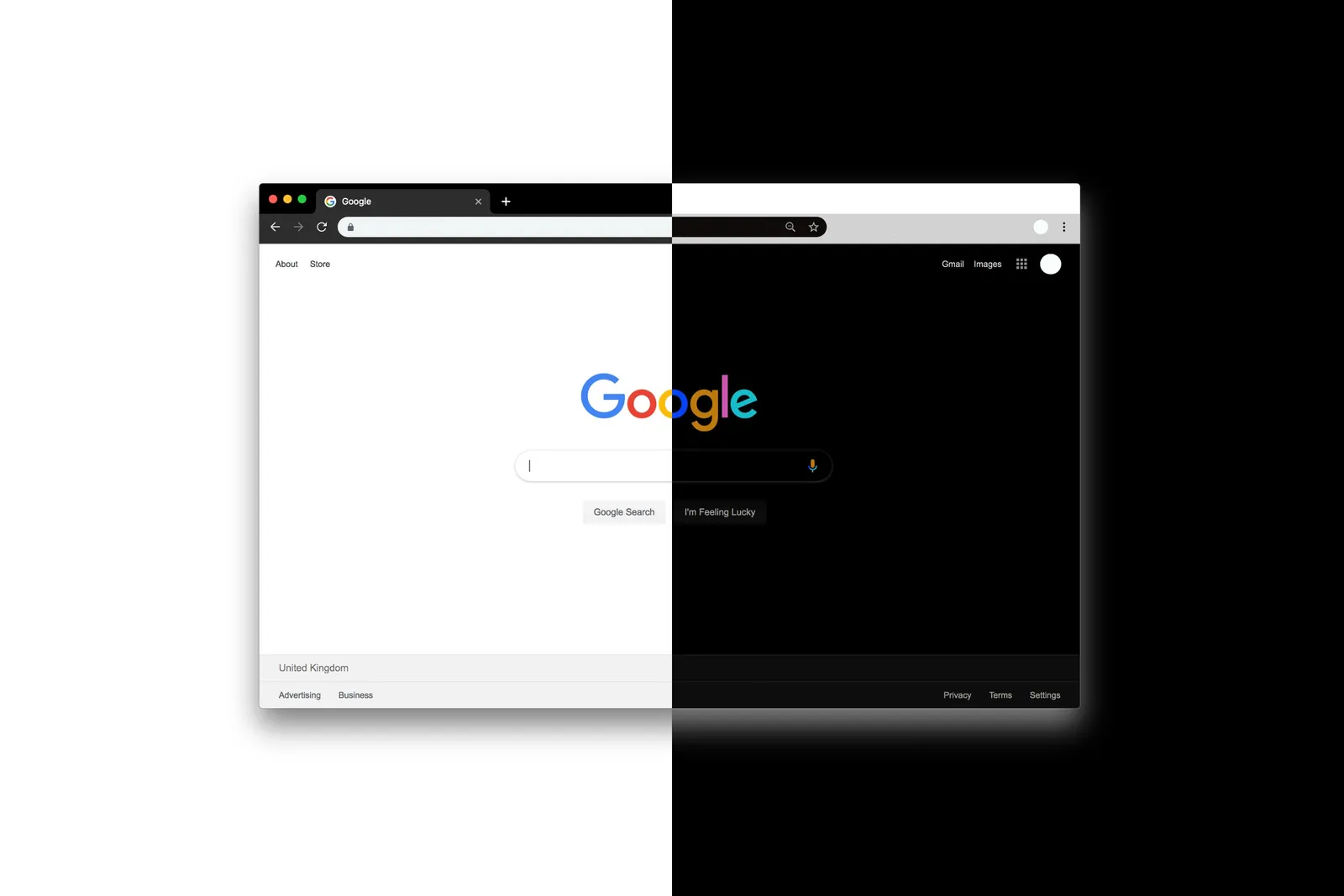
Removing Google’s Black Background: A Step-by-step Guide
Are you tired of Google’s black background dominating your screen? Do you want to make the search engine more visually appealing? Look no further! In this article, we will guide you through the process of removing Google’s black background on both PC and mobile devices.
Why Remove Google’s Black Background?
Google’s black background may seem like a minor issue, but it can be quite annoying, especially for those who use their computer or phone for extended periods. A black background can tire your eyes and make it difficult to focus on other tasks. By removing it, you can create a more comfortable browsing experience.
Removing Google’s Black Background on PC
To remove Google’s black background on PC, follow these simple steps:
- Open Google: First, open the Google homepage in your preferred browser.
- Click on Settings: Click on the three vertical dots in the top right corner of the screen and select “Settings” from the drop-down menu.
- Select Dark Topic: In the settings menu, scroll down to the “Appearance” section and click on “Dark topic.”
- Choose White Background: Select the white background option to remove Google’s black background.
Removing Google’s Black Background on Mobile Devices
To remove Google’s black background on mobile devices, follow these steps:
- Open Google Chrome: Open the Google Chrome app on your Android or iOS device.
- Tap on The Three Dots: Tap on the three dots in the top right corner of the screen to open the menu.
- Select Settings: Select “Settings” from the menu.
- Choose White Background: Scroll down to the “Appearance” section and select the white background option.
Removing Google’s Black Background on Android Devices
If you’re using an Android device, you can also remove Google’s black background by:
- Opening Google Chrome: Open the Google Chrome app.
- Tapping on The Three Dots: Tap on the three dots in the top right corner of the screen to open the menu.
- Selecting Settings: Select “Settings” from the menu.
- Choosing White Background: Scroll down to the “Appearance” section and select the white background option.
Removing Google’s Black Background on Ios Devices
If you’re using an iOS device, you can also remove Google’s black background by:
- Opening Google Chrome: Open the Google Chrome app.
- Tapping on The Three Dots: Tap on the three dots in the top right corner of the screen to open the menu.
- Selecting Settings: Select “Settings” from the menu.
- Choosing White Background: Scroll down to the “Appearance” section and select the white background option.
Additional Tips
- If you’re using a different browser, such as Firefox or Edge, you may need to adjust the settings accordingly.
- You can also customize Google Chrome’s appearance by selecting a custom theme or color scheme.
- If you’re not comfortable with changing your browser settings, you can always revert back to the default black background.
Conclusion
Removing Google’s black background is a simple process that can make your browsing experience more enjoyable. By following these step-by-step guides, you can customize Google’s appearance to suit your preferences. Happy browsing!


