
Removing Credit Card From Ps4: A Step-by-step Guide
Are you tired of unwanted charges on your PlayStation Store account? Do you want to remove a credit card from your PS4 console, smartphone, or computer? Look no further! In this article, we will guide you through the simple process of deleting a credit card associated with your PlayStation Network (PSN) account.
Why Remove a Credit Card From Your Psn Account?
Removing a credit card from your PSN account can be beneficial in several ways. For instance, if you’ve discovered an unauthorized charge or want to cancel an automatic renewal of your PlayStation Plus subscription, deleting the associated credit card is a straightforward solution.
Method 1: Remove Credit Card From Ps4 Console
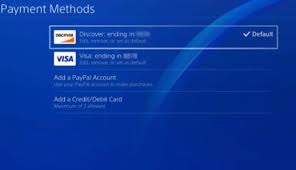
To remove a credit card from your PS4 console, follow these steps:
Step 1: Access The PS Store
- Light up your PS4 by pressing the power button.
- Select your account using the controller.
- Go to the PlayStation Store menu.
- Use the arrow buttons on your controller to select the “PlayStation Store” option.
- Press the X button to open the payment settings menu.
Step 3: Delete Credit Card
- Select the credit card you want to remove.
- Choose the “Delete” option and confirm with the password prompt.
Method 2: Remove Credit Card From Smartphone or Tablet
To delete a credit card from your mobile device, follow these steps:
Step 1: Download And Install PS App
- Download the PS App for Android (or iOS) devices.
- Log in to your account using your email address and password.
Step 2: Access Payment Settings
- Tap on the icon of the PS Store in the menu bar.
- Select the “≡” symbol in the top-right corner to access payment settings.
Step 3: Remove Credit Card
- Choose the credit card you want to delete.
- Tap on the “Delete” option and confirm with a password prompt.
Method 3: Remove Credit Card From Computer
To remove a credit card from your computer, follow these steps:
Step 1: Access PS Website
- Open a web browser (e.G., Chrome or Safari) and go to the official PlayStation website.
- Log in to your account using your email address and password.
- Click on the icon of the three profiles in the top-right corner.
- Select “Manage payments” from the dropdown menu.
Step 3: Remove Credit Card
- Choose the credit card you want to delete.
- Click on the “Remove” option and confirm with a password prompt.
Removing Automatic Renewal of Playstation Plus Subscription
If you’ve set up an automatic renewal for your PlayStation Plus subscription, you can cancel it without deleting the associated credit card. To do so:
Step 1: Access Payment Settings
- Follow the steps outlined in Method 3 (computer) or Method 2 (smartphone/tablet).
- Select the “Cancel automatic renewal” option.
Conclusion
Removing a credit card from your PSN account is a simple process that can be completed using any of the three methods outlined above. Whether you’re looking to cancel an unauthorized charge, delete a credit card associated with your subscription, or simply manage your payment settings, this guide has got you covered.


