
How to Remove Bumps From Microsoft Word Documents
Are you tired of seeing those pesky bumps or watermarks in your Microsoft Word documents? You’re not alone! Many users have been struggling with this issue, but don’t worry, we’ve got a solution for you.
In this article, we’ll show you how to remove bumps from Microsoft Word documents on both PC and online versions. We’ll also provide step-by-step instructions for removing bumps on mobile devices like smartphones and tablets.
What Are Bumps in Microsoft Word?
Before we dive into the solution, let’s quickly explain what bumps are in Microsoft Word. A bump, also known as a watermark or filigree, is an image that appears in the background of your document. It can be used to identify the document as being from a particular company or organization.
Why Remove Bumps?
While bumps may seem harmless, they can actually cause problems when sharing documents with others. They can also make it difficult to edit or print your documents. In this article, we’ll show you how to remove these bumps and have a clean, bump-free document.
Removing Bumps From Microsoft Word on PC
If you’re using Microsoft Word on your PC, removing bumps is relatively easy. Here’s how:
- Open Your Document: First, open the Microsoft Word document that contains the bump.
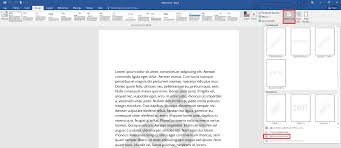
- Go to Design Tab: Click on the “Design” tab in the top menu bar.
- Select Watermark: In the “Watermark” section, click on “Remove Watermark”.
- Confirm Removal: A confirmation dialog box will appear. Click “OK” to remove the bump.
Removing Bumps From Microsoft Word Online
If you’re using Microsoft Word online, removing bumps is a bit trickier. Here’s how:
- Open Your Document: First, open the Microsoft Word document that contains the bump in your web browser.
- Go to File Menu: Click on the “File” menu and select “Info”.
- Click on Edit Link: Click on the “Edit Link” button next to the document title.
- Open in Desktop App: A dialog box will appear asking you to open the document in the desktop app. Click “OK” to do so.
- Remove Bump: Once opened in the desktop app, follow the steps outlined above for removing bumps from Microsoft Word on PC.
Removing Bumps From Mobile Devices
If you’re using Microsoft Word on your mobile device (smartphone or tablet), removing bumps is a bit more complicated. Here’s how:
- Open Your Document: First, open the Microsoft Word document that contains the bump.
- Go to File Menu: Tap on the “File” menu and select “Info”.
- Click on Edit Link: Click on the “Edit Link” button next to the document title.
- Open in Desktop App: A dialog box will appear asking you to open the document in the desktop app. Tap “OK” to do so.
- Remove Bump: Once opened in the desktop app, follow the steps outlined above for removing bumps from Microsoft Word on PC.
Alternative Solutions
If you don’t have access to a PC or prefer not to use the desktop app, there are alternative solutions available:
- Google Docs: You can use Google Docs as an alternative to Microsoft Word. To remove bumps in Google Docs, simply go to “Insert” > “Watermark” and select “Remove Watermark”.
- Wps Office: WPS Office is another popular office suite that allows you to remove bumps from your documents.
Conclusion
Removing bumps from Microsoft Word documents is a relatively simple process, whether you’re using the desktop app or online version. By following the steps outlined in this article, you should be able to get rid of those pesky bumps and have a clean, bump-free document.
We hope this article has been helpful! If you have any further questions or concerns, feel free to ask.
Frequently Asked Questions
- What is a Bump in Microsoft Word?
A bump, also known as a watermark or filigree, is an image that appears in the background of your document. - Why Remove Bumps From Microsoft Word Documents?
Bumps can cause problems when sharing documents with others and make it difficult to edit or print your documents. - How do I Remove Bumps From Microsoft Word on Pc?
To remove bumps from Microsoft Word on PC, go to the “Design” tab and select “Remove Watermark”. - Can I Remove Bumps From Microsoft Word Online?
Yes, you can remove bumps from Microsoft Word online by opening your document in the desktop app. - How do I Remove Bumps From Mobile Devices?
To remove bumps from mobile devices, open your document in the desktop app and follow the steps outlined above.
Related Articles
- How to Edit Watermarks in Microsoft Word
- Removing Bumps From Google Docs
- Using Wps Office to Remove Bumps From Documents


