
How to Bypass Password Protection on Excel Files
Are you tired of being unable to access your password-protected Excel files? Do you want to modify or edit the data in these files, but are blocked by the password protection? Look no further! In this article, we will guide you through the process of bypassing password protection on Excel files using various methods.
Method 1: Bypassing Password Protection Using Excel
If you have created a password-protected Excel file and want to access it without entering the password, there is a simple method to do so. Follow these steps:
- Open the Excel file.
- Click on “File” in the top left corner of the screen.
- Select “Protect Workbook” from the drop-down menu.
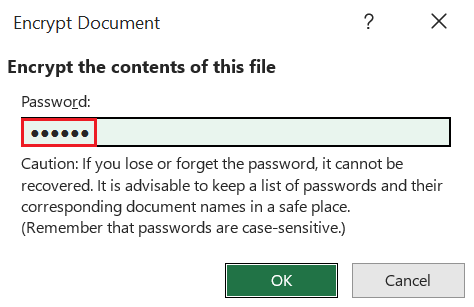
- Uncheck the box that says “Encrypt with Password.”
- Click “OK.”
By following these steps, you will be able to access and modify your Excel file without entering a password.
Method 2: Using Vba Script to Bypass Password Protection
If the above method does not work for you, or if you want to use a more advanced technique, you can try using a VBA script to bypass password protection. Here’s how:
- Open the Excel file.
- Press “Alt + F11” on your keyboard to open the Visual Basic Editor.
- In the Visual Basic Editor, click on “Insert” and then select “Module” from the drop-down menu.
- Paste the following code into the module window:
Sub PasswordBreaker()

    Dim The As Integer, j As Integer, k As Integer

    Dim l As Integer, m As Integer, n As Integer

    For The = 65 To 66: For j = 65 To 66: For k = 65 To 66

        For l = 65 To 66: For m = 65 To 66: For i1 = 65 To 66

            For i2 = 65 To 66: For i3 = 65 To 66: For i4 = 65 To 66

                For i5 = 65 To 66: For i6 = 65 To 66: For n = 32 To 126

                    ActiveSheet.Unprotect Chr(The) & Chr(j) & Chr(k) & _

                        Chr(l) & Chr(m) & Chr(i1) & Chr(i2) & Chr(i3) & _

                        Chr(i4) & Chr(i5) & Chr(i6) & Chr(n)

                    If ActiveSheet.ProtectContents = False Then

                        MsgBox "One usable password is " & Chr(The) & Chr(j) & _

                            Chr(k) & Chr(l) & Chr(m) & Chr(i1) & Chr(i2) & _

                            Chr(i3) & Chr(i4) & Chr(i5) & Chr(i6) & Chr(n)

                        Exit Sub

                    End If

                Next n: Next i6: Next i5: Next i4: Next i3: Next i2: Next i1: Next m: Next l: Next k: Next j: Next The

End Sub - Click “Run” to execute the script.
By following these steps, you will be able to bypass password protection and access your Excel file.
Method 3: Using Passware Excel Key
If the above methods do not work for you, or if you want a more advanced tool to help you bypass password protection, you can try using Passware Excel Key. This software is specifically designed to help you recover passwords from Excel files.
Here’s how to use Passware Excel Key:
- Download and install Passware Excel Key on your computer.
- Launch the program and select “Excel” as the file type.
- Browse for the Excel file you want to access.
- Select the correct password recovery method (brute force or dictionary attack).
- Click “Start” to begin the password recovery process.
By following these steps, you will be able to bypass password protection and access your Excel file using Passware Excel Key.
Method 4: Using Script And Programs of Third Parties
If none of the above methods work for you, there are other script and programs available that can help you bypass password protection on Excel files. These scripts and programs use brute force or dictionary attack to try and guess the password.
Here’s how to use these scripts and programs:
- Download and install a script or program specifically designed to bypass password protection on Excel files.
- Launch the script or program and select the correct file type (Excel).
- Browse for the Excel file you want to access.
- Select the correct password recovery method (brute force or dictionary attack).
- Click “Start” to begin the password recovery process.
By following these steps, you will be able to bypass password protection and access your Excel file using a script or program of third parties.
Conclusion
Bypassing password protection on Excel files can be a complex process, but with the right tools and techniques, it is possible. In this article, we have provided four methods for bypassing password protection: Using Excel, using VBA script, using Passware Excel Key, and using scripts and programs of third parties.
Each method has its own advantages and disadvantages, and some may be more effective than others depending on the specific situation.
Faqs
Q: What is the best way to bypass password protection on Excel files?
A: The best way to bypass password protection on Excel files depends on your specific needs. If you are using a simple password-protected file, you can try using Method 1 or Method 2. For more complex passwords or larger files, you may want to consider using Passware Excel Key (Method 3) or scripts and programs of third parties (Method 4).
Q: Can I bypass password protection on Excel files without losing data?
A: Yes, all the methods described in this article allow you to bypass password protection without losing any data. However, please note that bypassing password protection may void your warranty or breach your contract with Microsoft.
Q: How long does it take to bypass password protection using Passware Excel Key?
A: The time it takes to bypass password protection using Passware Excel Key depends on the complexity of the password and the size of the file. In some cases, it may take only a few seconds to recover the password. However, for more complex passwords or larger files, it may take several minutes or even hours.
Q: Are there any risks associated with bypassing password protection?
A: Yes, bypassing password protection can pose risks if not done properly. Please make sure to use the correct tools and techniques to avoid damaging your file or compromising your data.


