
How to Remove Administrator Page Facebook: A Step-by-step Guide
Are you tired of having multiple administrators on your Facebook page? Do you want to take control of who can manage your page’s settings, content, and analytics? Look no further! In this article, we’ll guide you through the step-by-step process of removing an administrator from your Facebook page.
Understanding Facebook Page Roles
Before we dive into the instructions, it’s essential to understand the different roles available on a Facebook page. As of now, there are two types of pages: New Experience Pages and Classic Pages. The “new” pages have an updated layout, faster profile-to-page transition, and newer management tools.
In classic pages, you’ll find roles like administrator, editor, moderator, publisher, and analyst. However, these roles have been replaced by a control system in new experience pages, offering complete or partial control over the page.
Removing Administrator Page Facebook: A Computer-based Guide
To remove an administrator from your Facebook page using a computer:
- Open Your Browser: Launch your preferred browser (e.G., Google Chrome, Safari) and navigate to Facebook’s homepage.
- Access Your Account: Sign in to your Facebook account if necessary. If you’re using Windows 10 or later versions, consider using the official Facebook app for a smoother experience.
- Select Pages: In the left-hand menu, click on “Pages” or use the link [your page name].
- Choose The Dashboard For Professionals: Select the “Dashboard for Professionals” option from the left-hand menu or click on the “Manage” button next to your profile picture.
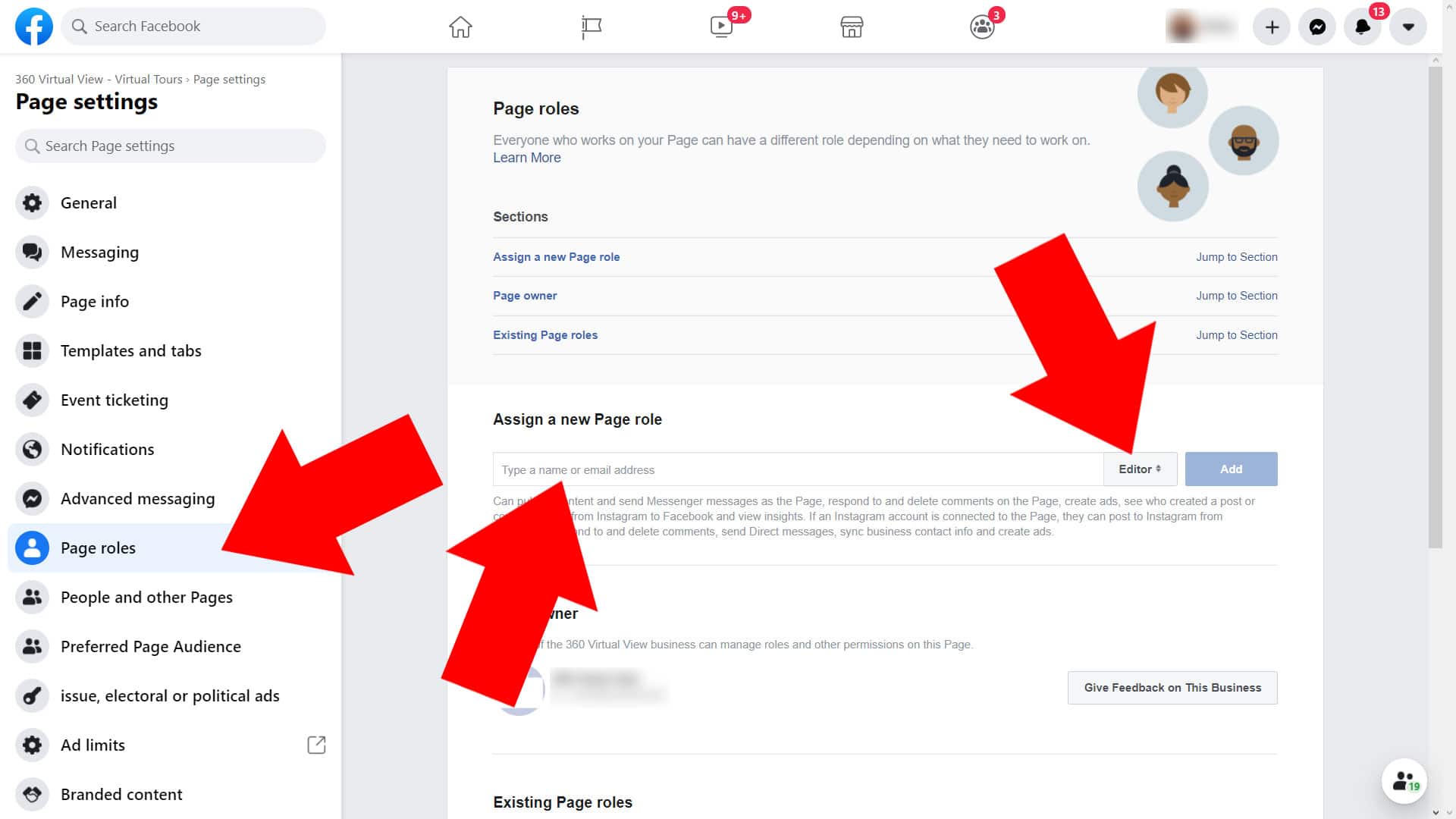
- Access Page Settings: In the new page, navigate to the “Your Instruments” section and select “Access to the Page.”
- View And Remove Admins: Identify the user you want to revoke access for in the “Persons with Access to Facebook” section. Click on the three dots next to their name and choose “Remove Access.”
Removing Administrator Page Facebook: A Smartphone-based Guide
To remove an administrator from your Facebook page using a smartphone:
- Launch The Facebook App: Open the Facebook app on your Android or iOS device.
- Login to Your Account: Sign in to your Facebook account if necessary.
- Tap Menu: Tap the menu icon (three horizontal lines) and select “Pages” or navigate to the page’s settings.
- View Roles: Scroll down and find the “Other Information on Your Page” section, then tap “Manage Administrators.”
- Remove Access: Identify the user you want to revoke access for in the “Persons with Access to Facebook” section. Tap the three dots next to their name and choose “Remove Access.”
Why Can’t I Remove Administrator Page Facebook?
If you’re facing issues removing an administrator, try checking the Facebook Center assistance:
- On smartphones: Tap Menu > Assistance and Support > Center assistance.
- On computers: Click on your profile picture > Assistance and Support > Center assistance.
You can find answers to common problems by typing keywords related to your issue in the search bar. Also, explore the various topics covered in the center’s menu for more information.
Conclusion
Removing an administrator from your Facebook page is a straightforward process that requires you to access the settings of your page and revoke access for the specific user. By following these step-by-step guides on both computers and smartphones, you’ll be able to take control of your page’s management and ensure that only authorized personnel can make changes.
Frequently Asked Questions
- Q: What Happens When I Remove an Administrator From my Facebook Page?
A: The user will no longer have access to manage your page, but their existing content and actions will remain visible. - Q: Can I Still Use The Classic Version of Facebook Pages to Remove Administrators?
A: Yes, you can still remove administrators using the classic page settings. First, access the “Settings” menu on your classic page, then click on “Roles,” find the user’s name, and revoke their administrator role. - Q: Why Does my Facebook Page Need a New Experience Upgrade?
A: Upgrading to the new experience offers faster profile-to-page transitions, updated management tools, and improved security features.
By understanding your page roles and following these step-by-step guides, you’ll be able to take control of your Facebook page’s administration and ensure that only authorized personnel can make changes.


