
Removing Friends on Facebook: A Step-by-step Guide
Are you tired of seeing unwanted friends on your Facebook profile? Look no further! In this article, we’ll guide you through the process of removing friends on Facebook using different devices.
Why Remove Friends on Facebook?
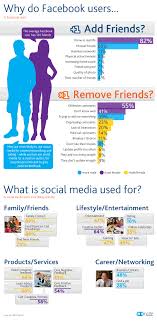
Before we dive into the step-by-step guide, let’s quickly discuss why someone might want to remove friends on Facebook. Perhaps you’ve realized that you have a lot of acquaintances or people you’ve met in passing as friends on Facebook without actually knowing them well. Maybe you’re just trying to declutter your online presence and focus on meaningful connections.
Whatever the reason, removing unwanted friends on Facebook can be easily done using various devices. So, let’s get started!
Removing Friends on Facebook: A Device-by-device Guide
Using a Smartphone or Tablet (Android/iPhone)
- Open the Facebook app on your device.
- Tap on the three horizontal lines (≡) in the top-right corner of the screen.
- Scroll down and tap on “Friends.”
- Tap on the friend you want to remove from your list.
- Tap on the “Remove” button.
Using a Computer
- Log in to your Facebook account using a computer.
- Click on the “Friends” tab on the left-hand side of the page.
- Scroll down and find the friend you want to remove.
- Hover over their name and click on the “X” icon next to it.
- Confirm that you want to remove them from your friends list.
How to Remove Multiple Friends at Once
If you have many unwanted friends, you can also remove multiple friends at once using a smartphone or tablet:
- Open the Facebook app.
- Tap on the three horizontal lines (≡) in the top-right corner of the screen.
- Scroll down and tap on “Friends.”
- Tap on the icon with three dots (⋯) next to each friend you want to remove.
- Select “Remove” from the dropdown menu.
Similarly, using a computer:
- Log in to your Facebook account.
- Click on the “Friends” tab on the left-hand side of the page.
- Check the box next to each friend you want to remove.
- Click on the “Remove” button at the top of the page.
Removing All Friends at Once (Not Possible Directly)
Unfortunately, it’s not possible to remove all friends at once directly from Facebook using a smartphone or computer. However, there are some extensions for Google Chrome that can help you achieve this:
- F-Magic: This extension allows you to quickly add or remove multiple friends.
- Facebook Mass Remover: This extension enables you to bulk-remove friends.
Please note that these extensions are not officially endorsed by Facebook and may pose a potential risk to your privacy. Therefore, exercise caution when using them.
Removing Friends Quickly Using The “Your Friends” Tab
If you’re looking for an easier way to remove multiple friends at once, you can use the “Your Friends” tab:
- Open the Facebook app.
- Tap on the three horizontal lines (≡) in the top-right corner of the screen.
- Scroll down and tap on “Friends.”
- Tap on the icon with three dots (⋯) next to each friend you want to remove.
Alternatively, using a computer:
- Log in to your Facebook account.
- Click on the “Friends” tab on the left-hand side of the page.
- Check the box next to each friend you want to remove.
- Click on the “Remove” button at the top of the page.
Conclusion
Removing friends on Facebook can be a straightforward process, and we hope this guide has been helpful in showing you how to do so using different devices. Remember that removing unwanted friends can help declutter your online presence and focus on meaningful connections.
Frequently Asked Questions (FAQs)
- Q: Why do I Need to Remove Friends on Facebook?
A: You may want to remove friends on Facebook if you have acquaintances or people you’ve met in passing as friends without actually knowing them well. - Q: Can I Remove All Friends at Once Directly From Facebook?
A: Unfortunately, it’s not possible to remove all friends at once directly from Facebook using a smartphone or computer. - Q: What Are The Risks Associated With Using Extensions Like F-magic or Facebook Mass Remover?
A: These extensions may pose a potential risk to your privacy and are not officially endorsed by Facebook. - Q: How Can I Report Someone For Harassment or Bullying on Facebook?
A: If you’re experiencing harassment or bullying on Facebook, please report the issue directly to Facebook’s moderators using their reporting tool. - Q: What Happens if I Remove a Friend From my List? Will They Still be Able to See my Posts?
A: When you remove someone from your friends list, they will no longer be able to see your posts or updates unless they have also added you as a friend.
We hope this guide has been helpful in answering some of the most frequently asked questions about removing friends on Facebook!


