
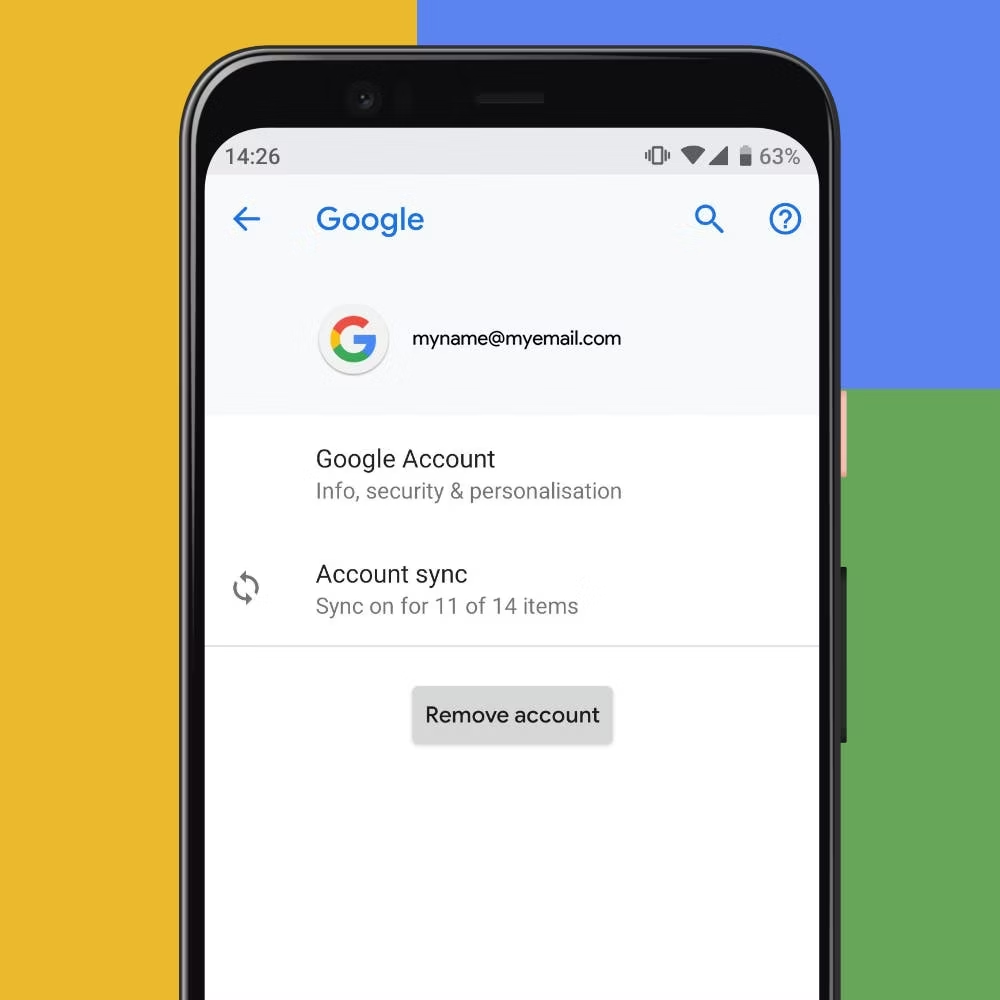
How to Deactivate or Delete Your Gmail Account Without Closing Your Google Account
Are you looking to deactivate or delete your Gmail account without closing your Google account? Or, perhaps you want to reactivate an old Gmail account on one of your devices? Whatever the reason, this article will guide you through a step-by-step process to help you manage your Gmail and Google accounts with ease.
Understanding Deactivation And Closure
Before we dive into the procedure, it’s essential to understand the difference between deactivating and closing a Gmail account. Deactivating an account means that it will be temporarily suspended, while all data associated with it will remain intact. On the other hand, closing an account means that it will be permanently deleted, including all data associated with it.
Pre-requisites For Deactivation/closure
Before you proceed to deactivate or close your Gmail account, ensure that:
- You have accessed Google and logged into your account.
- You have created a backup of all emails, contacts, and files stored in your Gmail account.
- You are aware of the consequences of deactivating/closing your account.
Step 1: Deactivate Your Gmail Account
To deactivate your Gmail account:
- Log into your Google account on any device.
- Click on your profile picture or initial at the top right corner and select “Account.”
- From the menu that opens, click on “Given and privacy” (on the left).
- Scroll down to the section labeled “Other options” and click on the button that says “Delete account Google.”
- Enter your password in the designated field.
- Select the reason for deleting the account (optional) and confirm by clicking the “Delete account” button.
Step 2: Close Your Gmail Account
To close your Gmail account permanently:
- Follow the same steps as above to reach the deletion confirmation page.
- Click on the “Delete account Google” option again.
- Select the reason for deleting the account (optional) and confirm by clicking the “Delete account” button.
How to Reactivate a Deactivated Gmail Account
If you’ve deactivated your Gmail account but now want to reactivate it:
- Log into your Google account on any device.
- Click on your profile picture or initial at the top right corner and select “Account.”
- From the menu that opens, click on “Given and privacy” (on the left).
- Scroll down to the section labeled “Other options” and click on the button that says “Reactivate account Google.”
Managing Your Gmail Account Across Devices
To manage your Gmail account across different devices:
- Windows: Go to Settings > Accounts > Email and accounts, then select the Google account associated with your Gmail address.
- Mac: Go to System Preferences > Internet accounts, then select the Google account associated with your Gmail address.
- Android: Open the Settings app, select “Accounts,” then choose the Google account associated with your Gmail address.
- Iphone/ipad: Open the Settings app, scroll down and select “Mail,” then select the account you want to manage.
Frequently Asked Questions (FAQs)
- Q: Will deleting my Gmail account delete all my Google accounts?
A: No, deleting your Gmail account will not affect other Google accounts associated with different email addresses. - Q: What happens if I deactivate my Gmail account but forget my password?
A: If you’ve deactivated your Gmail account and forgot your password, try resetting it through the “Forgot password” option on the login page. - Q: How do I manage multiple Gmail accounts on one device?
A: To manage multiple Gmail accounts on a single device, follow the steps outlined in the section above for managing Gmail across devices.
Conclusion
Deactivating or deleting your Gmail account can be a straightforward process if done correctly. Remember to create a backup of all data associated with your account before proceeding. This article has provided you with step-by-step instructions on how to manage your Gmail and Google accounts across various devices.


