
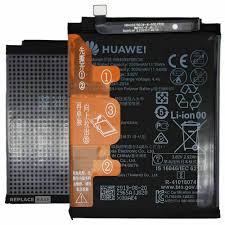
How to Remove And Replace The Battery in Your Huawei Smartphone or Tablet
Are you tired of dealing with a battery that no longer lasts all day? Do you want to learn how to remove and replace it yourself? Look no further! In this article, we will guide you through the process of removing and replacing the battery in your Huawei smartphone or tablet.
Why Replace The Battery?
If you’re experiencing issues with your device’s battery life, such as it not lasting more than a few hours, then it might be time to consider replacing it. A new battery can breathe new life into your device, making it run faster and smoother.
Is My Device Still Under Warranty?
Before proceeding with the replacement process, it’s essential to check if your device is still under warranty. If it is, you may be able to get a free replacement or repair from Huawei. Check your device’s warranty card or contact Huawei customer support to confirm.
Removing The Battery: A Step-by-step Guide
To remove the battery from your Huawei smartphone or tablet, follow these steps:
- Prepare Your Workspace: Find a clean and flat surface to work on. You’ll also need a screwdriver, a plastic spudger, and a new battery.
- Power Off Your Device: Turn off your device completely before starting the process.
- Remove The Sim Card Tray: Use the provided ejector tool or a paper clip to remove the SIM card tray. This will give you access to the device’s internal components.
- Remove The Back Panel: Use a plastic spudger to pry open the back panel of your device. Be careful not to damage any of the surrounding components.
- Locate And Remove The Battery: Once inside, locate the battery and gently lift it out of its compartment.
Replacing The Battery: A Step-by-step Guide
To replace the battery with a new one, follow these steps:
- Prepare Your New Battery: Make sure you have a compatible replacement battery for your device.
- Remove Any Adhesive Tape: Remove any adhesive tape that may be holding the old battery in place.
- Install The New Battery: Carefully insert the new battery into its compartment, ensuring it is properly seated and secured.
- Replace The Back Panel: Put back the back panel and ensure it is securely fastened with the provided screws.
- Reinsert The Sim Card Tray: Put back the SIM card tray and ensure it is securely locked in place.
What to Do If You Need Assistance
If you’re not comfortable performing this process yourself or encounter any issues, don’t hesitate to contact Huawei customer support for assistance. They can guide you through the process or send a authorized technician to perform the replacement.
Tips And Tricks
Before starting the replacement process, make sure you have:
- A compatible replacement battery
- The necessary tools (screwdriver, plastic spudger)
- A clean and flat workspace
It’s also essential to follow proper safety precautions when working with electronic devices. Avoid touching any of the internal components or wires.
Conclusion
Replacing the battery in your Huawei smartphone or tablet is a relatively straightforward process that can be completed at home. However, if you’re unsure about performing this task yourself, it’s always best to consult a professional for assistance. Remember to follow proper safety precautions and ensure you have all the necessary tools and materials before starting.
Frequently Asked Questions (FAQs)
Q: What is the warranty period for Huawei devices?
A: The warranty period varies depending on your region and device model. Check with Huawei customer support for specific details.
Q: Can I replace the battery myself?
A: Yes, you can replace the battery yourself if you’re comfortable with DIY projects and have the necessary tools.
Q: What tools do I need to remove and replace the battery?
A: You’ll need a screwdriver, a plastic spudger, and possibly other specialized tools depending on your device model.
Q: Can I get a free replacement or repair from Huawei if my device is still under warranty?
A: Yes, you may be eligible for a free replacement or repair if your device is still under warranty. Check with Huawei customer support to confirm.
Q: How long does the battery replacement process take?
A: The time it takes to replace the battery can vary depending on your level of comfort with DIY projects and any potential issues that may arise during the process.
Q: Can I use a third-party replacement battery?
A: Yes, you can use a compatible third-party replacement battery. However, ensure it meets Huawei’s specifications for compatibility and safety.
Q: What if I damage my device during the replacement process?
A: If you damage your device during the replacement process, contact Huawei customer support or an authorized technician for assistance.


