
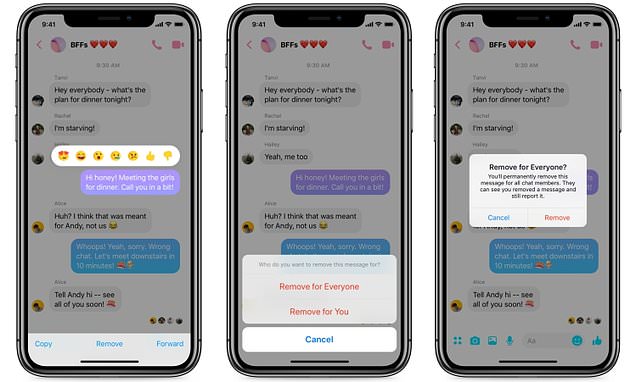
How to Remove Ignore Messages on Messenger
Are you tired of ignoring messages from a friend or acquaintance who just won’t take the hint? Do you want to remove them from your ignore list, but not delete the conversation entirely? Look no further! In this article, we’ll show you how to remove ignore messages on Messenger, whether you’re using a smartphone, tablet, computer, or Mac.
Why Remove Ignore Messages?
Removing ignore messages on Messenger can be useful for several reasons:
- You want to keep the conversation open without receiving notifications.
- You don’t want to delete the entire conversation, but rather just stop ignoring the person’s messages.
- You’re trying to avoid conflict or drama by not deleting the conversation altogether.
How to Remove Ignore Messages on Smartphone And Tablet
Removing ignore messages on Messenger is relatively straightforward when using a smartphone or tablet. Here’s how:
On Android
- Open the Messenger app on your Android device.
- Tap on your profile picture in the top left corner of the screen.
- Select “Required messages” from the menu.
- Choose “Spam” from the next menu.
- Select the conversation you want to remove from ignore.
- Type a message in the text field and send it.
This will disable the option to ignore the messages, and the conversation will be moved back to your main conversation list.
On Ios/ipados
- Open the Messenger app on your iPhone or iPad.
- Tap on your profile picture at the top right corner of the screen.
- Select “Spam” from the menu.
- Choose the conversation you want to remove from ignore.
- Type a message in the text field and send it.
Again, this will disable the option to ignore the messages, and the conversation will be moved back to your main conversation list.
How to Remove Ignore Messages on Computer
Removing ignore messages on Messenger is also possible when using a computer. Here’s how:
On Web
- Open the Messenger website in your web browser.
- Log in to your account if you haven’t already.
- Click on your profile picture at the top right corner of the screen.
- Select “Spam” from the menu.
- Choose the conversation you want to remove from ignore.
- Type a message in the text field and send it.
This will disable the option to ignore the messages, and the conversation will be moved back to your main conversation list.
On Windows
- Open the Messenger app on your computer.
- Log in to your account if you haven’t already.
- Click on your profile picture at the top right corner of the screen.
- Select “Message Request” from the menu.
- Choose “Spam” from the next menu.
- Select the conversation you want to remove from ignore.
- Type a message in the text field and send it.
This will disable the option to ignore the messages, and the conversation will be moved back to your main conversation list.
On Macos
- Open the Messenger app on your Mac.
- Log in to your account if you haven’t already.
- Click on your profile picture at the top right corner of the screen.
- Select “Spam” from the menu.
- Choose the conversation you want to remove from ignore.
- Type a message in the text field and send it.
Again, this will disable the option to ignore the messages, and the conversation will be moved back to your main conversation list.
Tips And Variations
- You can also access the conversation by searching for the person’s name in the search bar at the top of the screen.
- If you want to delete the entire conversation instead of just removing it from ignore, you can do so by going to the conversation settings and selecting “Delete” or “Report”.
- Keep in mind that removing a conversation from ignore will not delete any messages or media files associated with the conversation.
Conclusion
Removing ignore messages on Messenger is a simple process that can be completed on various devices. By following the steps outlined above, you can disable the option to ignore specific conversations and keep them open without receiving notifications. Whether you’re using a smartphone, tablet, computer, or Mac, the process is relatively straightforward.


