
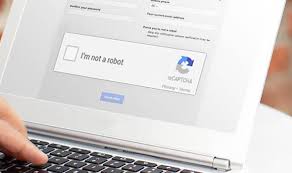
Removing Google’s “Are Not a Robot” Challenge: A Step-by-step Guide
As you navigate through Google’s search results, you may come across the infamous “Are not a robot” challenge. This security feature is designed to prevent bots and spammers from abusing Google’s services. However, it can be frustrating for users who are mistakenly flagged as robots. In this article, we’ll explore the reasons behind this issue and provide a step-by-step guide on how to bypass the challenge.
What is an IP Address?
Before we dive into the solution, let’s understand what an IP address is. An IP address (Internet Protocol) is a unique string of numbers that identifies your device on the internet. It serves as a digital signature, allowing data to be transmitted accurately between devices connected to the internet.
How Does Google Identify Bots?
Google uses various methods to identify bots and spammers. One way is by checking your IP address against a list of known bot addresses. If your IP address is found on this list, you’ll be presented with the “Are not a robot” challenge.
Why Am I Being Flagged as a Bot?
There are several reasons why you might be flagged as a bot:
- Your device has been compromised by malware or a trojan horse.
- You’re using a VPN or Tor to hide your IP address.
- You’ve installed suspicious extensions or software on your browser.
Step 1: Check Your IP Address
The first step is to verify if your IP address is clean. You can do this by visiting the website “What’s My IP” and checking if your IP address has any red flags. If you find any issues, proceed to the next step.
Step 2: Disable Suspicious Extensions
Malicious extensions can sometimes cause issues with Google’s security features. Check your browser extensions for any suspicious activity and disable them immediately.
- On Google Chrome or Microsoft Edge, click on the puzzle icon in the top right corner and select “Manage extensions.”
- Look for any unknown or suspicious extensions and remove them.
- Repeat this process for any other browsers you use.
Step 3: Disable Vpn or Tor
If you’re using a VPN or Tor to hide your IP address, disable it temporarily. This will help Google verify that you’re not a bot.
Step 4: Check For Malware And Viruses
Run an antivirus scan on your device to ensure there are no malware or viruses causing issues with your browser. If you find any problems, take immediate action to resolve them.
Step 5: Contact Your Internet Service Provider
If none of the above steps resolve the issue, contact your internet service provider (ISP) for assistance. They may be able to help you identify and remove any malicious activity associated with your IP address.
Conclusion
Removing Google’s “Are not a robot” challenge can be a frustrating experience, but by following these steps, you should be able to bypass the challenge and continue using Google without any issues.
Frequently Asked Questions
- What is an IP address?
- Why am I being flagged as a bot?
- How do I check if my IP address is clean?
- What are suspicious extensions, and how can I remove them?
- Can using a VPN or Tor cause issues with Google’s security features?
- How do I run an antivirus scan on my device?
- What should I do if none of the above steps resolve the issue?
- Can I contact Google directly for assistance?
Answers
- An IP address is a unique string of numbers that identifies your device on the internet.
- You may be flagged as a bot due to malware, suspicious extensions, or VPN/Tor usage.
- Check your IP address using the website “What’s My IP” and verify if there are any red flags.
- Suspicious extensions can cause issues with Google’s security features; remove them immediately.
- Yes, using a VPN or Tor can hide your IP address, which may trigger Google’s bot detection.
- Run an antivirus scan on your device to ensure there are no malware or viruses causing issues with your browser.
- Contact your internet service provider (ISP) for assistance if none of the above steps resolve the issue.
- You can contact Google directly via their support channels, but they may not be able to assist you due to security restrictions.
References
- “What’s My IP” website
- Google Chrome and Microsoft Edge browser documentation


